

AI Fix Suggestions
Introduction
For some accessibility issues, AAArdvark can go one step further than explaining the fix: it writes the exact change for the element it found and checks it before showing it to you.
What Are AI Fix Suggestions?
A Suggested fix appears on an issue instance when AAArdvark can build a fix for that specific element. Each suggestion shows the fix, the element it applies to, and a note on how the fix was checked, so you can copy it straight into your site.
Every suggestion is checked before you see it. For most issue types, AAArdvark runs the same test the scanner uses against the new code and only shows the suggestion if it clears the issue. When it can’t build a fix it can check, no suggestion appears, and you get the usual written guidance instead.
Suggestions are saved on the instance, so everyone in your workspace sees the same one.
Note: AI Fix Suggestions is currently in beta and available on paid plans. To request access for your workspace, contact our support team.
Finding a Suggested Fix
Suggestions appear on the issue detail page, on each instance card, just above the How to fix guidance.
- Open an issue from your site’s Issues list.
- On an instance card, look for the green Suggested fix bar. It names the element it applies to, for example Suggested fix on #braille-desk.
- Click the bar to open the suggestion.
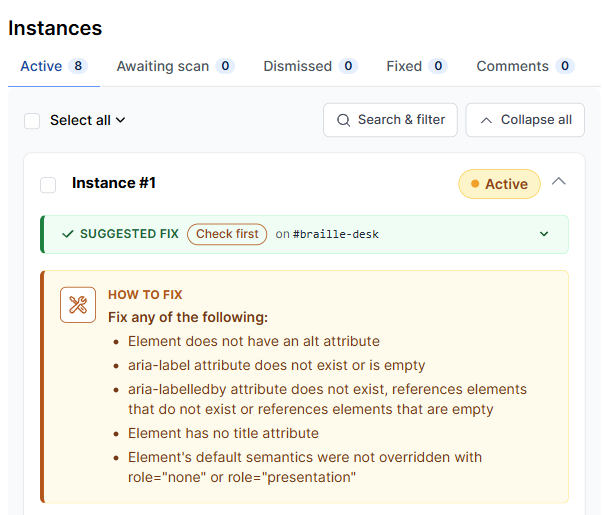
Not every instance has a suggestion. If you don’t see the bar, AAArdvark couldn’t build a checked fix for that element, so follow the How to fix guidance as usual.
Applying a Suggested Fix
When you open a suggestion, you’ll see everything you need before the Copy button:
- For text contrast, a preview of the colors before and after.
- A note on how the fix was checked, followed by Apply it to and the element to change.
- A note when the suggestion was written by AI.
- For duplicate IDs, a reminder that anything pointing to the old ID, such as a label, an ARIA reference, or a link, needs to be updated to the new ID.
Below are the Copy button and the suggested code.
To apply it:
- Read the notes above the Copy button.
- Click Copy.
- Find the element shown next to Apply it to in your site’s source code or CMS, and update it:
- For most issue types, the copied code is the element’s opening tag. Replace the opening tag with it.
- For a form field with a label that isn’t connected to it, the copied code is that label with a
forattribute added. Find the label near the field and replace it with the copied code. Leave the field as it is. - For a heading that skips a level, the copied code is the new opening tag. Replace the opening tag, then change the closing tag to match, for example
</h4>to</h3>. - For text that’s styled like a heading, the copied code is the whole heading, including its text and closing tag. Replace the whole element with it.
- For text contrast, the copied code is a CSS color. Add it to that element’s styles.
- Run a new scan to confirm the issue is gone.
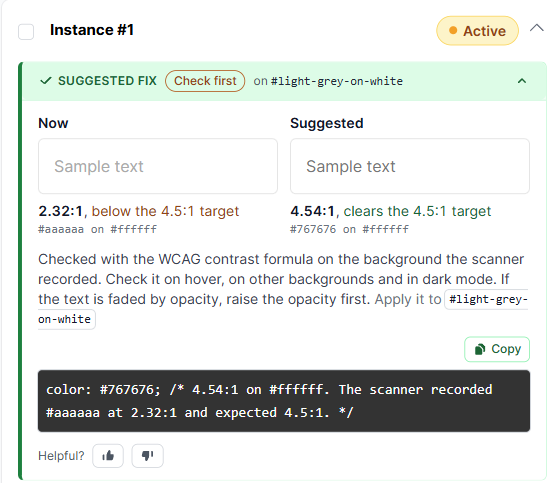
Note: If your browser blocks copying, AAArdvark shows the fix in a text field under the Copy button. Select it and press Ctrl+C (Cmd+C on a Mac).
At the bottom of each suggestion, Helpful? lets you mark whether the suggestion was useful.
Suggestions to Check First
Some suggestions carry a Check first label. They’ve still been checked against the issue, but the right answer can depend on things AAArdvark can’t see, such as what an image is there to do on your page or how text looks on hover. Review them before you apply them.
Suggestions written by AI also show a note saying so. For example, an image’s alt text suggestion reads: “Written by AI from the image and its markup. Check it before you apply it. We can see the image, but not what the image is there to do on your page.”
Which Issues Get Suggestions
AAArdvark can suggest fixes for these types of issues:
- Page language: corrects a language code on the page that isn’t valid, for example
en_UStoen-US, or makes the page’s two language attributes match when they disagree. - Form labels: names a form field that has no label, using wording that’s already there, such as a label that isn’t connected to the field, its title, or its placeholder text. It never makes up label text.
- Image alt text: writes alt text for an image that’s missing it, using AI to describe the image.
- Link and button names: gives a link or button with no accessible name a name, from the element itself where possible and with AI for the rest.
- Landmark names: names a page region (such as a navigation area) that needs a name, or a unique name when several share one.
- Text contrast: suggests a text color that meets the contrast requirement on the background the scan recorded.
- Headings: marks up text that’s styled like a heading but isn’t one as a real heading.
- Heading levels: corrects a heading that skips a level, for example an h4 that comes straight after an h2.
- Duplicate IDs: gives an element whose ID is already used on the page a new ID, for example
nav-2.
AAArdvark doesn’t suggest alt text for every image. It skips images inside a link or button (the fix belongs on the link or button’s name), charts and diagrams (these need a longer description), and decorative images (these need empty alt text).
To write alt text and names, AAArdvark sends the image or the element’s markup to Anthropic’s Claude.
Turning AI Fix Suggestions Off
You can turn suggestions off for your whole workspace. Click your name in the top-right corner, then Manage Workspace > Workspace Settings, and switch off AI Fix Suggestions under General Workspace Settings. When it’s off, no suggestions appear for any issue type in that workspace. If you turn it back on, earlier suggestions show again.

Only the workspace owner and admins can change this setting. Other members who can open Workspace Settings can see whether it’s on or off, but can’t change it.