

Changing a Site’s URL
Introduction
Moved your website to a new domain? Launched the live version of a site you first added with a test or staging URL? Or entered the wrong URL when adding a site? This guide answers “how do I change my site’s URL?” and explains which option keeps your issues and scan history.
Which Option Keeps Your History?
Your plan decides how you can change a site’s URL. The option you pick decides whether you keep your issues and scan history.
- Paid plans: Edit the URL yourself. You keep the same site, along with its issues and scan history.
- Homepage Only plan: You can’t edit the URL yourself, so you have two options:
- Ask our Support Team to change it. You keep your issues and scan history.
- Delete the site and add it again. You start fresh, and your old issues and scan history are deleted.
If you want to keep your past results, don’t delete the site. Change the URL yourself on a paid plan, or ask our Support to change it on the Homepage Only plan.
Change the Site URL Yourself (Paid Plans)
Use this when the same site has moved to a new address, for example from a staging URL to your live domain, or from an old domain to a new one.
- From the Main Dashboard, click your site’s name to open its Site Dashboard.
- Click Settings in the site’s sidebar to open your site settings.
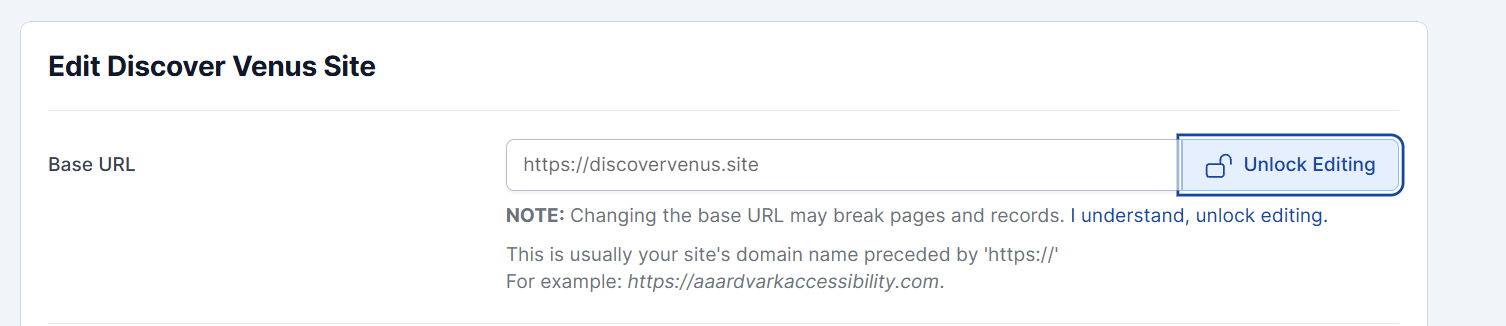
- At the top of the page, find the Base URL field and click Unlock Editing.
- You’ll see a caution under the field: “Changing the base URL may break pages and records.” Click I understand, unlock editing to continue.

The Base URL field on the Edit Site screen, with the Unlock Editing button. - Enter the new URL. This is usually your site’s domain name with
https://in front, likehttps://www.example.com. - Scroll to the bottom of the page and click Save.
Why the caution? Your pages and results are tied to the Base URL, so only change it when it’s the same site at a new address. If it’s a different site, add it as a new site instead.
Changing One Page’s URL
If only a single page moved (for example, /contact became /contact-us), edit that page instead of the whole site:
- From the Main Dashboard, click your site’s name to open its Site Dashboard.
- Click Pages in the site’s sidebar to open the Pages list.
- Click the pencil (Edit) icon next to the page.
- Under Path, click I understand, unlock editing.
- Enter the new path and click Update.
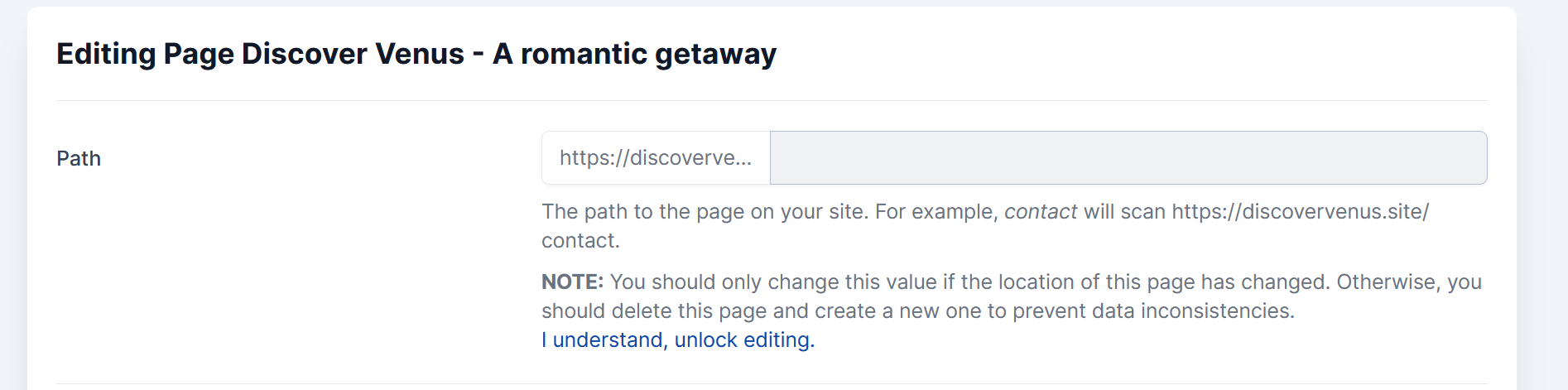
Only do this when the page itself has moved. If you want to scan a different page, delete this page and add a new page so your results don’t get mixed together.
Change the Site URL on the Homepage Only Plan
On the Homepage Only plan, AAArdvark detects your homepage automatically, so the Base URL and page Path fields are locked. You have two options.
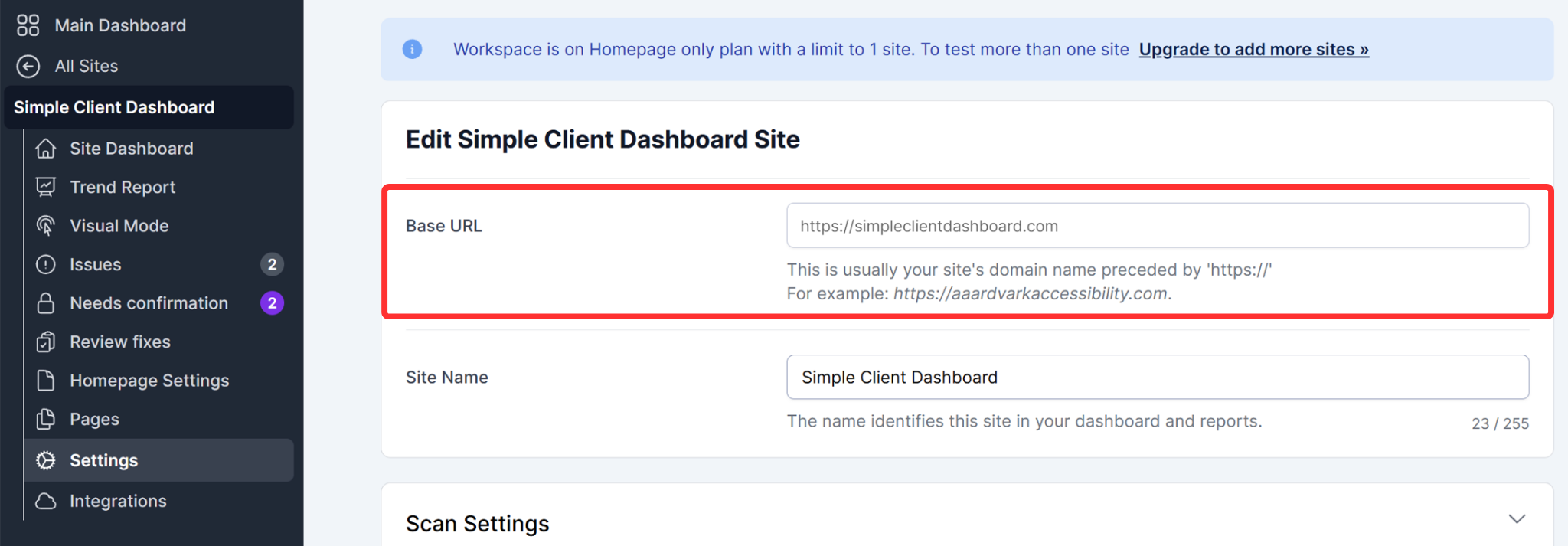
Option 1: Ask Our Support to Change It (Keeps Your History)
Choose this if you want to keep your current issues, stats, and scan history, and it’s the same site at a new address.
Contact our Support Team with:
- The current URL of the site or page in AAArdvark.
- The new URL you’d like it changed to.
We’ll update it for you, and your existing results stay attached to the site.
Option 2: Delete the Site and Add It Again (Starts Fresh)
Choose this if you don’t need your old results and would rather start with a clean slate.
- From the Main Dashboard, click your site’s name to open its Site Dashboard.
- Click Settings in the site’s sidebar to open your site settings.
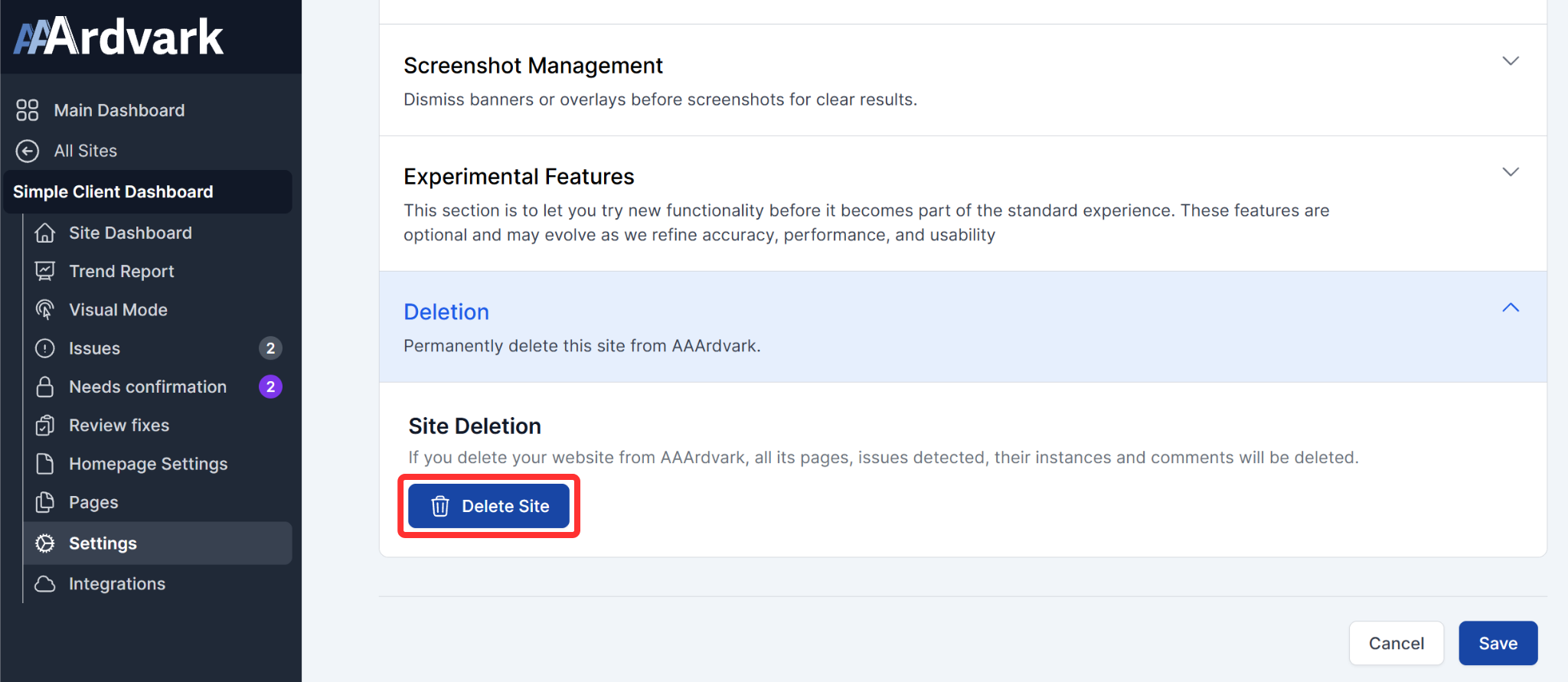
- Scroll down and click Deletion to expand it, then click Delete Site to remove it.

The Deletion section in your site’s settings. - In the confirmation window, click Delete Permanently.

The confirmation window lists everything that will be deleted. - Add a new site using the new URL.
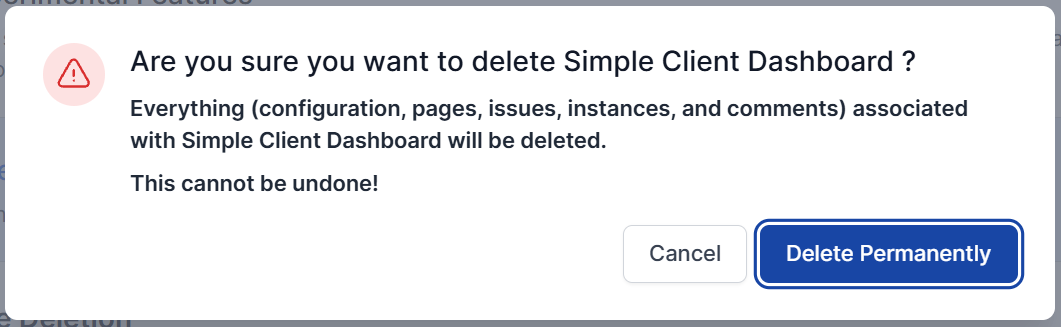
Keep in mind: Deleting a site permanently removes everything tied to it, including its configuration, pages, issues, comments, and scan history. This can’t be undone.
Want to Scan Both Your Test Page and Live Page?
The Homepage Only plan scans one page at a time. To scan a test page and your live page side by side, you’ll need to upgrade your plan to add more pages.
Why Your Scans Started Failing
AAArdvark scans the URL saved in your AAArdvark site settings. It doesn’t know when your website moves somewhere else.
For example, say you added your site as https://www.example.com/test while you were building it. Later, you launched it at https://www.example.com and removed the /test version. AAArdvark still scans https://www.example.com/test, which no longer exists, so the scans fail with a message like “The page could not be found.”
- If the old URL has been permanently removed, update the URL saved in AAArdvark to your new one, using the steps above for your plan.
- If the old URL is only temporarily offline, you don’t need to change anything. Once it’s back at the same address, the next scan picks it up again automatically.
For other failure messages, see Site Scan Failed and Page Scan Failed.