

API Integrations
Introduction
The API Integration feature allows you to connect AAArdvark with third-party applications and services. In this guide, we’ll walk you through how to create an API key to add it to an external application, making it easy for AAArdvark to integrate with your existing workflows.
Configuring API Integration
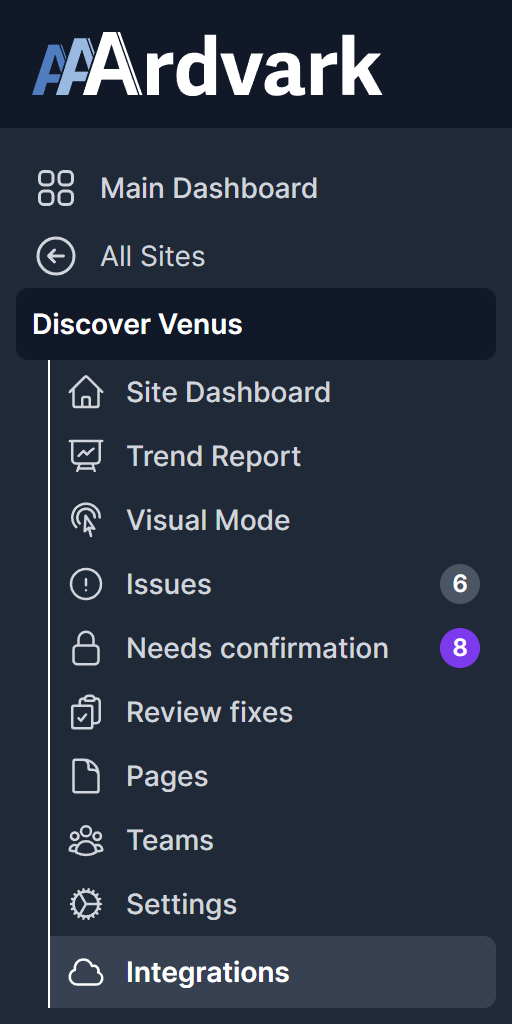
In your AAArdvark Workspace, select the site you’d like to configure from the left sidebar menu. Then, click Integrations to begin setting up your API key.
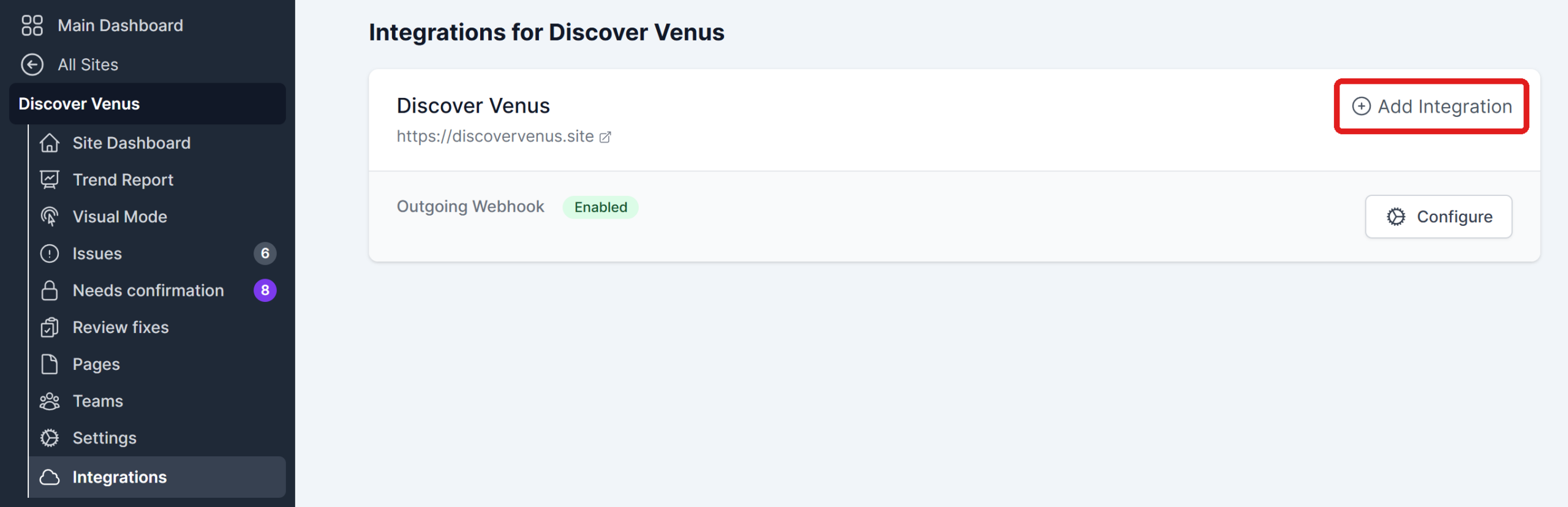
Once the Integrations screen opens next to the sidebar, select Add Integration.
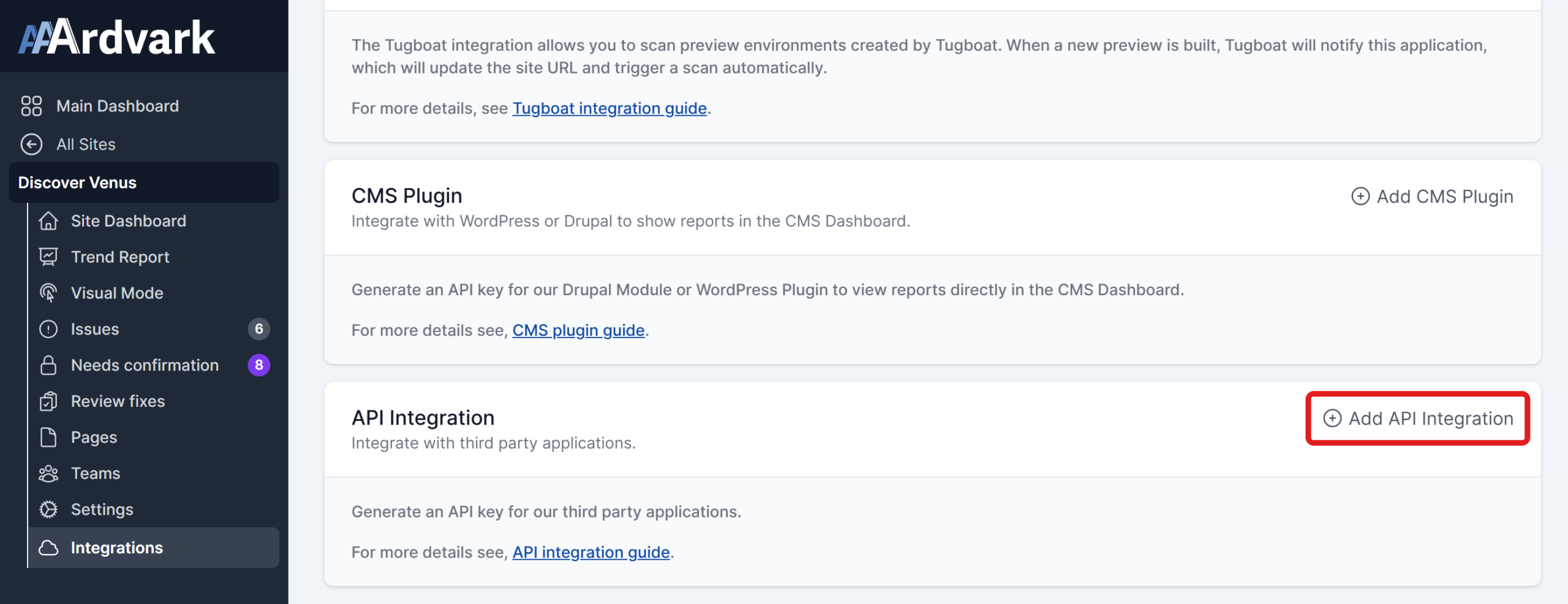
On the next screen, you’ll see the API Integration option at the bottom. Click Add API Integration to proceed.
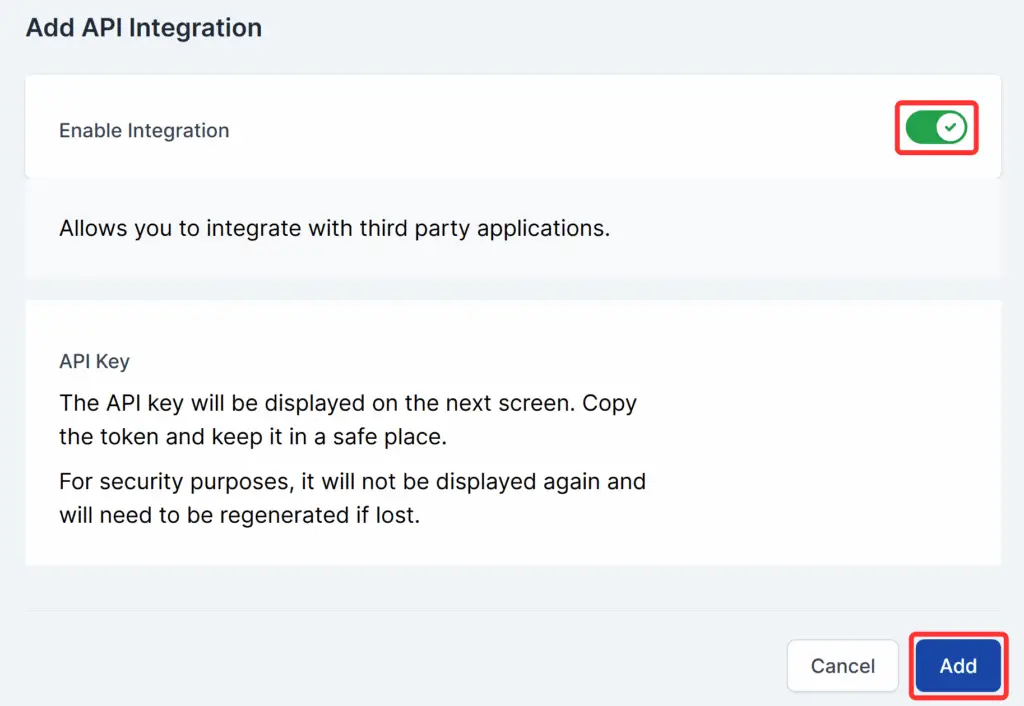
Then, on the next step, ensure the Enable Integration toggle is enabled and click Add to generate the API key.
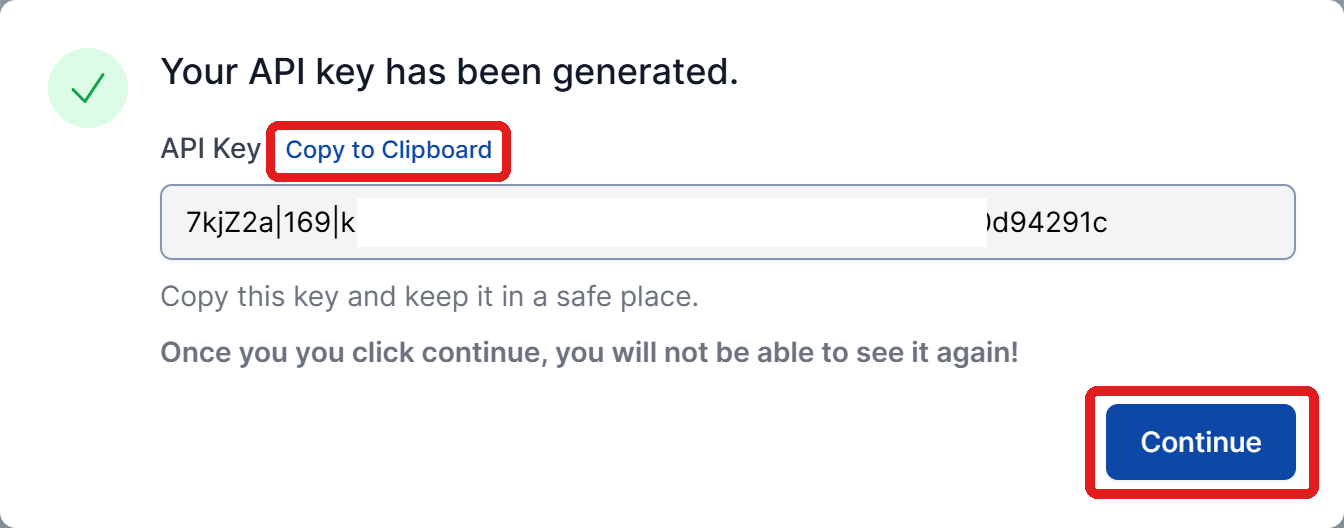
Your API key will be generated and ready to copy. After copying it from your AAArdvark workspace and pasting it into your third-party service, click Continue.
Note: Your API key is only shown once. After you click Continue, you won’t be able to see it again, so copy it and keep it somewhere safe before moving on. If you lose it, you can regenerate a new key.
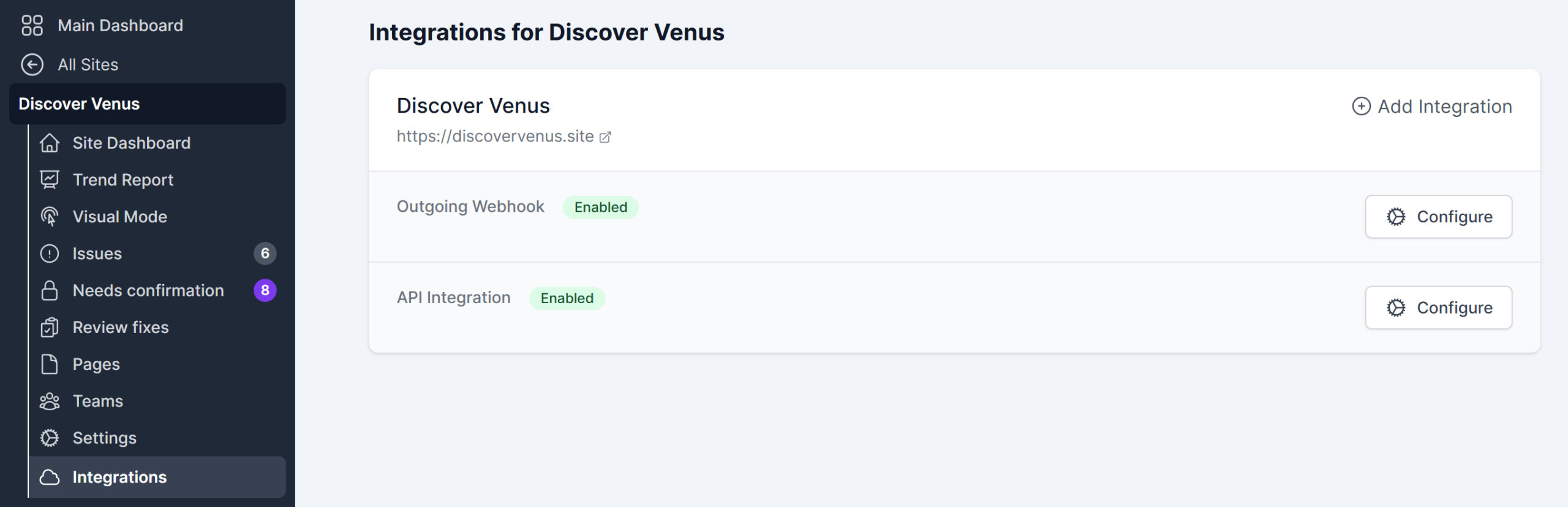
You’ll then see a confirmation that the API integration is enabled and ready to use.
Regenerating Your API Key
If you lost your key or need to replace it, you can generate a new one at any time.
- Select your site from the left sidebar menu and click Integrations.
- Next to API Integration, click Configure (the gear icon).
- Click Regenerate Key, then copy the new key from the pop-up before clicking Continue.
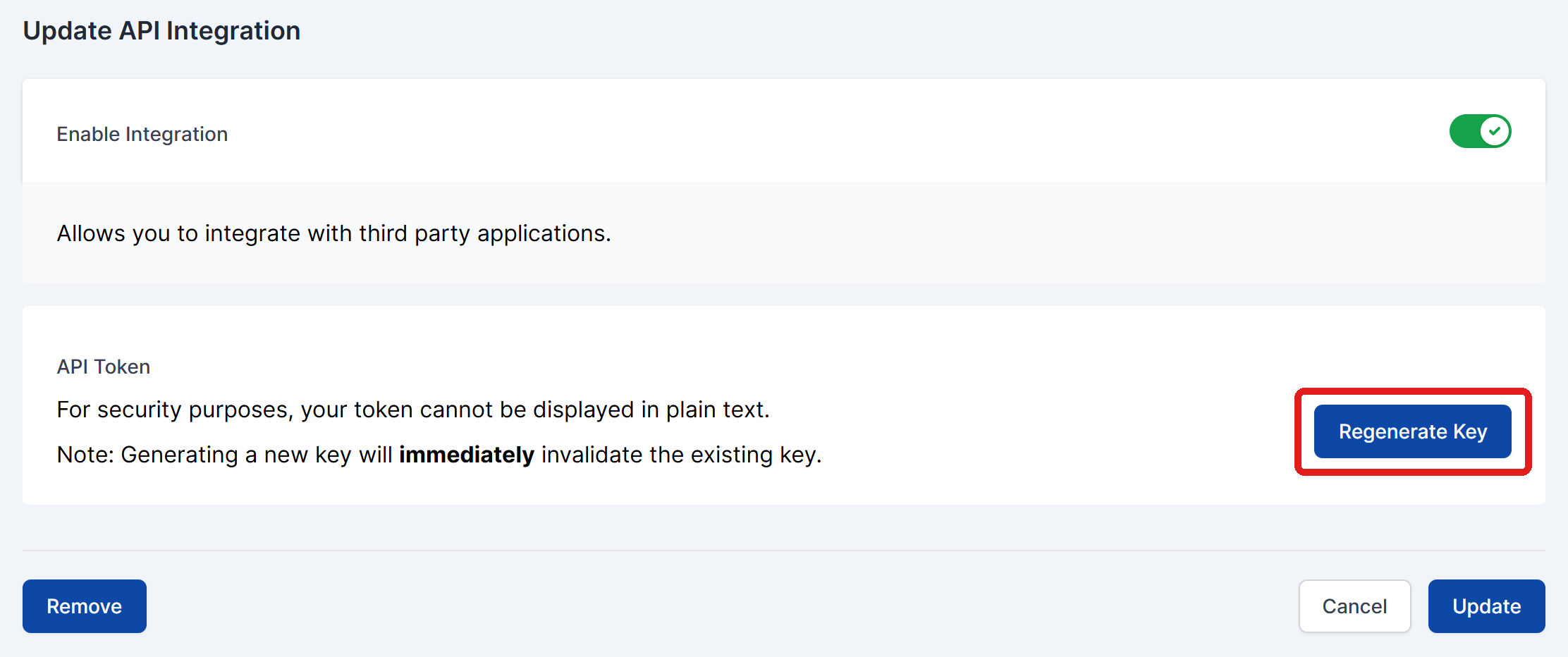
Regenerating a key immediately stops the old key from working. Update any third-party service that uses it with the new key.
API Key Not Working or Integration Failed
If your third-party service can’t connect, start with the basics:
- Check the key was copied in full, with no extra spaces or line breaks.
- Make sure the Enable Integration toggle is still on. Disabling it stops the key from working immediately.
- If the key was regenerated since you first copied it, the old value stops working right away. Update your third-party service with the new key, or regenerate a new one if you don’t have it.
Still stuck? Reach out to support.
Related Guides
-

Outgoing Webhooks
-
Setting Up an Outgoing Webhook
-
What’s Inside Each Webhook Message
-
Verifying Webhook Signatures