Site Tags
Introduction
Site Tags let you organize your sites within the workspace using color-coded labels. Whether you’re managing a handful of projects or sites, tags help you quickly organize and filter your sites right from the dashboard.
This guide will show you how to add Site Tags, manage them within the workspace, and view or filter sites using them.
To add a site tag or access existing tags, you can take the following steps:
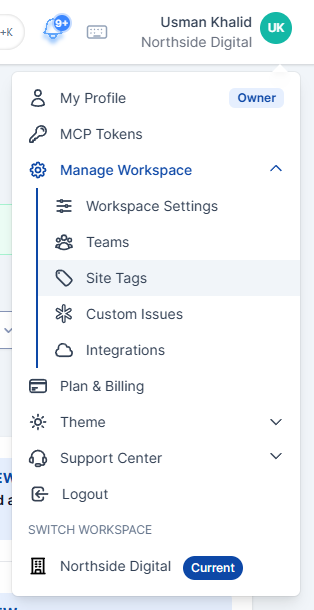
- Click your profile icon in the top-right corner to open the menu.
- Open the Manage Workspace dropdown, then select Site Tags.
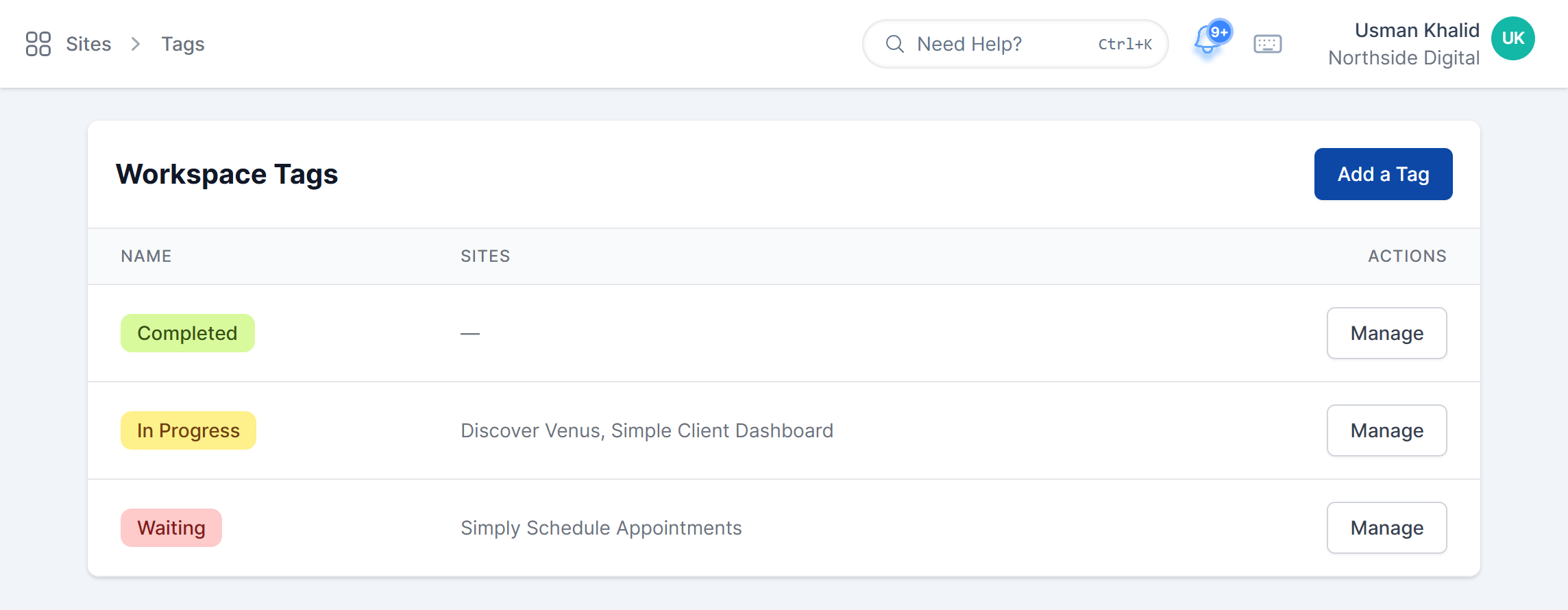
The Site Tags page gives you an overview of all the tags in your workspace, including their names, colors, and the sites they’re assigned to. From here, you can either manage added tags or create new ones.
Adding a Site Tag
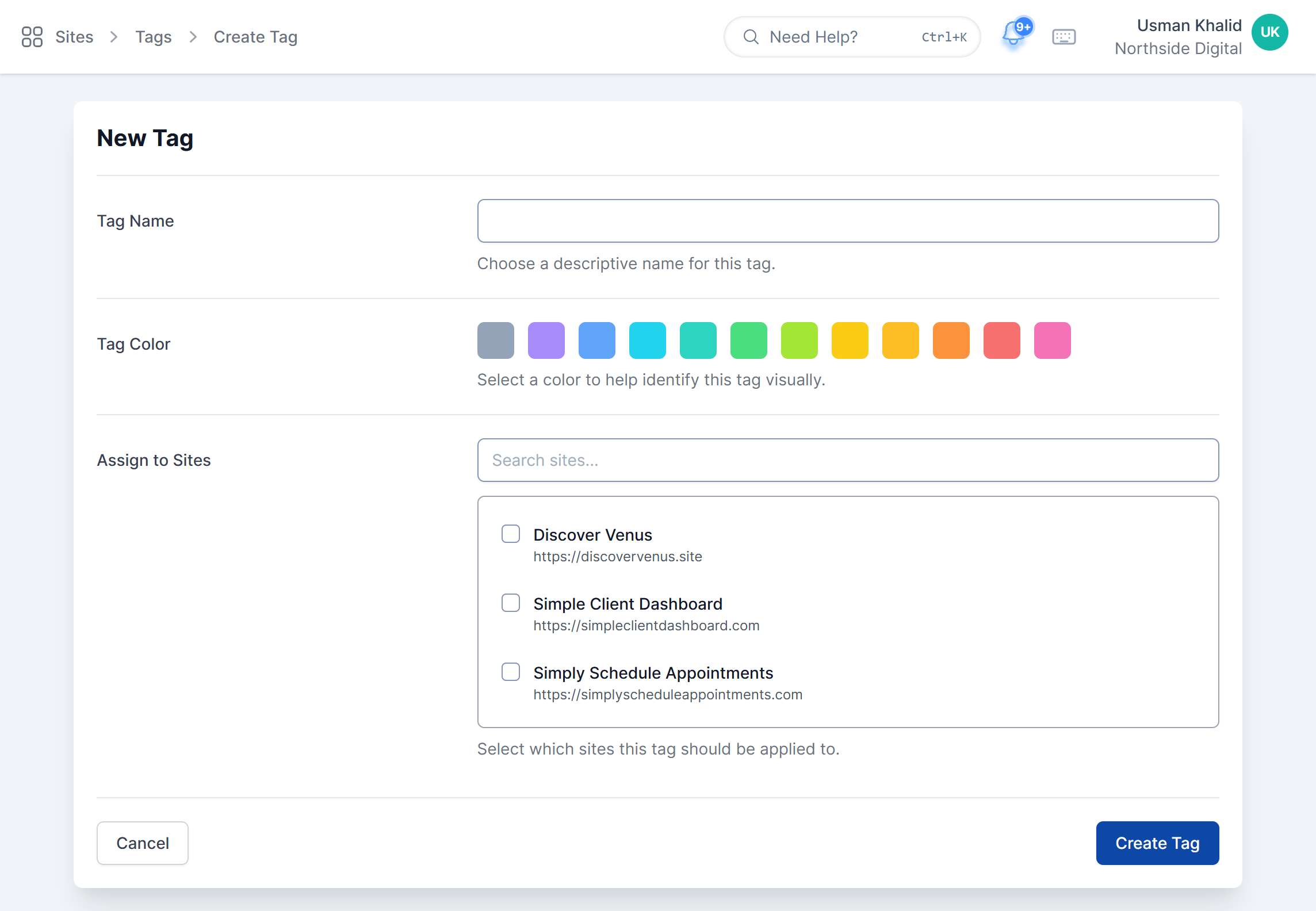
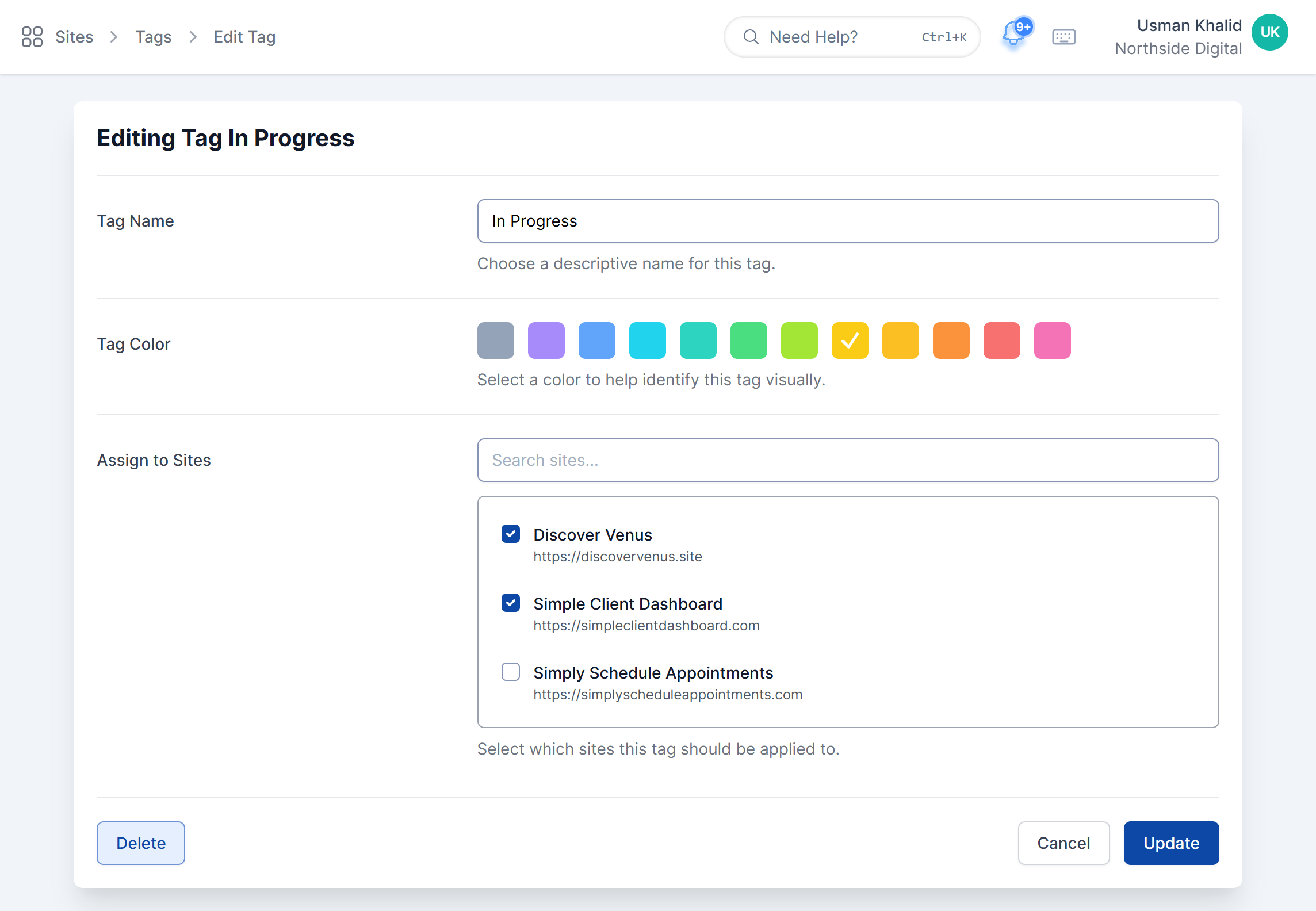
From the Site Tags page, click Add a Tag. You’ll see a form with the following fields:
- Tag Name: Give your tag a name (e.g., “Client A,” “Staging,” “Redesign”)
- Tag Color: Pick a color so it’s easy to spot on your dashboard
- Assign to Sites: Choose which sites to assign the tag to
Once everything looks good, click Create Tag. The new tag will show up in your Site Tags list.
Click Manage next to any tag to update its details. You can change the same details you set when creating the tag, such as Name, Tag Color, and Assigned Sites, then click Update to save your changes.
If a tag is no longer needed, click Delete on the same page. Removing a tag just unlinks it from the sites. It won’t delete the sites themselves.
You can also tag a single site without leaving it:
- From the Main Dashboard, click your site’s name to open its Site Dashboard.
- Below the site URL, click Add Tag +.
- Check the tags you want to add to this site. Each tag is added right away, with no need to save. To create a new tag or edit existing ones, click Manage Tags.

Adding tags from the Site Dashboard.
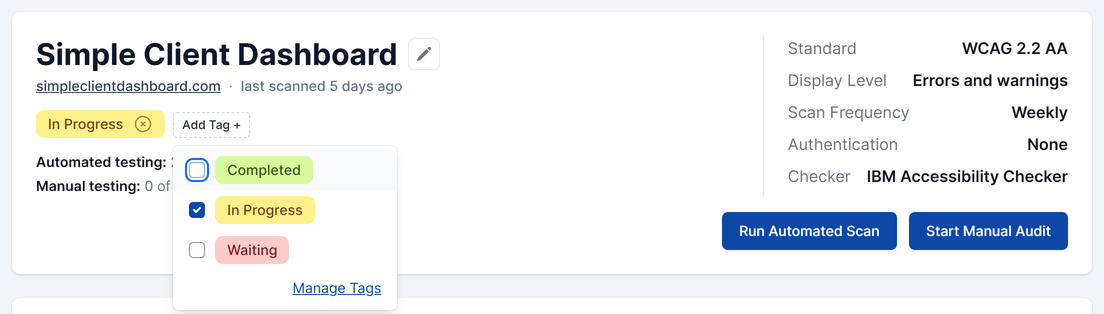
The site’s tags appear below its URL. To remove a tag from the site, click the × on the tag. It’s removed right away.
After you’ve tagged your sites, the tags appear as colored labels below each site’s URL on the Main Dashboard, as well as on each Site Dashboard.
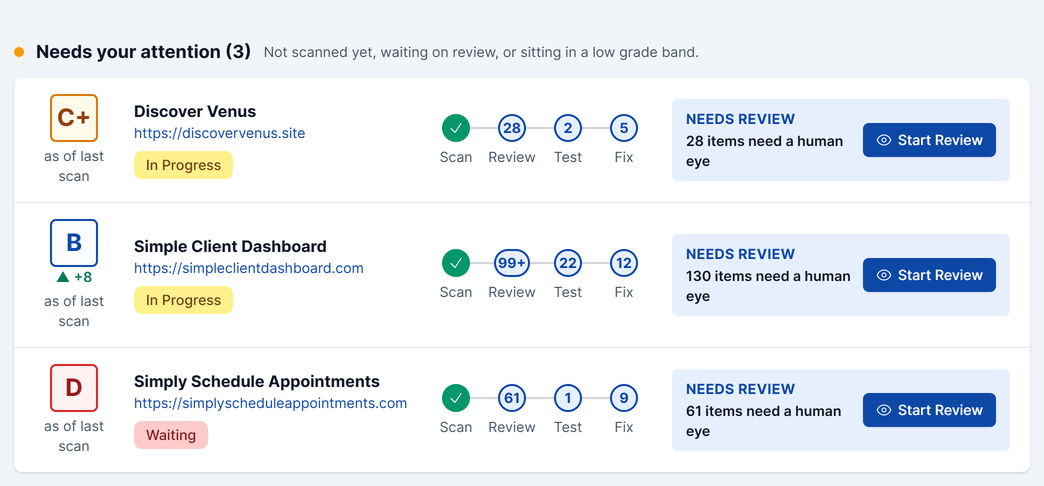
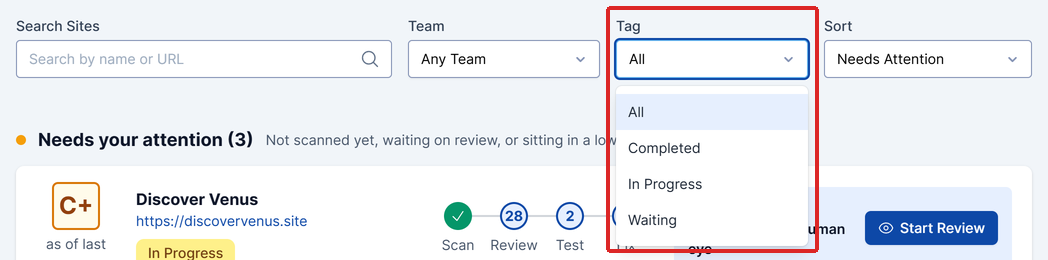
To see only the sites with a certain tag, use the Tag dropdown at the top of the Main Dashboard, next to Search Sites and Team, and choose a tag. Choose All to see every site again.