

Page Scan Failed
Introduction
This guide explains why some pages might fail during AAArdvark scans and provides clear steps to resolve the issue.
How You’ll Know a Page Failed to Scan
You don’t have to go hunting for failed pages. When a scan can’t reach one or more of your pages, AAArdvark flags it in a few places, and each one takes you straight to the list of pages that need attention:
- The error count on the scan summary. On your latest scan, the number of pages that couldn’t be scanned is a link. Click it to open the filtered list.
- A notification after the scan finishes. When a scan completes with errors, a message appears letting you know some pages couldn’t be scanned. Click View Failed Pages in the notification to jump right to them.
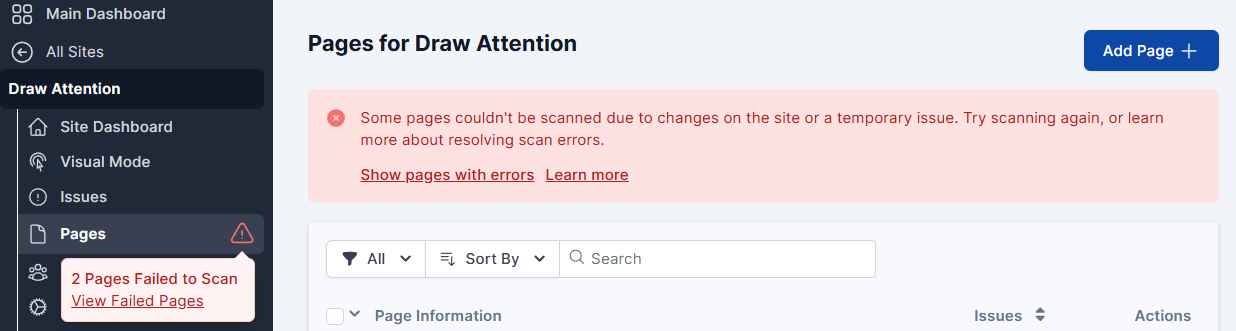
- A warning in the site sidebar. A red warning icon appears next to Pages in your site menu whenever a scan leaves errors behind. Hover over it to see how many pages failed, then click View Failed Pages to review them.
- A banner on the Pages screen. When you open the Pages section, a banner at the top points out that some pages couldn’t be scanned. Use Show pages with errors to filter the list, or Learn more to open this guide.
Each of these opens your Pages list already filtered to the pages that failed, so you can review and retry them in one place.
Filtering Pages with Scan Errors
To find pages with scan errors, go to the Pages section of your site dashboard. Click the All Filter button and check the box for Pages with Scan Errors. This will instantly display all failed pages.”
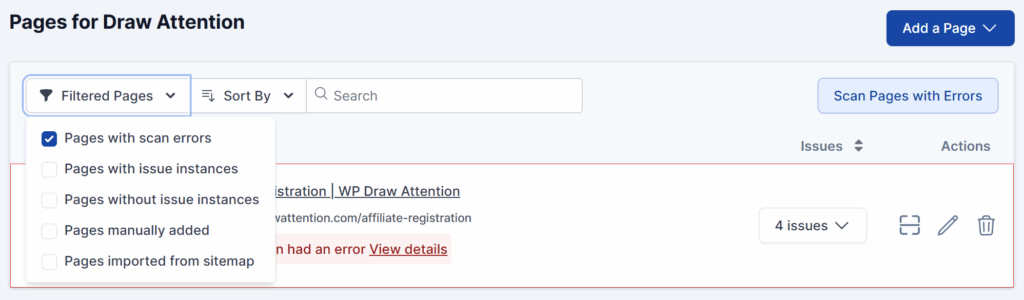
Page Scan Failed
In the case that one or more pages failed during the scan, there are a few reasons that may cause this issue. In the Pages page, hover over the View Details button with your mouse to see a brief overview of the error details.
If an error code is listed, refer to the HTTP status codes below for potential causes and solutions:
400 Bad Request
The server couldn’t process the request. Things to try:
- Double-check the URL for any typos or invalid characters
- Ensure the URL matches the format expected by your website, for example, that it includes
https://orwwwif necessary - Retry the scan after confirming the URL is correct
This page requires login credentials. Things to try:
- Check to see if the page is accessible only after logging in
- Set up site authentication in AAArdvark using the site authentication guide
- Ensure the login credentials entered in AAArdvark are correct and have the required access permissions
403 Forbidden
The server refused to access this page. Things to try:
- Confirm that the page is not restricted to specific IP addresses or user roles
- Your server might require that AAArdvark be allowlisted to access the site – follow the steps in the allowlist guide
- Check if authentication is required and, if so, follow the steps in the site authentication guide
- Verify with your hosting provider or site admin that the page is publicly accessible
404 Not Found
The page could not be found on the server. Things to try:
- Confirm that the URL entered in AAArdvark matches the correct page address
- Check if the page has been moved or renamed, and update the URL accordingly
- Verify that the page is published and accessible

410 Gone
The page was permanently moved. Things to try:
- Verify that the page is no longer needed or was intentionally removed
- If the page has been replaced, update AAArdvark with the new URL
- Consider redirecting the old page to the new one using a 301 redirect to avoid errors in the future
500 Internal Server Error
The server returned a generic internal server error. AAArdvark will automatically retry pages that return a 500 error. If the server recovers, the page will be re-scanned without any action needed. Things to try if the error persists:
- If the page requires HTTP Basic Authentication (a browser username/password prompt before the page loads), set up site authentication using the site authentication guide
- Contact your hosting provider or site admin for more details about the server error
- Check your website error logs to pinpoint the issue
502 Bad Gateway
The server returned a bad gateway error. This commonly occurs when a proxy, CDN, or load balancer cannot receive a valid response from the upstream origin server. Things to try:
- Verify that the upstream server for your website is working properly
- Contact your hosting provider or site admin to investigate any server configuration issues
- Retry the scan after the server is back online
The server was temporarily unable to handle the request. This often occurs when the origin server is overloaded, undergoing maintenance, or when a CDN or proxy service, such as Cloudflare, returns a temporary error instead of the page. Things to try:
- Wait a few minutes and retry the scan. 503 errors are frequently temporary.
- If your site uses Cloudflare, follow the Cloudflare compatibility guide to ensure AAArdvark’s scanner isn’t being blocked
504 Gateway Timeout
The server is set up as a proxy, and the upstream server is not responding in a timely manner. Things to try:
- Check with your hosting provider or site admin if the upstream server is experiencing delays
- Increase the timeout setting on the upstream server if possible
- Retry the scan later when the server load is reduced
525 SSL Handshake Failed
The SSL/TLS handshake between AAArdvark’s scanner and your origin server failed. This commonly occurs when a CDN or proxy service, such as Cloudflare or Bunny.net, cannot establish a secure HTTPS connection to the origin. Things to try:
- Configure Cloudflare or your firewall/WAF to allow AAArdvark’s scanner IPs
- Verify that your origin SSL certificate is valid, complete, and correctly configured
- Ensure your server supports modern TLS versions/ciphers
- Contact your hosting provider if the SSL issue persists
Common Reasons for Scan Failures
Here are some common reasons a page might fail to scan, along with steps to resolve them:
- The Page is Not Published:
Ensure the page is published and accessible to visitors who aren’t logged in.” - The Page is Offline:
Check if the page loads in a separate browser tab. If it doesn’t, it may be temporarily unavailable. - Network Connection Issues:
Verify your internet connection by trying to load another webpage. If the issue persists, retry the scan after a few minutes. - Page URL is Incorrect:
Double-check the URL entered in AAArdvark. If the page has moved, update the URL accordingly.
If none of these steps resolve the issue, our support team is here to help. Contact us for assistance, and we’ll review the problem. In the meantime, try clicking Retry the Scan after a few minutes to see if the issue resolves itself.
Related Guides
-

AAArdvarkBot Information
-
Access Denied – Allowlist IP Address or Header
-
Site Scan Failed
-
Cannot Add Site