

Site Scan Failed
Introduction
Site scans occasionally fail, and while it’s frustrating, it’s usually easy to resolve. This guide walks you through the common reasons a scan fails when you first add a site to AAArdvark, and how to fix them.
When a newly added site’s first scan fails, AAArdvark shows a failed-scan card. If we can identify the cause, the card shows one or more specific reasons near the top – a first scan usually covers several pages, and different pages can fail for different reasons, so more than one may be listed. If we can’t identify a cause, the card shows a general message and you can work through the checks further down this guide.
When AAArdvark Tells You Why the Scan Failed
If the card shows one or more specific reasons, match each one to the messages below and follow the matching steps. These are the most common ones.
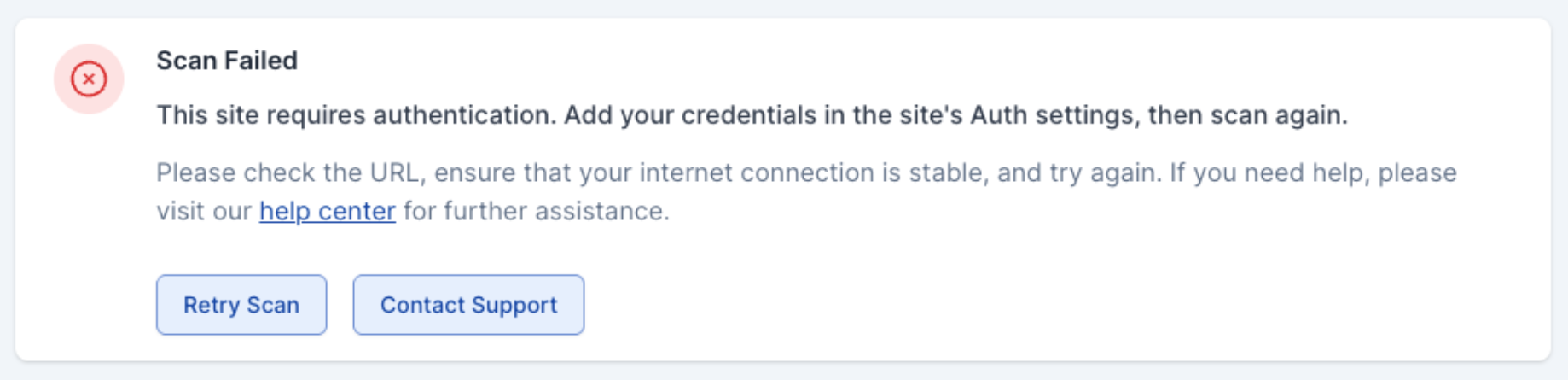
“This site requires authentication”
The site asked AAArdvark to log in before it would return the page. To fix it, set up site authentication in AAArdvark so the scanner can sign in, then scan again. See the site authentication guide for the steps. If you have already added credentials, check that they are correct and have permission to view the pages you are scanning.
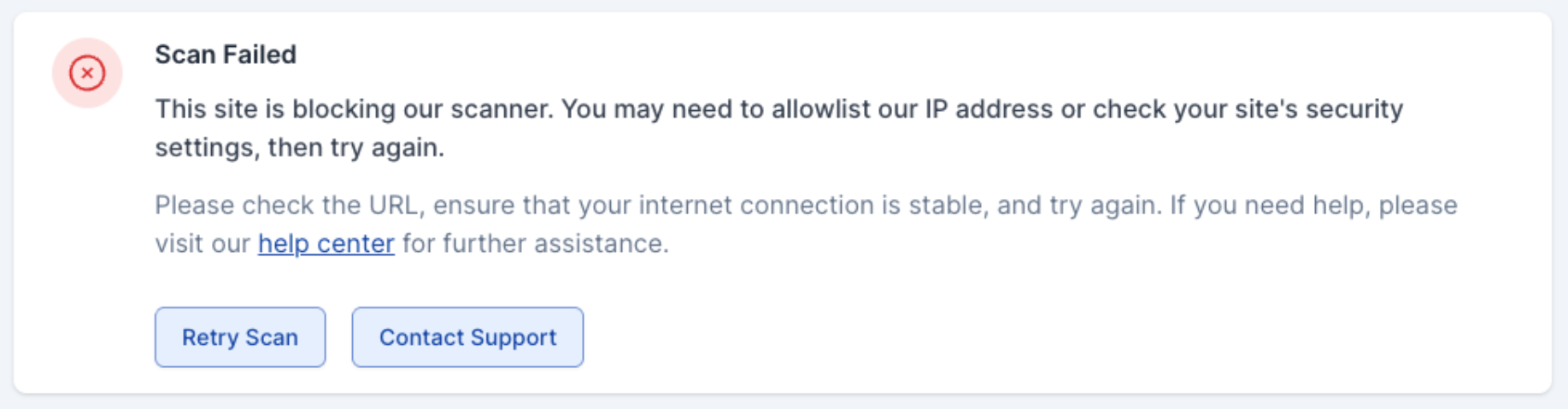
“This site is blocking our scanner”
The site’s security settings, firewall, or CDN refused the scanner’s request. To fix it:
- Allowlist AAArdvark’s IP address or custom header so the scanner is not blocked. Follow the allowlist guide.
- If the site uses Cloudflare, check the Cloudflare compatibility guide.
- Confirm with your host or site admin that the pages are publicly reachable and not restricted to specific IPs or user roles.
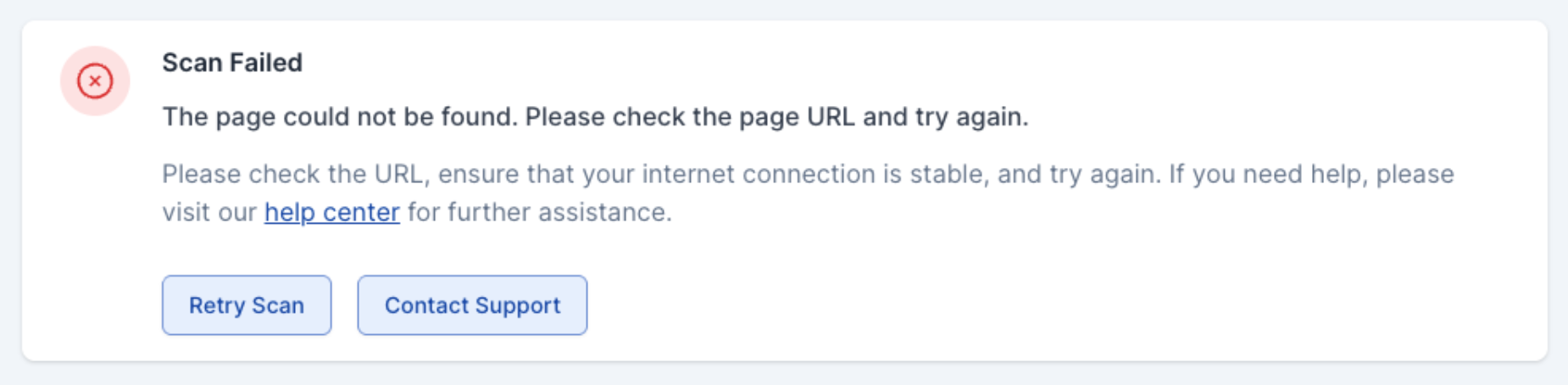
“The page could not be found”
AAArdvark reached the site but the URL returned a not-found response. To fix it:
- Double-check the URL you entered for typos, and make sure it points to a page that exists.
- Confirm the page is published and not set to private or draft.
- If the page moved or was renamed, update the URL in AAArdvark.
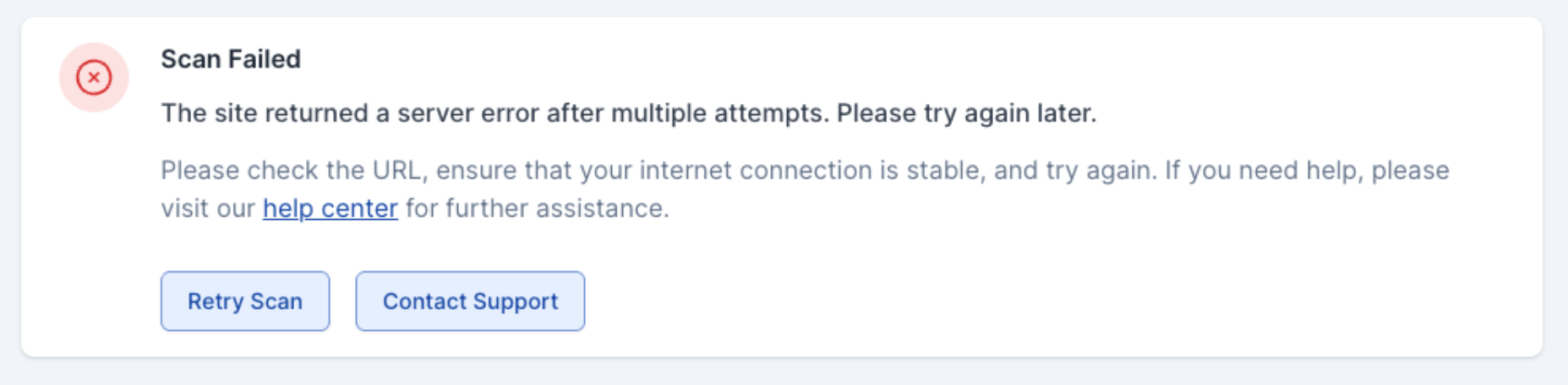
“The site returned a server error”
The site’s server returned an error after AAArdvark retried several times. This is usually a problem on the site’s side, not something you can fix in AAArdvark:
- Wait a few minutes and retry the scan. Server errors are often temporary.
- Check your site’s status page or error logs, or ask your hosting provider.
- If the site requires HTTP Basic Authentication (a browser username and password prompt), set that up using the site authentication guide.
Other messages
AAArdvark may also show messages for problems like a domain that could not be resolved or a bad gateway response. The wording explains what happened. The Page Scan Failed guide has a full list of the underlying response codes and detailed fixes for each one.
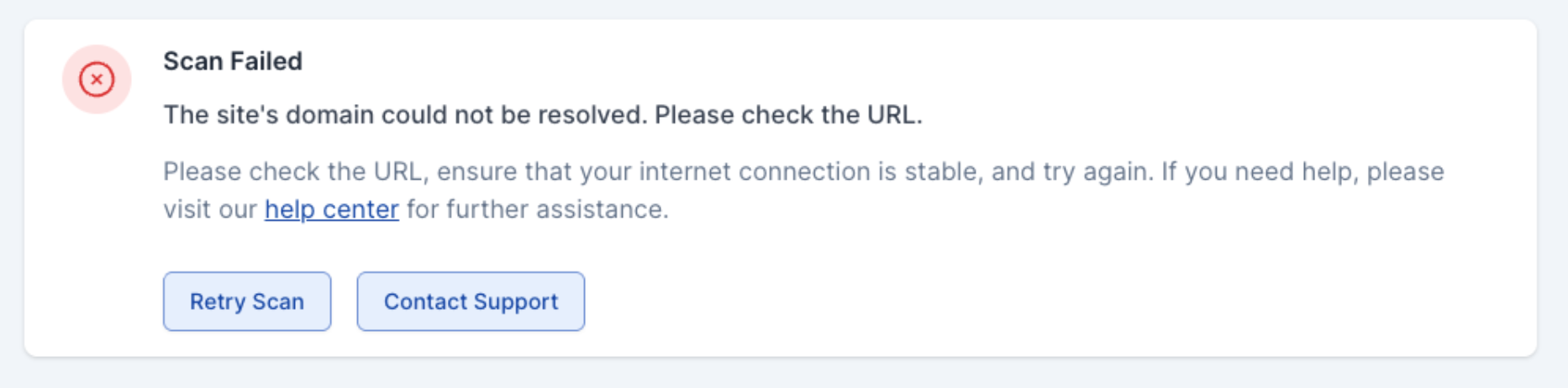
If No Specific Reason Is Shown
When AAArdvark cannot pin down the cause, the card shows a general message. Work through these checks:
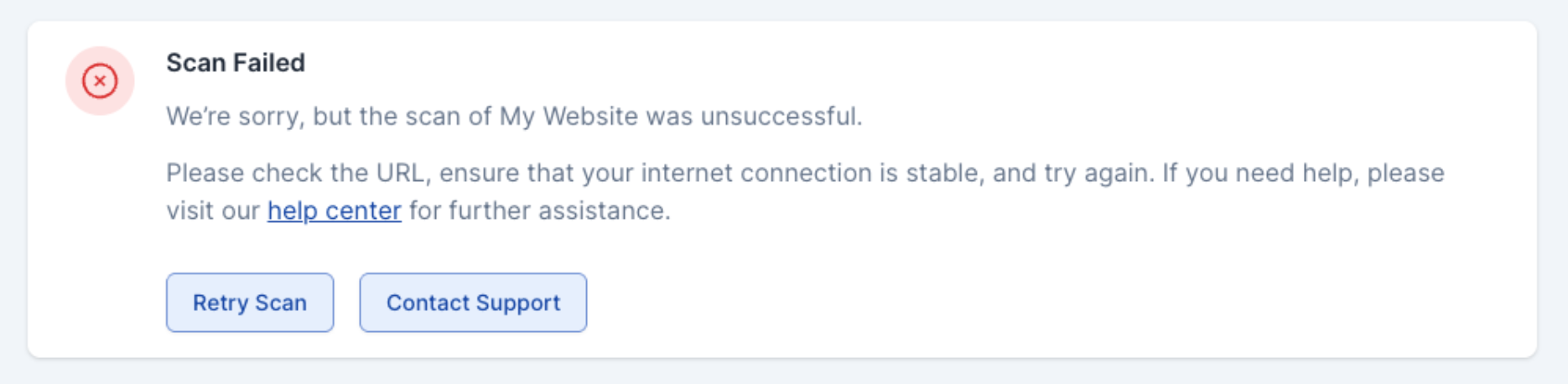
The Site Is Offline
The website might be temporarily down or unreachable. What to check:
- Open the site in a separate browser tab. Does it load properly?
- If the site is down, you may need to wait for it to come back online.
Network Connection Issues
Your internet connection might be unstable, preventing AAArdvark from accessing the site. What to do:
- Try loading other websites to confirm your connection is working.
- If your connection is unstable, wait until it improves or switch to a more stable network before retrying the scan.
Incorrect Website URL
The URL you entered might have a typo or be incomplete. What to check:
- Double-check the full URL in AAArdvark for any errors (e.g., missing
http://or typos). - Ensure the URL points to the correct site or page.
What to Do Next
If you’ve reviewed these steps and the issue persists:
- Retry the Scan: Wait a few minutes and click the Retry Scan button. This often resolves temporary issues.
- Contact Our Support Team: If the scan still fails, let us know! Reach out here so we can investigate. Include details like the site URL, the message shown on the card, and when the scan failed.
Related Guides
-

AAArdvarkBot Information
-
Access Denied – Allowlist IP Address or Header
-
Page Scan Failed
-
Cannot Add Site