

Creating Fully Custom Manual Issues
Introduction
AAArdvark simplifies the process of recording manual issues in Visual Mode. This guide will walk you through how to document Custom Failures while manually auditing your site for accessibility.
Record an Issue with a Custom Failure
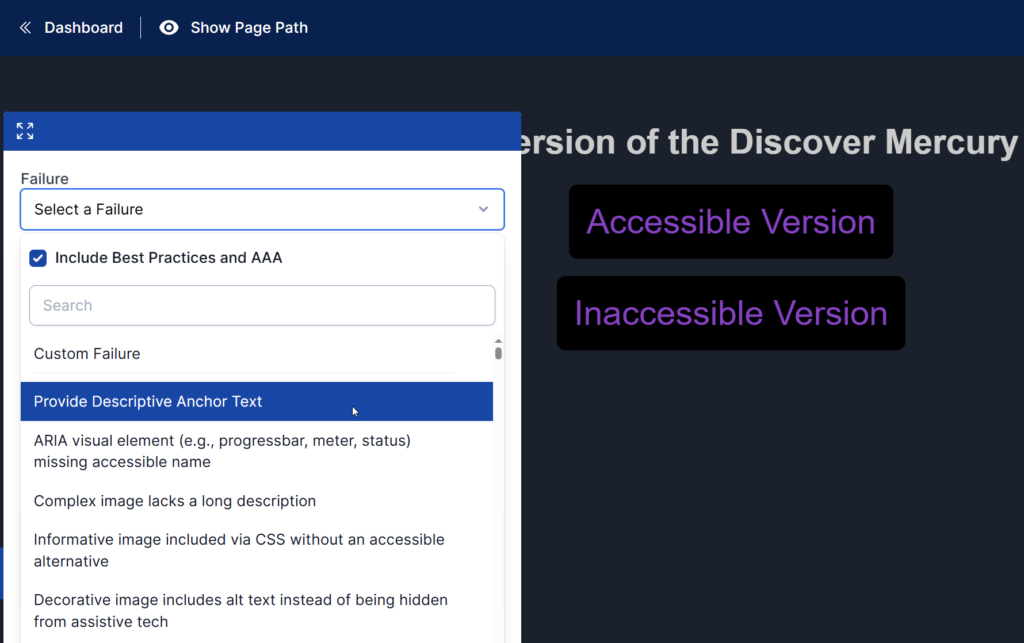
When recording an issue in Visual Mode, you can select Custom Failure as the failure type from the dropdown menu.
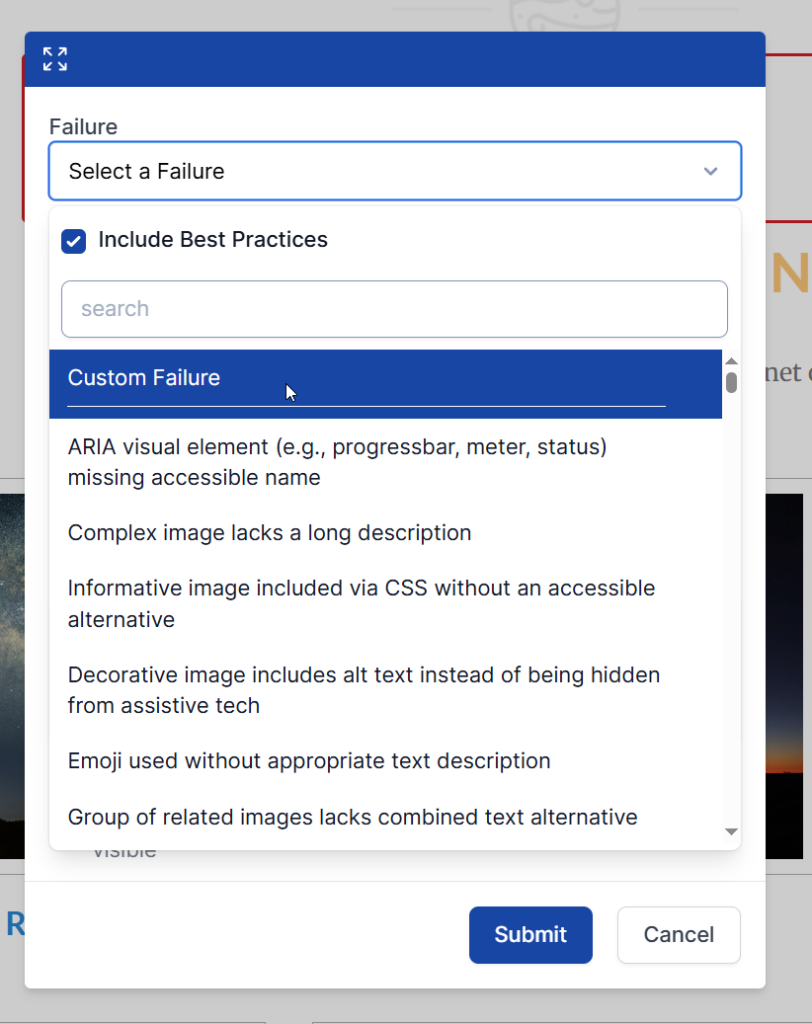
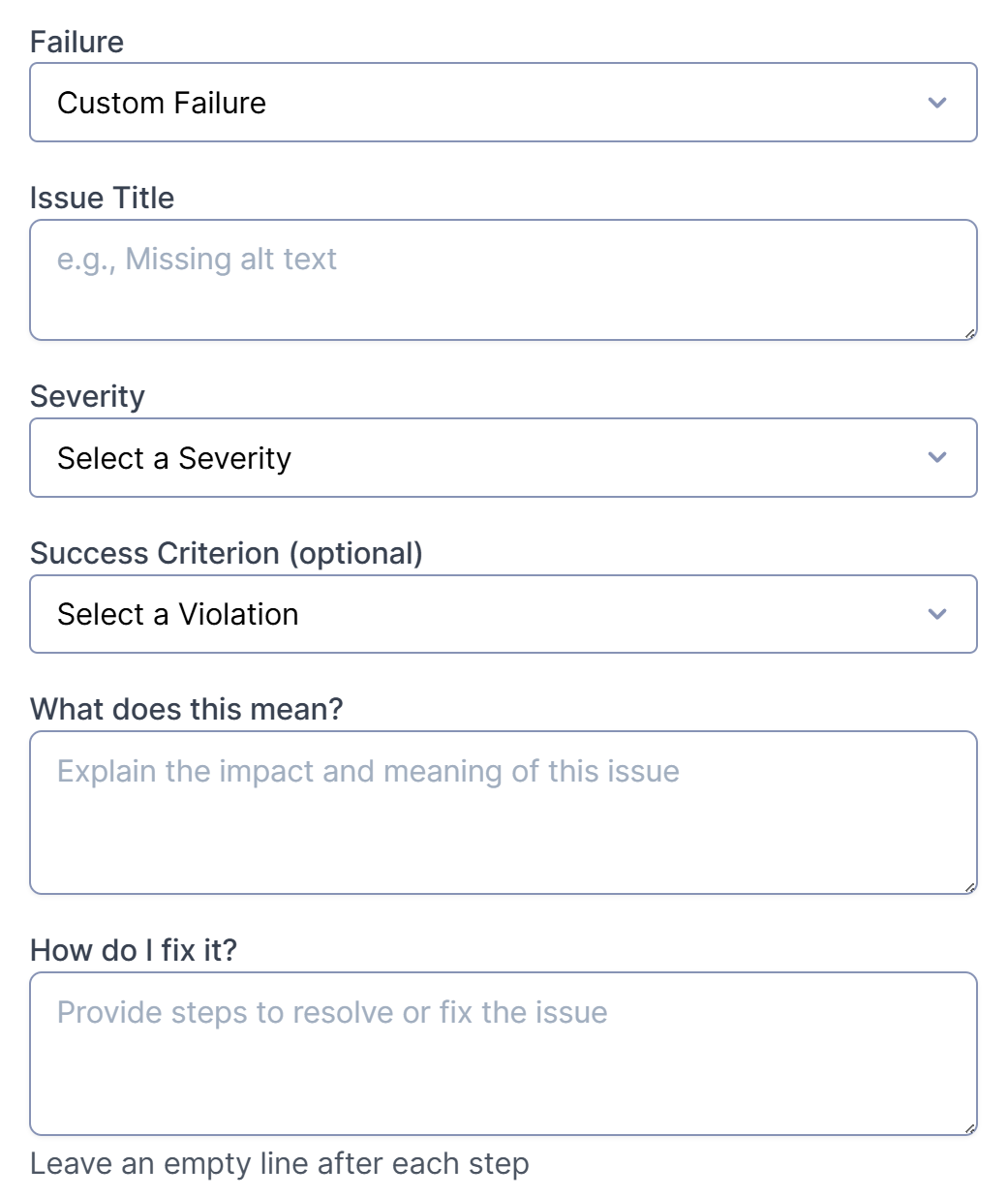
Afterward, you can fill out the remaining fields, including the Issue Title and Severity for the new Custom Failure.
You can also select a Success Criterion from the dropdown list if the accessibility violation of the Custom Failure maps under any of them, or you can leave it blank if it isn’t.
Selecting a Success Criterion
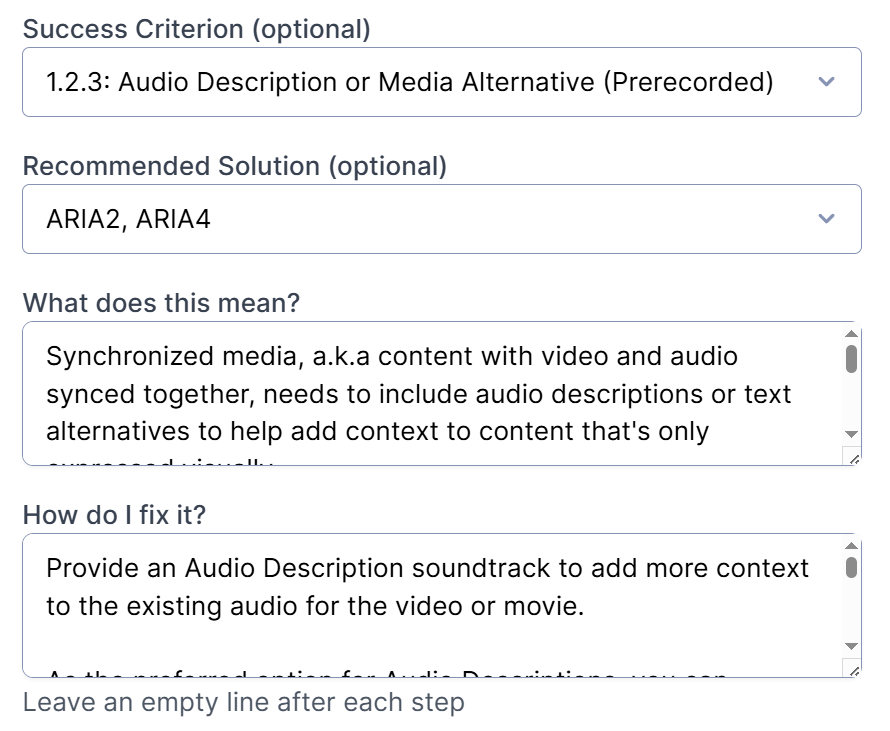
When a Success Criterion is selected for the Custom Failure, the fields underneath, What does this mean? and How do I fix it? will automatically populate with details from that criterion. You can edit these fields to match their details with your specific observations about the accessibility issue.
Recommended solutions related to the chosen success criterion can also be selected from the dropdown.
Not Selecting a Success Criterion
If you choose not to select a success criterion, you can manually input details for the fields, What does this mean? and how do I fix it before submitting the manual issue.
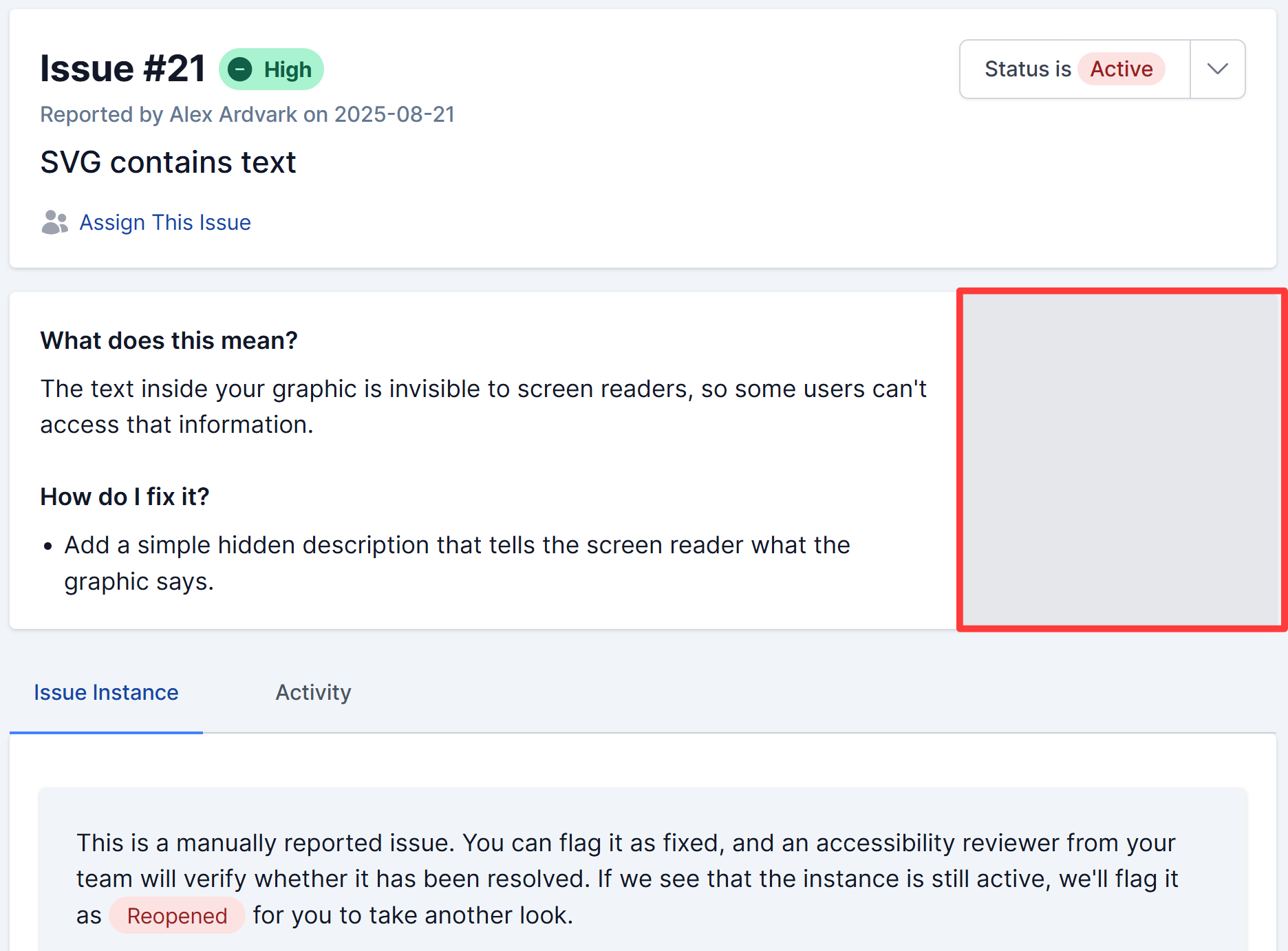
After filling in all the fields and submitting, the issue will get recorded, and you can view it from the issues list to resolve it later.
Custom Failure issues submitted without a selected success criterion or recommended solutions will not display these details in the detailed issue view.
Creating a Custom Failure Issue from the Dashboard
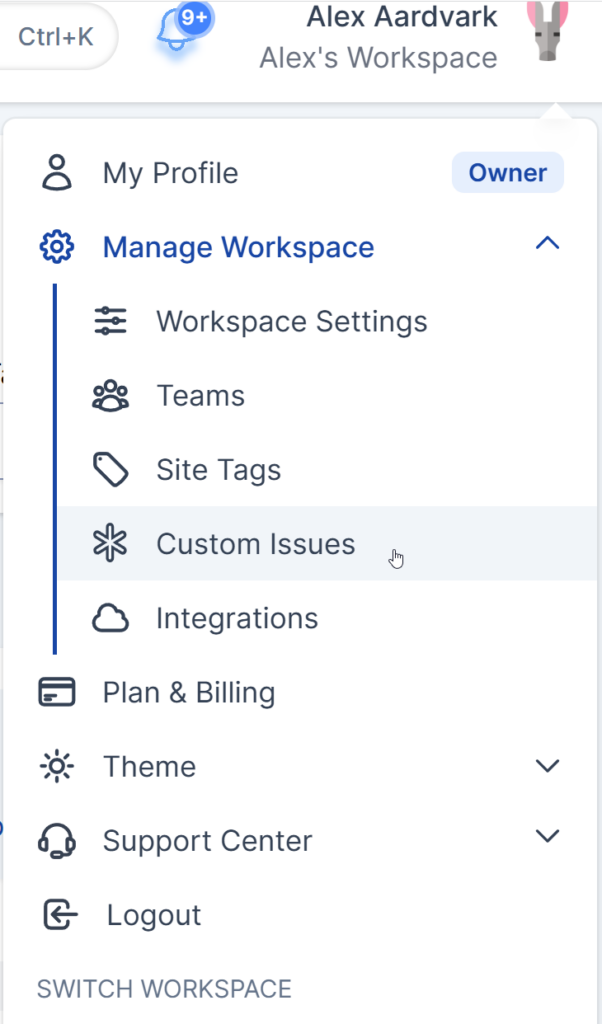
To create a Custom Issue from the dashboard options, click on the profile icon on the top-right to open the drop-down.
From the drop-down options, select Manage Workspace > Custom Issues.
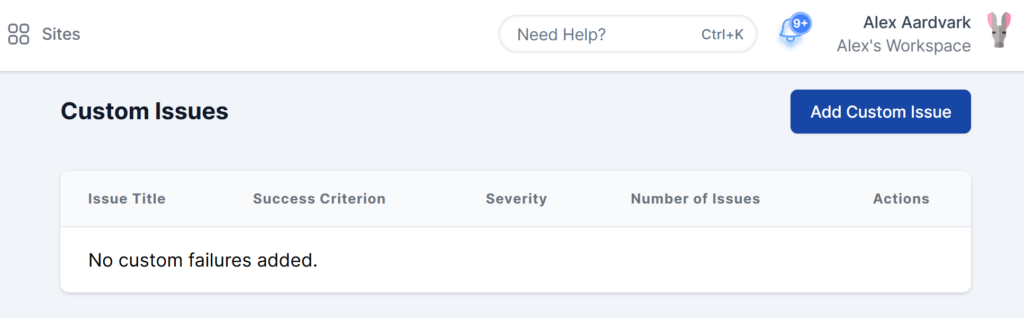
On the new screen, click on Add Custom Issue from the top right of the Custom Issues section.
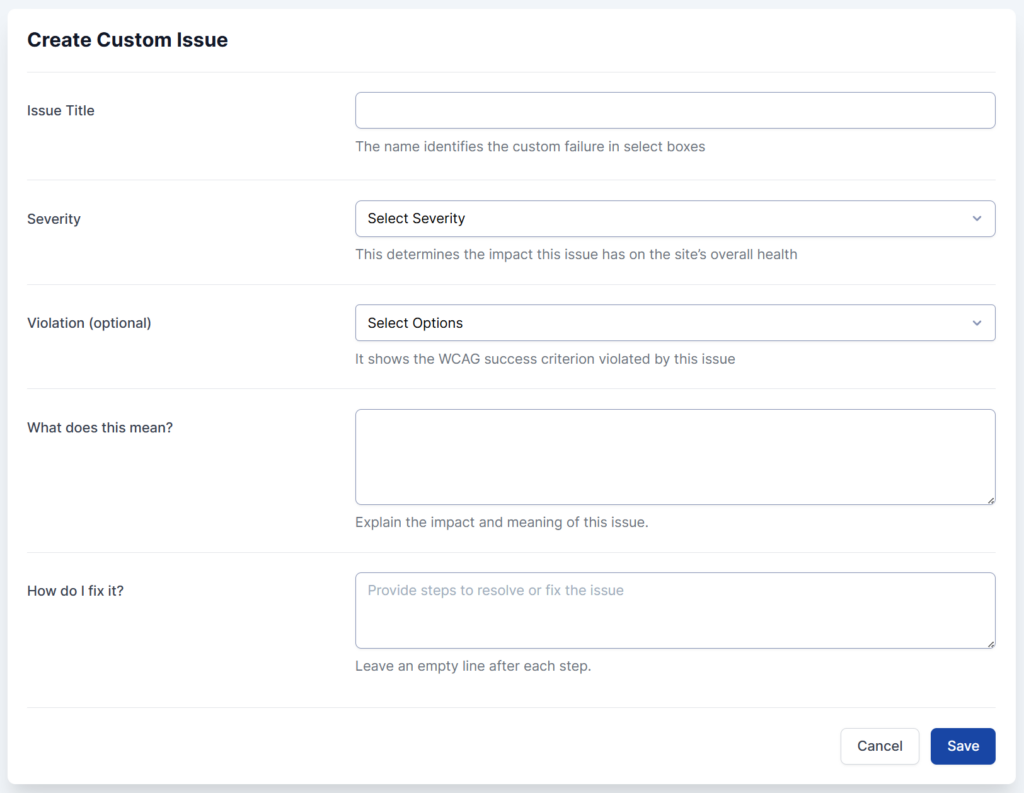
On the next screen, you need to add the details for the New Custom Issue, including Issue Title, Severity, Violation, What does that mean?, and How do I fix it?. You can fill out all these fields the same way as outlined above while recording an issue in Visual Mode.
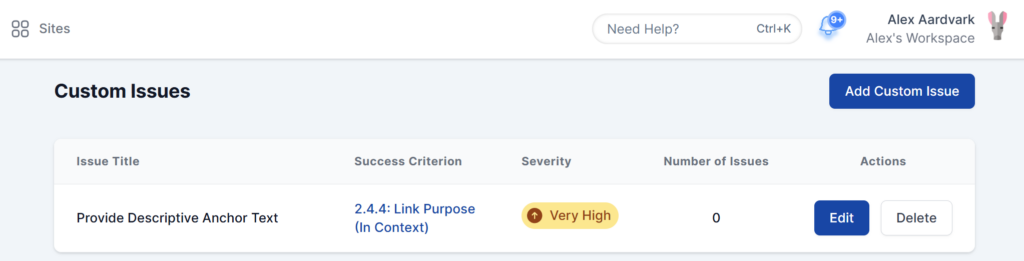
Once the new Custom Issue is created, it will be displayed within the list of Custom Issues section.
After that, you can also reuse the Custom Issues, like when recording an issue in Visual Mode.
FAQ
Can I reuse the Custom Failure Issues created in AAArdvark?
Custom Failure Issues recorded directly in the Visual Mode can’t currently be reused.
If you plan to reuse a Custom Failure Issue, we recommend using the dashboard option to create Custom Failure Issues. Issues created this way can be reused later, including when recording new issues in Visual Mode.
When do I need to create a Custom Failure issue?
You should create a new Custom Failure issue when a previous automated or manual check hasn’t captured the specific issue you identified during the manual audit.
These can include best practice issues that may not be strictly required by WCAG but are still critical for usability and accessibility.