Fix and Manage Issues
Introduction
Once you’ve spotted what needs fixing, it’s time to take action. This guide covers how to assign issues, mark them as fixed, manage review workflows, and track your team’s progress.
Before you dive in here, learn basic concepts on how to understand and view issues.
Issues, Needs confirmation, and Review fixes
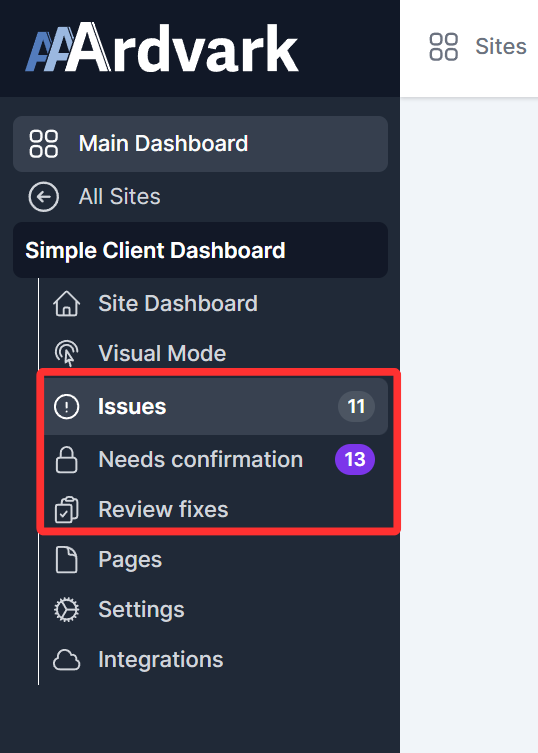
Your site’s sidebar has three separate screens for working through issues:
- Issues: every issue on the site, regardless of type or status.
- Needs confirmation: every issue that has instances the scanner flagged for a manual check, showing how many instances need review per issue.
- Review fixes: manually-recorded issues that have been submitted for review and are waiting on a reviewer to confirm the fix. These issues are available to Owners, Administrators, Project Managers, and Accessibility Testers for review.
Issues
The issues tab keeps track of what needs fixing, who’s handling it, and what’s already been resolved. You can assign issues to teammates, leave comments, and mark individual instances as fixed, confirmed, or dismissed. This helps your team stay organized and make steady progress.
Assigning Issues
You can assign issues to users either directly from the Issues list or from the detail view using the Assign This Issue button.
When you click the button, you’ll see a list of users, grouped by roles added in your workspace, who can be assigned to the issue.
To remove an assigned user from the issue, click the Assign This Issue button and select Unassign.
Commenting on Issues or Instances
Collaborate with your team by adding comments to issues or instances.
- Click the Comments tab in the issue detail view.
- Type your comment and use @mentions to tag team members. Only members of the relevant team can be tagged in comments.
The team member who is tagged receives a notification and email if it’s enabled for them.
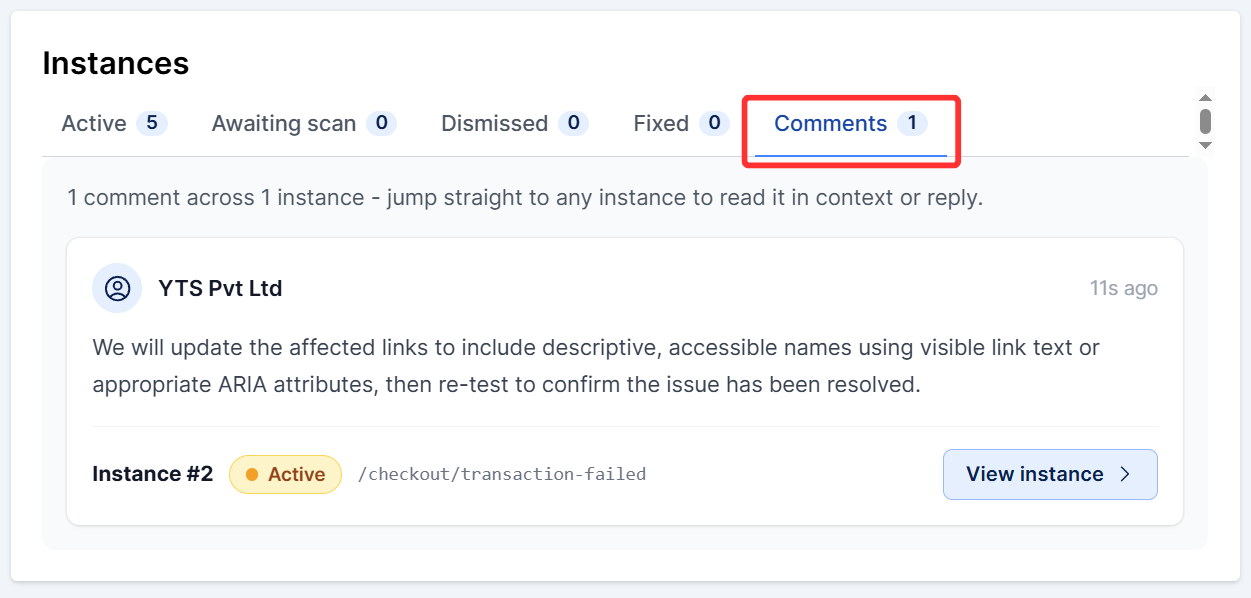
The Comments tab shows every comment left across every instance on the issue in one place, along with which instance and page each comment belongs to. Click View Instance on any comment to jump straight to that instance.
Reading the Issue Page
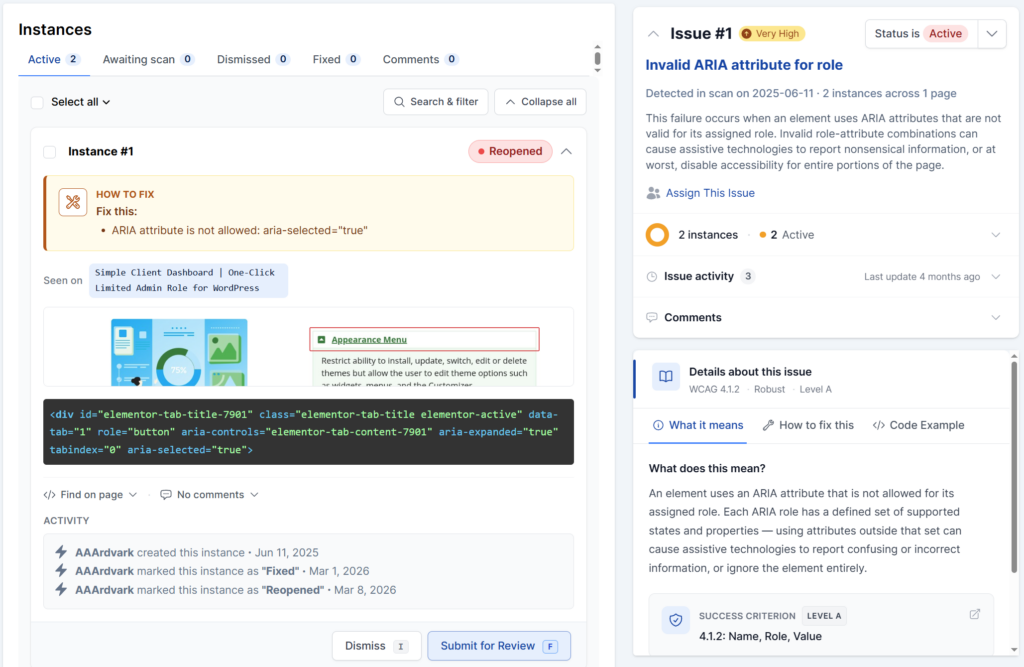
The issue detail page is split into two columns: your instances on the left, and issue context on the right.
Right column contains everything about the parent issue: the issue number, title, severity badge, status dropdown, description, scan date, and instance count at the top; the Assign This Issue button; a Status of all instances donut chart broken into Active and Done groups (with Fixed, Awaiting scan, and Dismissed listed separately, each with a short explanation); and a collapsible Issue activity log and Comments section below that.
Below the status section, the right column also shows the issue’s documentation in three tabs: What it means, How to fix this, and Code Example. The “What it means” tab includes the relevant WCAG success criterion and a “Next: How to fix this” link to step directly to the fix instructions.
As you scroll through instances on the left, the status summary at the top of the right column collapses automatically to keep the documentation in view. You can also collapse or expand it manually using the toggle at the top of the right column. The fix instructions stay visible alongside whichever instance you’re looking at.
Left column: the instance list with tabs along the top. Each instance card shows:
- A guidance block at the top of the card with the guidance for that instance, headed WHAT TO CONFIRM while the instance is still awaiting manual confirmation, and HOW TO FIX once the issue is confirmed or when it is a plain error to work on
- A visual preview of the element on the page
- The element’s code snippet, which you can copy and paste into your browser’s dev tools to locate it
- A Seen on row showing which pages the instance appears on (with a page switcher if it appears on more than one)
- A Find on page button to locate the element directly
- A comments toggle to view or add instance-level comments
- An Activity log showing when the instance was created and any status changes
If any instances on the issue are waiting for manual confirmation, a notice appears at the top of the instance list with a direct link to the Needs confirmation screen.
Instance Statuses Explained
An issue is a single accessibility problem (for example, “Image missing alt attribute”). An instance is one specific place that problem shows up. A single issue can have many instances across your site, and each instance moves through its own status as you work on it.
On the issue detail page, instances are grouped into tabs by status: Active, Awaiting scan, Dismissed, Fixed, and Comments. For issues that include manually-recorded instances, an Awaiting reviewer tab also appears. Awaiting scan and Awaiting reviewer are sometimes called pending or pending review. The status of each instance is also shown as a colored tag on the instance card. Here’s what each status means and when an instance gets it.
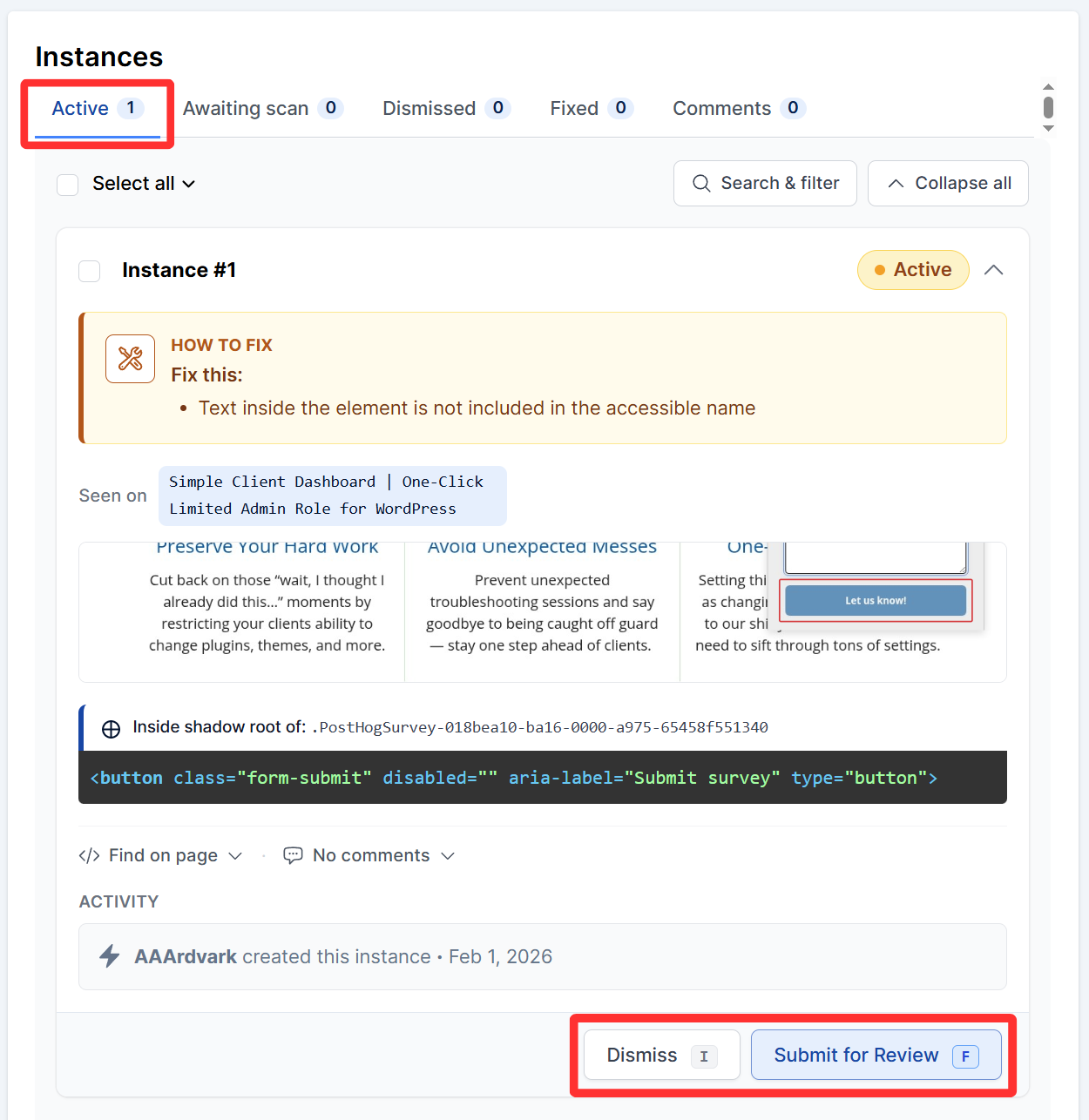
Active
The instance was found in the most recent scan and still needs attention. New instances start here, and this is where you’ll do most of your fixing work. Once you’ve made the fix, mark the instance Mark as Fixed (automatically-detected instances) or Submit for Review (manually-recorded instances), or Dismiss it if it isn’t a real issue.
If a scan finds a problem that was previously submitted as fixed, it shows up as unfixed within the activity log.
Awaiting scan
When you click Mark as Fixed on an automatically-detected instance, it doesn’t jump straight to Fixed. It first moves to Awaiting scan while AAArdvark waits to verify it on the next scan of the page.
When you’re on the Awaiting scan tab, a What happens next banner explains that the next scan checks this automatically, reminds you to publish your fix and clear any caches first, and shows the date of the next scheduled scan.
Don’t want to wait until the next scheduled automated scan? The same banner includes a Run a scan to confirm fixes button, which shows how many pages the issue is on and triggers a scan of just those pages right away. It shows live progress while it runs, and once it finishes, each pending instance either resolves to Fixed, or bounces back to Active if the scan still finds the problem.
If you marked an instance fixed by mistake, use the Mark as Not Fixed button on the instance card to move it back to Active.

Awaiting reviewer
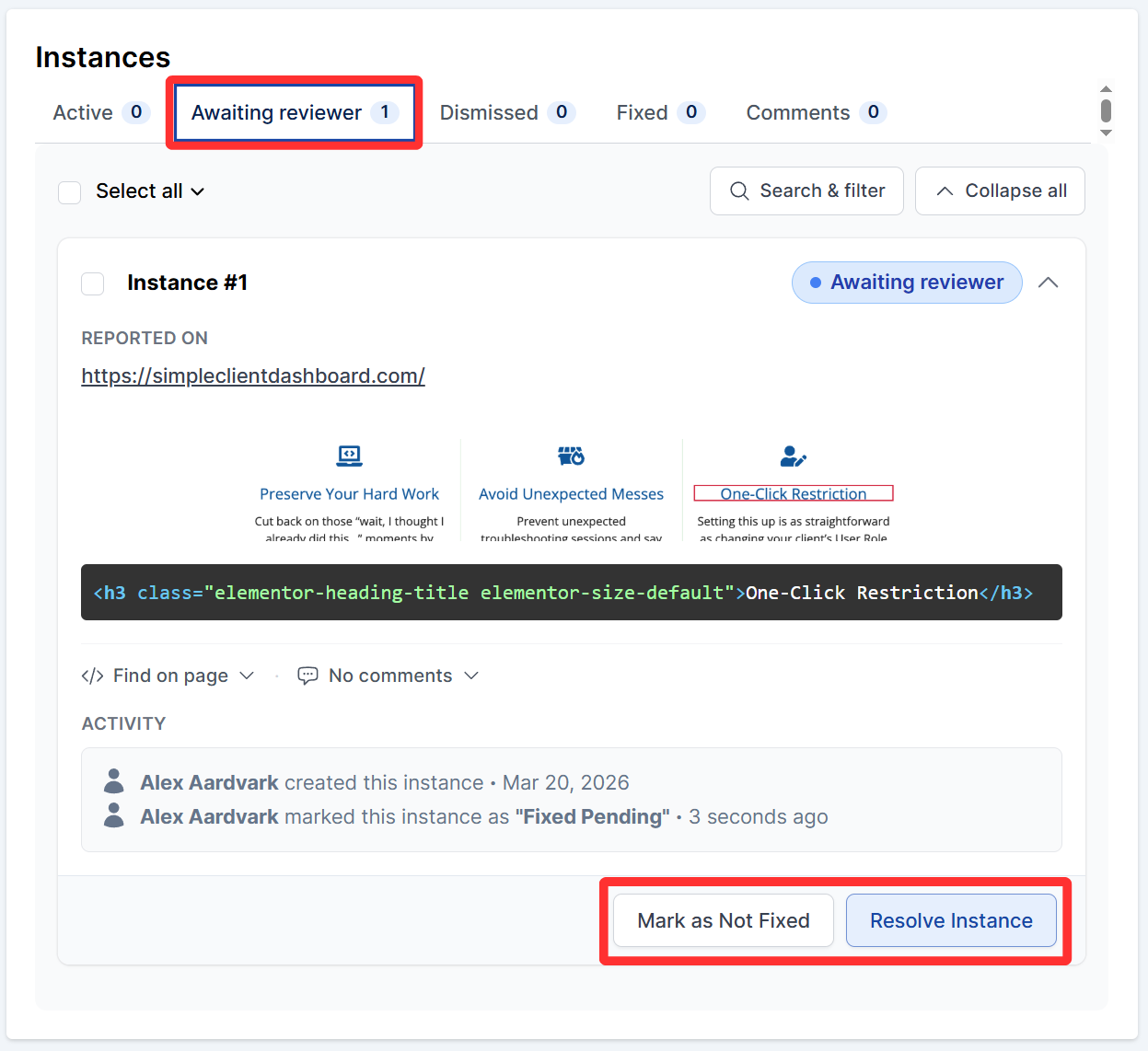
Manually-recorded issues work differently, since there’s no automated scan to re-check them. When a manually-recorded instance is submitted for review, it moves to Awaiting reviewer instead, where it waits for a human to confirm the fix.
A Resolve Instance button appears on these instances for Owners, Administrators, Project Managers, and Accessibility Testers to confirm the fix.
Dismissed
The instance was flagged as something you don’t need to act on, such as a false positive. Some teams call this dismiss, ignore, or mark not applicable (n/a) – they’re all the same action in AAArdvark. Clicking Dismiss asks you to confirm first, so a stray click doesn’t dismiss something by accident.
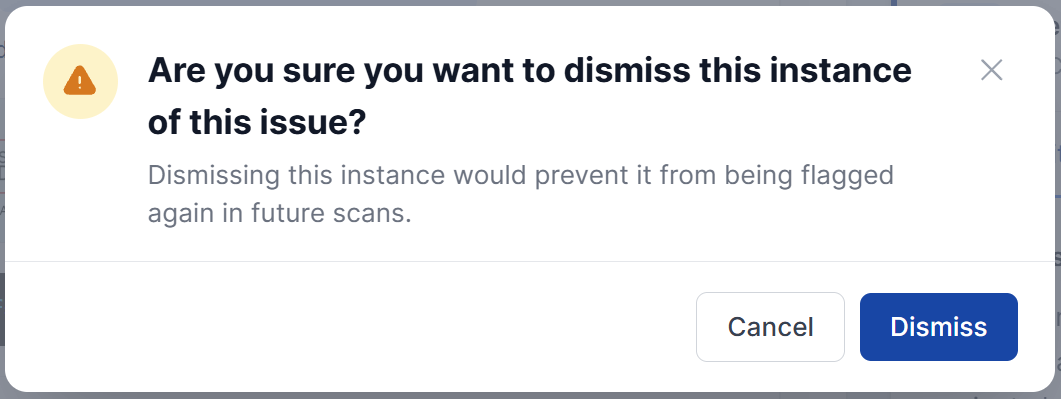
Dismissed instances are removed from your active list, won’t count toward your accessibility ratios, and won’t be flagged again in future scans. They sit under the Dismissed tab in case you need to review them later. When all instances of an issue are Dismissed (or Fixed), the issue is considered Resolved.
Only users with the Workspace Owner, Administrator, Project Manager, or Accessibility Tester role can dismiss instances. Users with the Developer or client role can assign and comment on issues, but can’t dismiss them. See team permissions for a full role comparison.
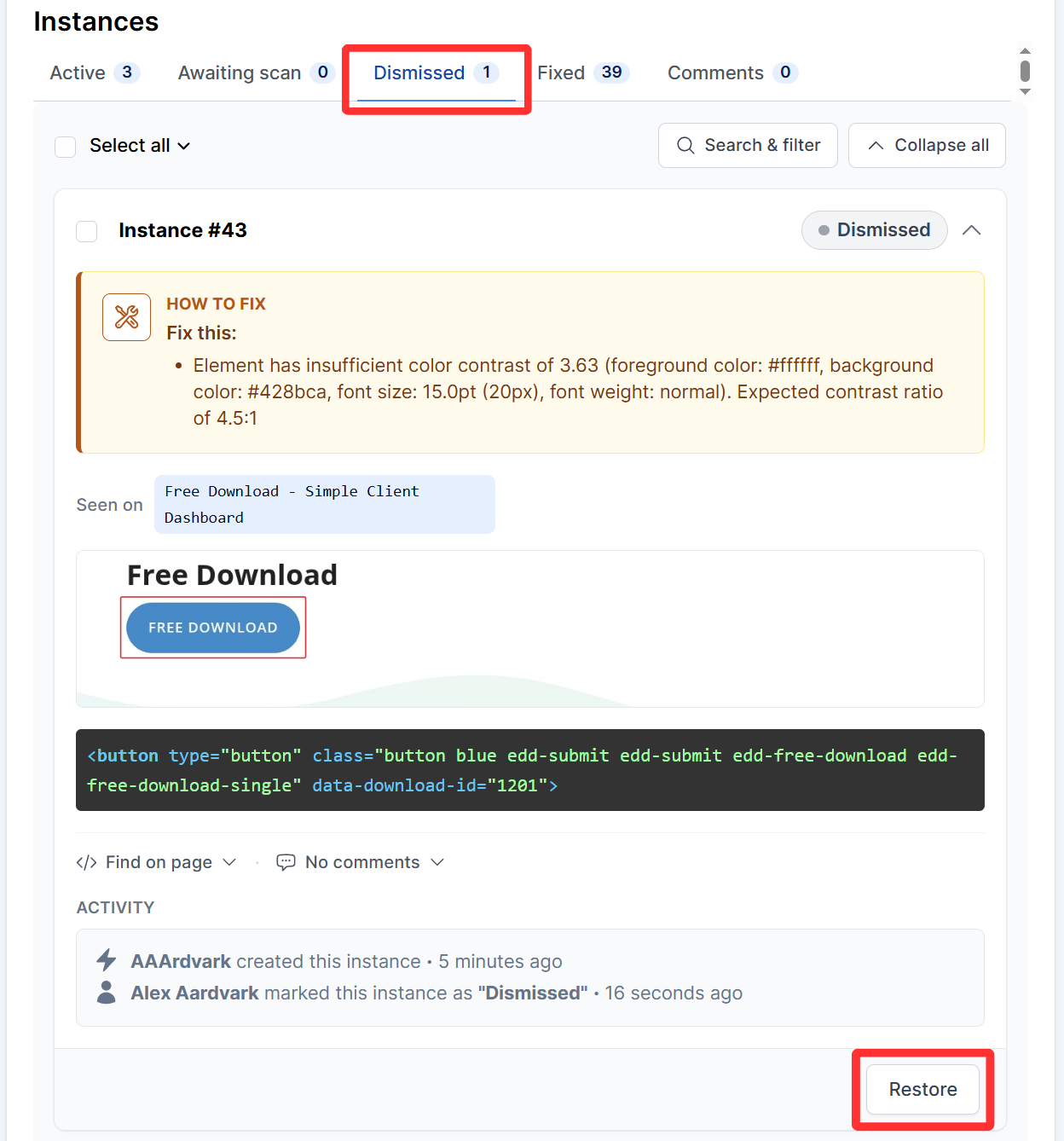
If you dismiss an instance by mistake, use the Restore button on the instance card to move it back to Active.
Fixed
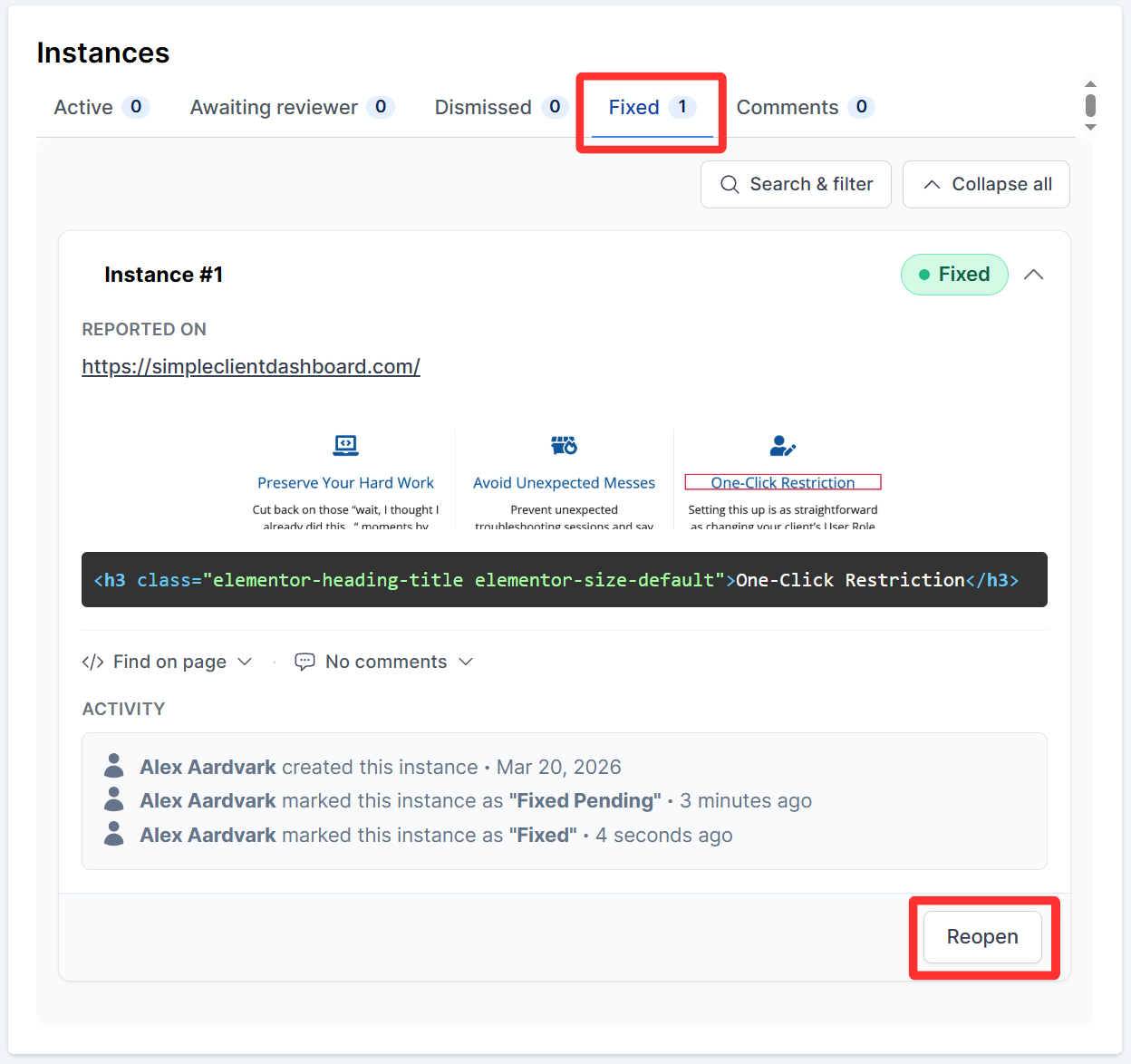
Once a scan or a manual review confirms the fix, the instance moves to Fixed and appears under the Fixed tab. When every instance of an issue is either Fixed or Dismissed, the whole issue is automatically marked Resolved.
For the manually reviewed instances that are marked as Fixed, you see the option to reopen them as well with the Reopen button. However, this button isn’t displayed for issues fixed by scan review.
Comments
The Comments tab collects every comment left on any instance of this issue in one place. Each entry shows which page the instance is on and a snippet of the comment, with a View Instance link that takes you directly to that instance in the right tab. This makes it easy to catch up on all the discussion around an issue without clicking through each instance one by one.
The Needs confirmation Screen
This screen lists every issue on the site where at least one instance needs a human to confirm whether it’s a real accessibility problem or a false positive.
There are two ways to get here:
- From the sidebar navigation: The Needs confirmation screen lists all issues site-wide that have instances waiting for review. Each issue row shows how many instances are waiting. Click an issue to open it in a confirmation-scoped view.
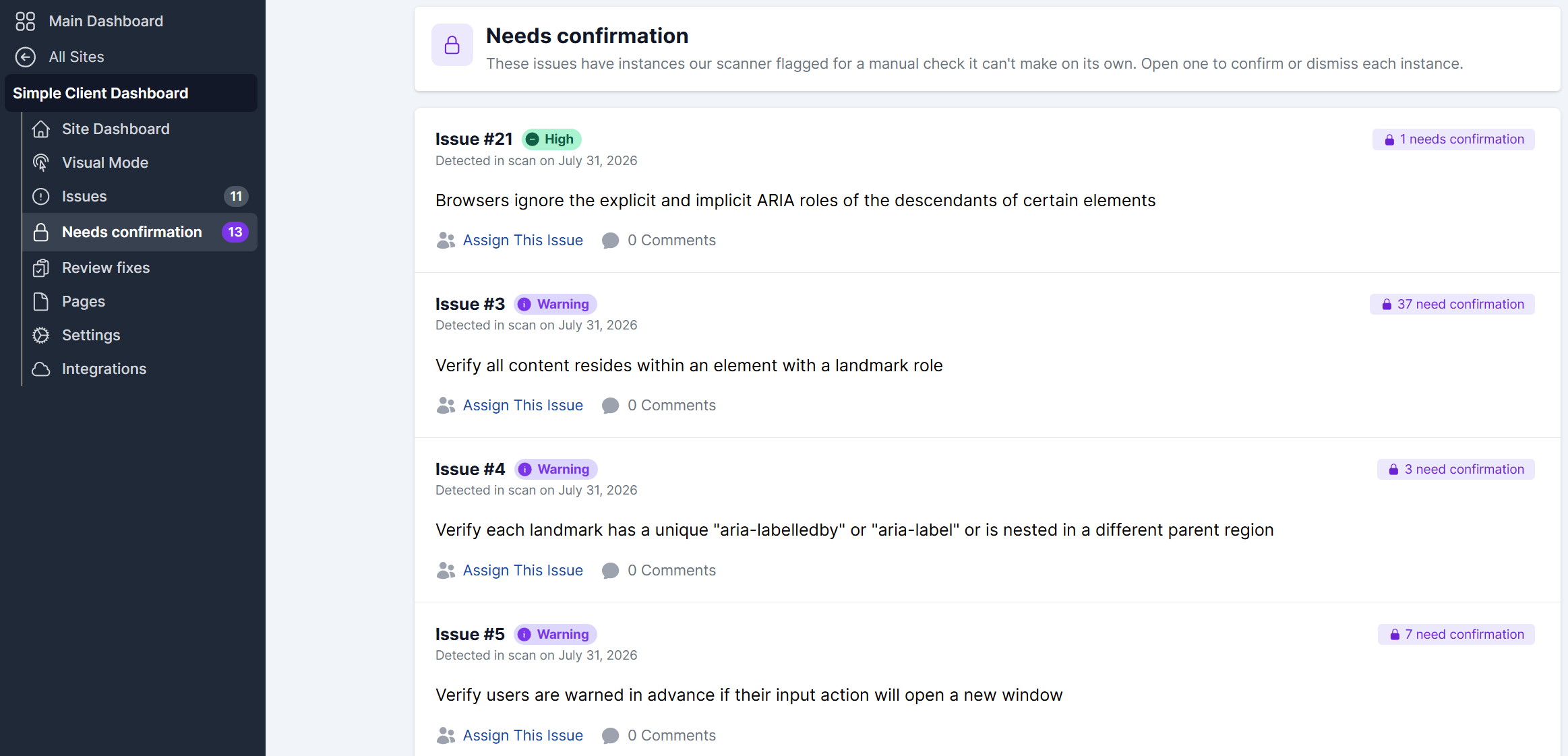
- From within a specific issue: When viewing an issue that has instances awaiting confirmation, a notice appears at the top of the instance list. Clicking it opens the same confirmation-scoped view for that issue directly.
An issue stays open and active in your Issues list even if it has no active instances. It won’t resolve until every needs-confirmation instance is either confirmed (and then fixed) or dismissed.
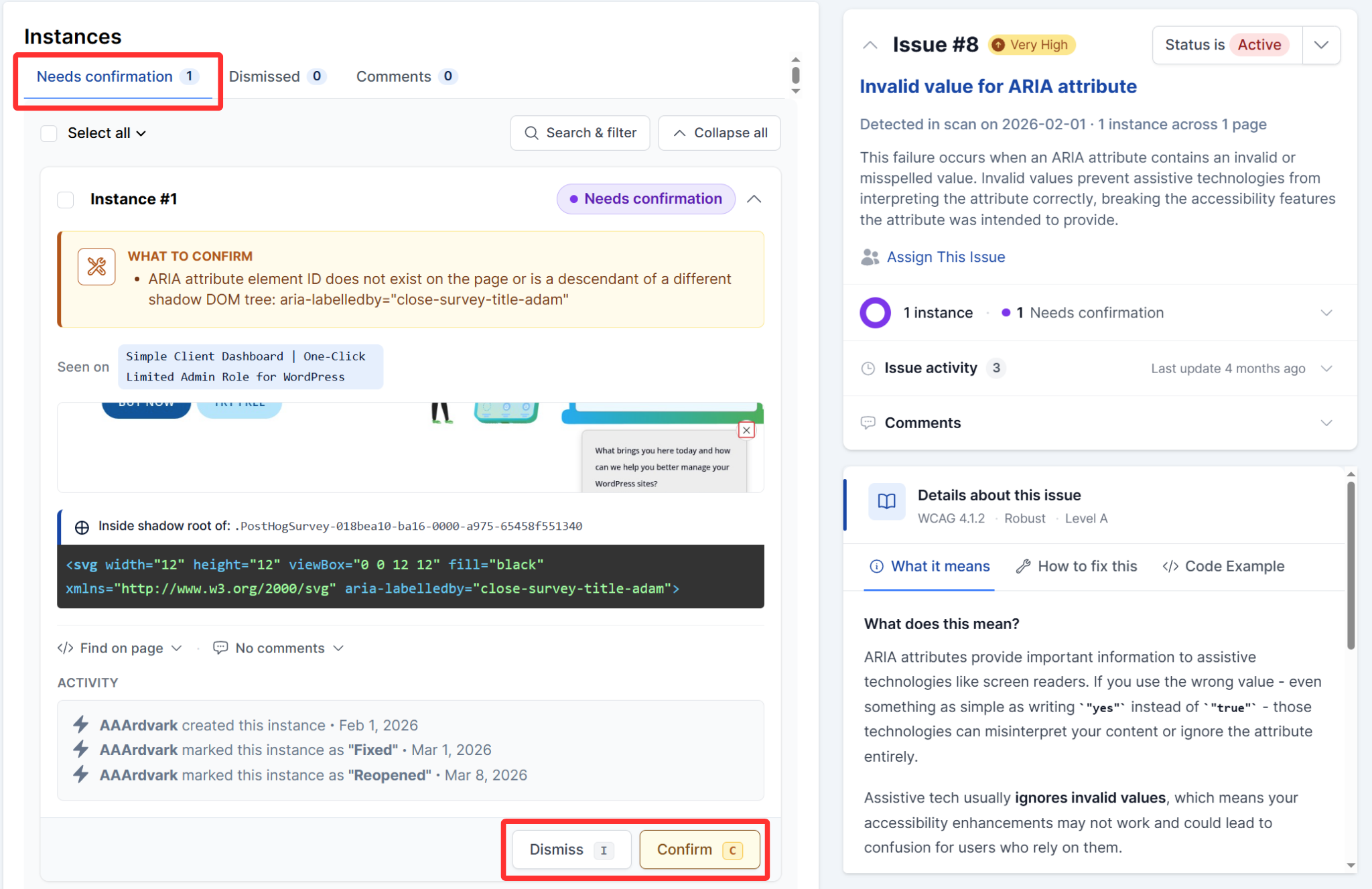
Opening an issue takes you into the same two-column layout as the normal issue page, with a notice at the top: “Our scanner flagged these instances for a manual check it can’t make on its own. Confirm the ones that are real problems (they move to the issue’s active instances to be fixed) or dismiss the false positives.” A few things work differently here:
- Tabs: Only Needs confirmation, Dismissed, and Comments. There’s no Active, Awaiting scan, or Fixed tab.
- Status options: Instances can be Needs confirmation, Confirmed, or Dismissed.
- Navigation: Includes filters from the Issues screen, a back button to return to the Issues list, and previous/next buttons to move between instances.
To confirm an instance, click the Confirm button under the Needs Confirmation tab. This marks it as a real accessibility problem and moves it to the Active tab on the main issue page, where it can be assigned and fixed like any other instance.
Confirming also updates the card’s guidance heading. The instance you just confirmed loses its manual-check flag, so its heading switches from WHAT TO CONFIRM to HOW TO FIX. Any other instances of the same issue that are still awaiting review keep the WHAT TO CONFIRM heading until each one is confirmed.
To dismiss an instance, AAArdvark shows a confirmation prompt first: you need to tick a box confirming you’ve manually tested the instance and it passes before the Dismiss button becomes active. The dismissal is recorded under your name.
The same guard applies if you try to resolve the entire issue while it still has instances waiting for confirmation. AAArdvark will tell you how many remain unreviewed and ask you to confirm before proceeding.
The Review fixes Screen
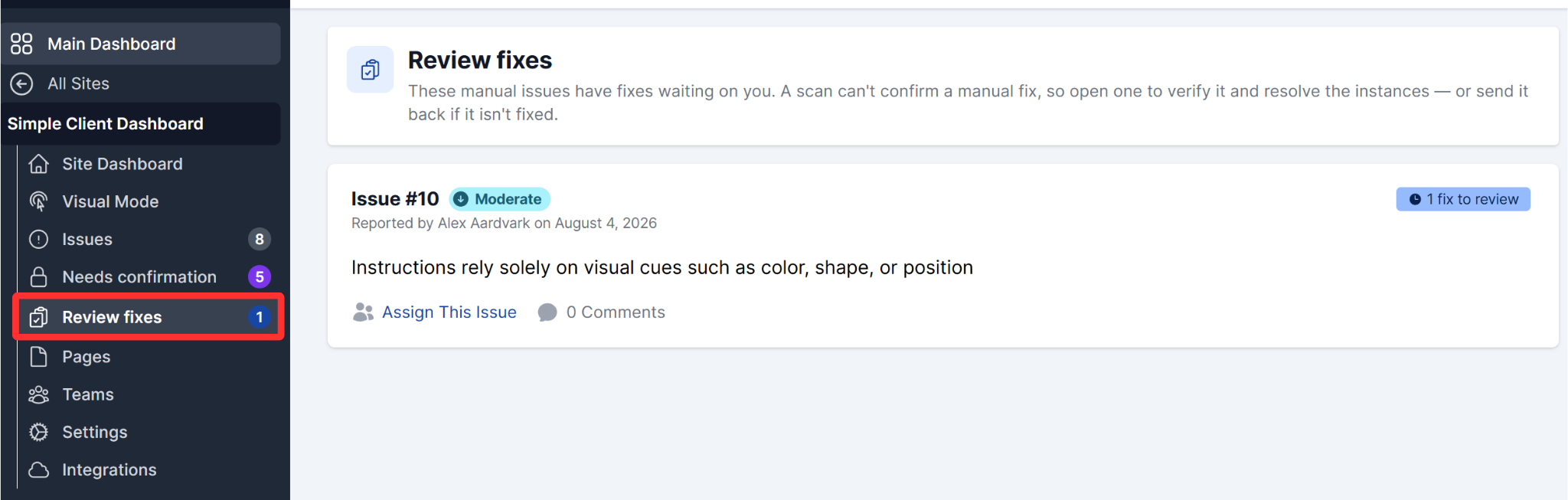
This screen is for Owners, Administrators, Project Managers, and Accessibility Testers. It lists every manually recorded issue that has been submitted for review, waiting on a reviewer to confirm the fix. Since a scan can’t verify a manual fix, a human needs to check it.
Opening an issue from this list takes you directly to the Awaiting reviewer tab within the Issues tab, so you can look at the fix and either Resolve Instance or send it back via the Mark as Not Fixed option.
If there’s nothing waiting, the screen shows an empty state: “We’ll list them here when a developer marks a manual issue fixed.”
Remediating or Fixing Issues and Instances
Fixing an issue instance means addressing the specific place where the problem appears, like adding alt text to an image or updating a link label.
Once fixed, click Mark as Fixed on an automatically-detected instance, or Submit for Review on a manually-recorded one. For automatically-detected instances, the next scan confirms the fix (Awaiting scan). You can also trigger that scan right away instead of waiting, see Awaiting scan. For manually-recorded instances, a reviewer confirms it instead (Awaiting reviewer).
If all instances of an issue are fixed or marked as Dismissed, the whole issue is marked Resolved.
Resolving Overall Issues
You can resolve an entire issue using the Status is [status] dropdown at the top of the right column on the issue page. Click it and select Resolve. Use this when you’re confident every instance has been addressed.
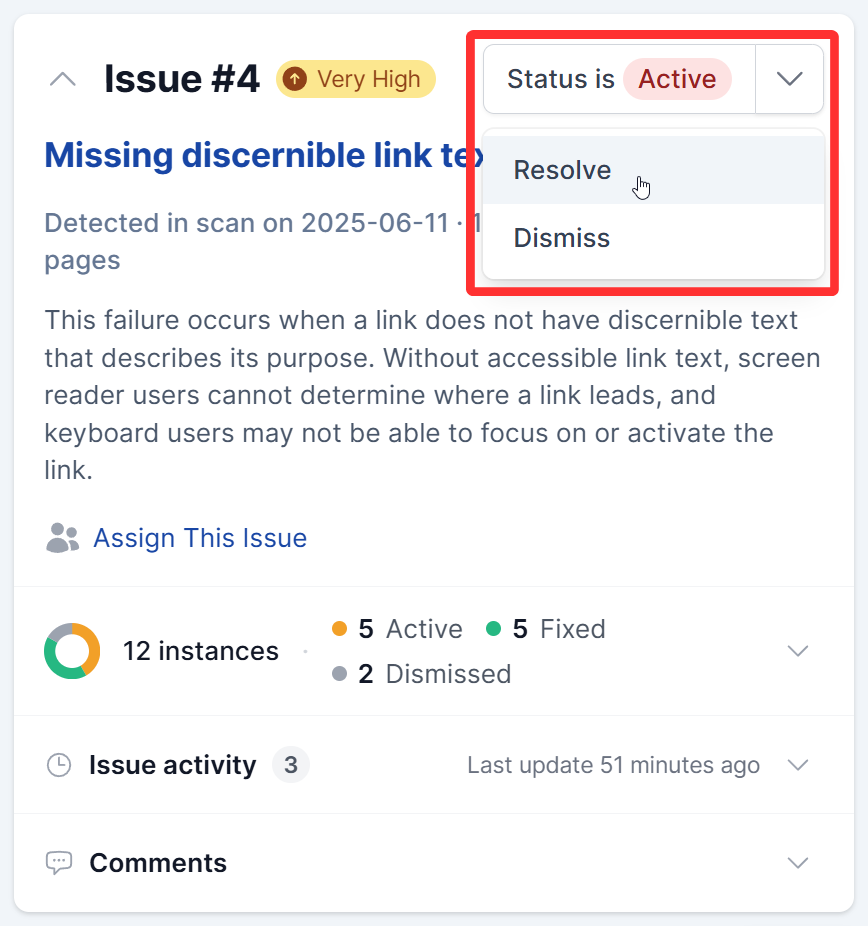
If any instances of the issue are seen in a subsequent scan, the issue will be reopened for you to take another look.
False Positives and Warnings
Automated scans aren’t perfect and may flag ambiguous situations as issues or warnings. Warnings often need a human review to confirm if they’re real problems.
If you determine that a warning or issue is not actually a problem, mark it as Dismiss to remove it from the active list and keep your dashboard clean.
For instances that the scanner flagged for manual review, see the Needs confirmation screen. Those instances follow a separate confirm or dismiss flow.
Color contrast is a common source of false positives. To reduce the number of contrast issues that require manual review, enable the AI Color Contrast Checker under Experimental Features in your site settings.
At the top of the issue detail page, a navigation bar carries over any filters you had active on the Issues screen. You can see which filters are applied and remove individual ones, or click Clear all to remove them all. The Back button returns you to the Issues list.

The Instance Toolbar
Above the instance list, a toolbar gives you tools to work through instances efficiently:
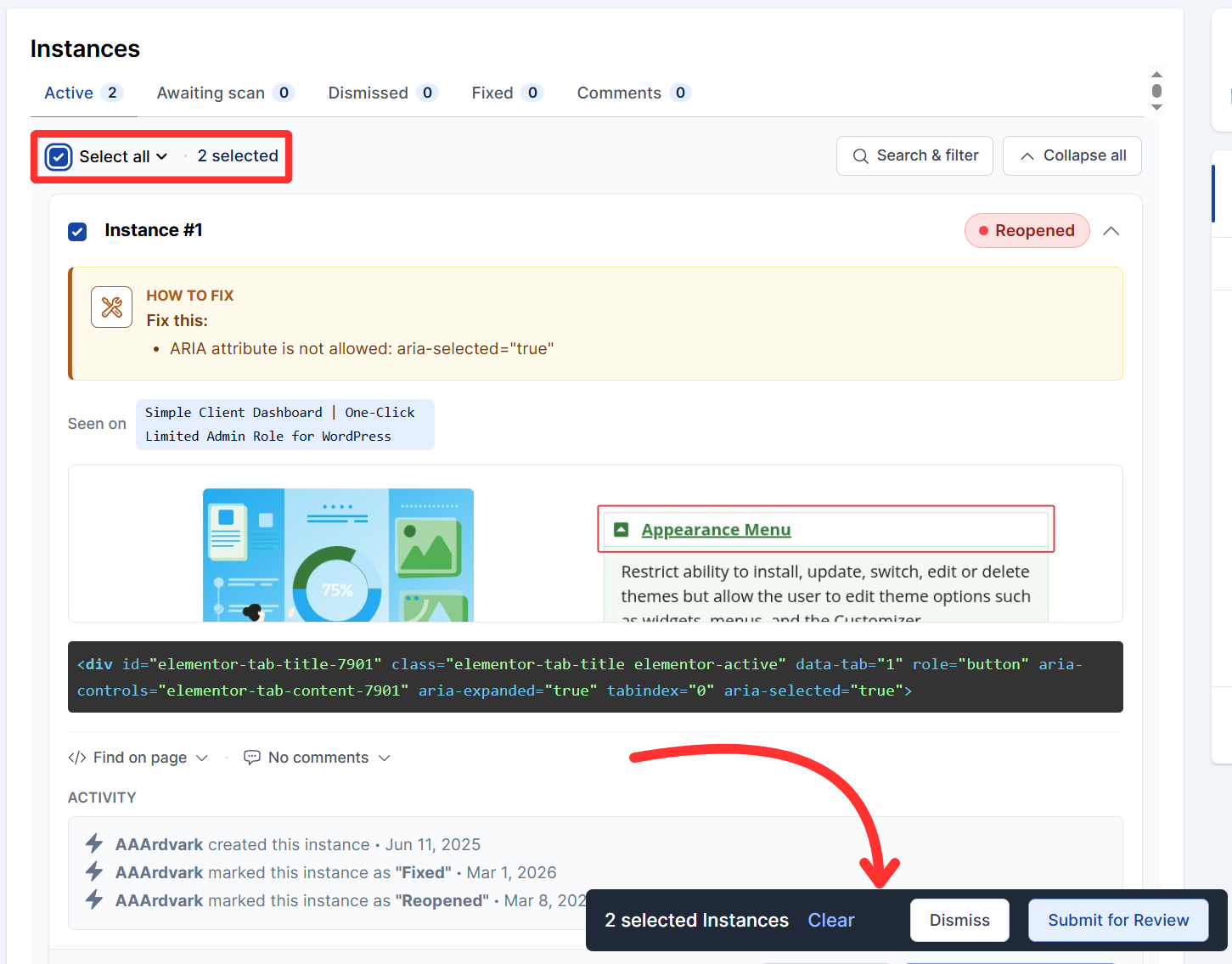
- Select all on the left: select all instances on the current tab for bulk actions.
- Search & filter: search by instance number or element, or filter down to specific pages.
- Collapse all: shrink every instance card to its summary line so you can scan the whole list at a glance. Expand individual instances as needed.
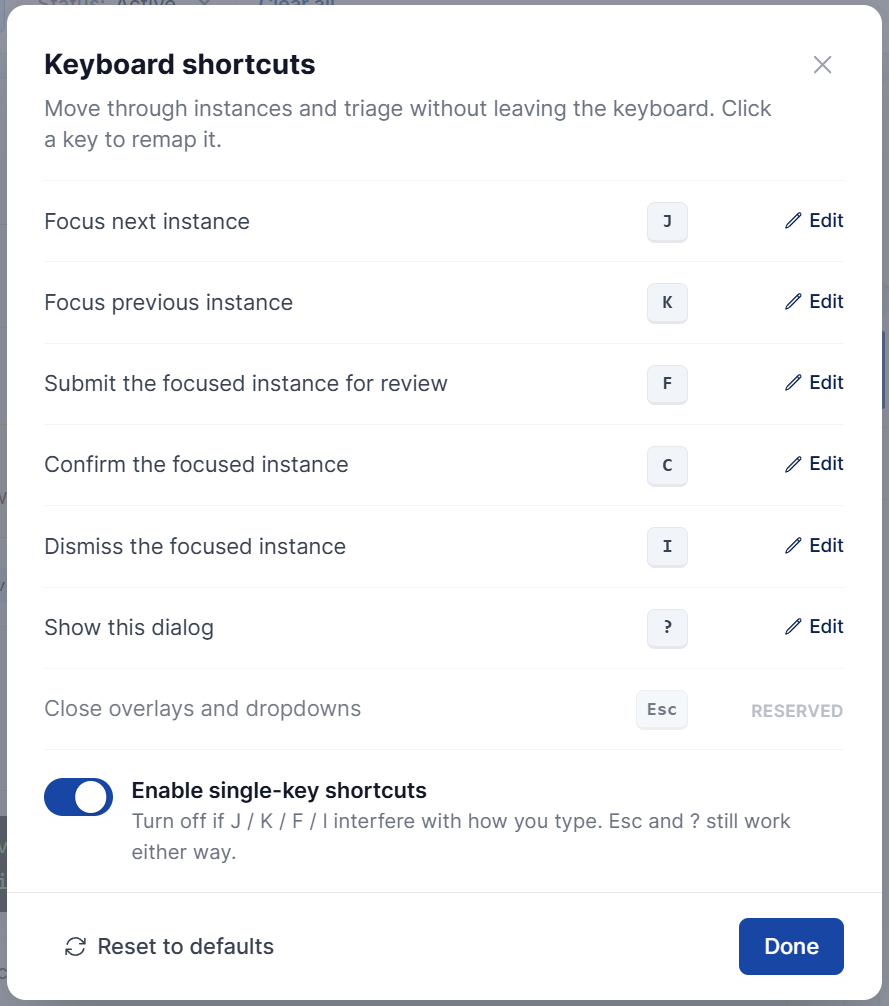
Keyboard Shortcuts
AAArdvark includes keyboard shortcuts so you can move through instances and triage them without touching the mouse. Open the shortcuts dialog with ? at any time to see the full list.
Key Action
J
Focus next instance
K
Focus previous instance
F
Mark the focused instance as Fixed
C
Confirm the focused instance
I
Dismiss the focused instance
D
Toggle the issue details panel
?
Show the keyboard shortcuts dialog
Esc
Close overlays and dropdowns
Every shortcut except Esc can be remapped: click the key shown next to an action in the dialog to assign a different key. Use Reset to defaults to restore the originals.
If the single-key shortcuts (J, K, F, I, D) conflict with how you type, you can turn them off with the Enable single-key shortcuts toggle in the dialog. Esc and ? continue to work regardless.