

PDF Scanning
Introduction
Many websites share important information in PDFs, like forms, reports and meeting minutes. Those documents need to be accessible too. They aren’t built like web pages, though, so the WCAG checks that run on your pages don’t apply to them.
PDF scanning checks your PDFs against PDF/UA-1 (ISO 14289-1), the accessibility standard for PDF documents, and shows the results right next to your web pages in AAArdvark.
PDF scanning is in beta. If you’d like to try it, email us at [email protected] to request access, and we’ll turn it on for your site.
On a free account? Email us a link to one of the PDFs on your site, and we’ll add it for you.
What’s Included
Once PDF scanning is on for your site, you can:
- Add PDFs to your site the same way you add web pages. Each PDF counts as 1 page toward your plan.
- Scan your PDFs one at a time or along with your full site scan, and watch each scan’s progress.
- Read a PDF/UA-1 report for every PDF, with each finding’s severity, the clause of the standard it falls under, and an example of where it was found.
- Search and filter findings by severity, clause, status, assignee and page.
- Assign, comment on, and dismiss findings, just like your web page issues. Your work is kept when you re-scan.
- Find out why a PDF can’t be checked, such as an image-only scan that needs OCR or a password-protected file, and how to fix it.
- Track PDF results on your site dashboard: pass rate, open PDF issues and PDFs scanned.
- Include PDFs in your exports: a PDF Accessibility section in the PDF report, and your PDF findings in the Excel export.
Each of these is covered step by step below.
What Gets Checked
Each PDF is run through a PDF/UA-1 validator, which checks the document’s structure: things like whether it’s tagged, whether its text can be read in the right order, and whether images have alternative text.
A few things are worth knowing up front:
- PDF findings get their own report. They don’t appear in your site’s Issues list or in Visual Mode. You’ll find them on each PDF’s report screen, covered below.
- A site with only PDFs works a little differently. A site shows “No grade yet” if it only has PDFs, or if none of its web pages could be read during the scan. A site with only PDFs also has no Visual Mode or Issues list.
- A clean report isn’t a guarantee. “No PDF/UA-1 issues detected on this PDF” means the validator didn’t find anything it can check automatically. Like a page scan, it’s a starting point, not proof that the document is fully accessible.
Adding a PDF
You add a PDF the same way you add a web page:
- Open your site and click Pages in the sidebar. (Once the site has a PDF, this link is called Pages and PDFs.)
- Click Add Page, then choose Manually.
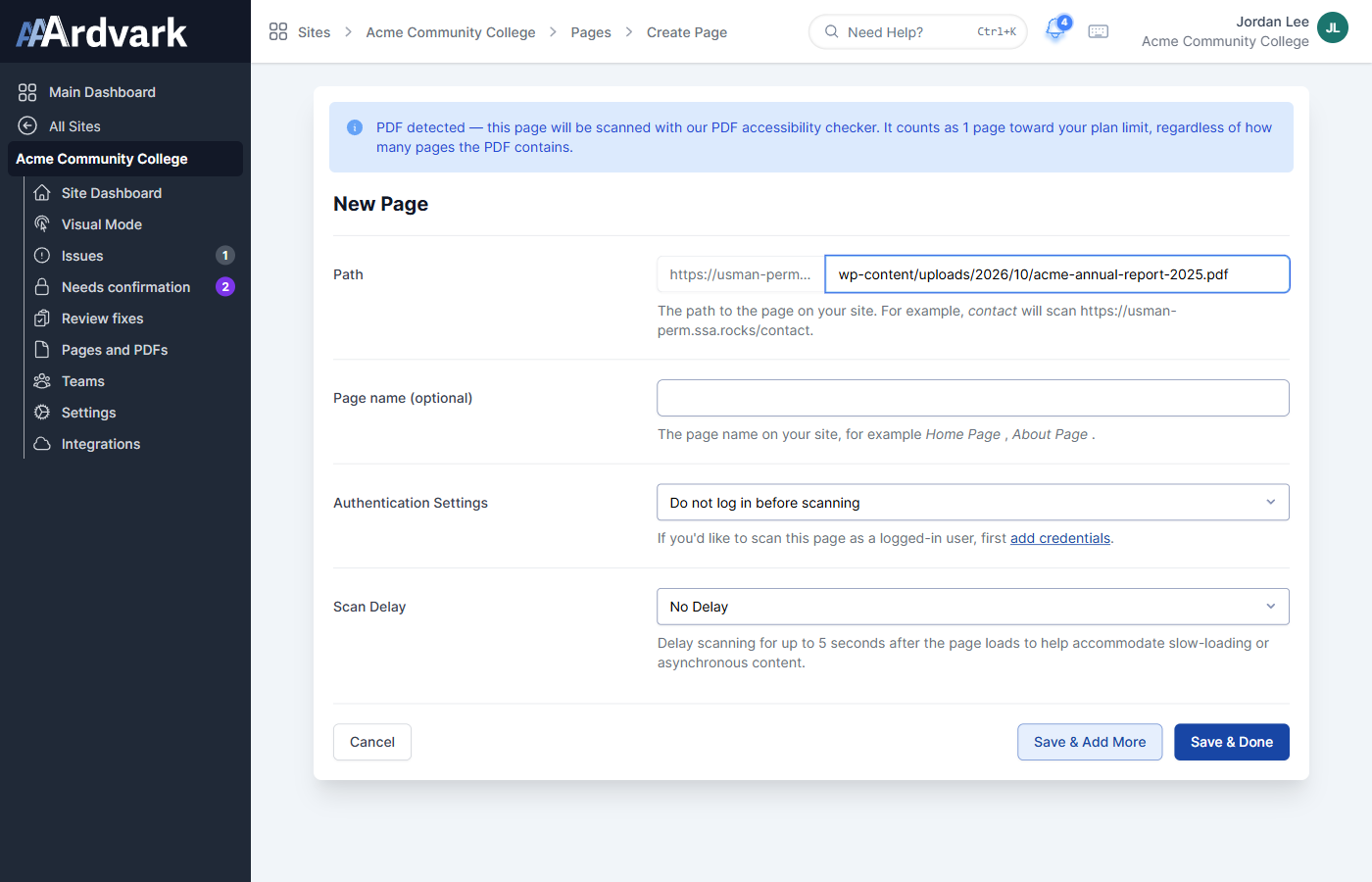
- Enter the PDF’s path, for example
wp-content/uploads/2026/10/annual-report.pdf, and click Save & Done. To add several PDFs in a row, click Save & Add More instead.
When you enter a path ending in .pdf and move to the next field, a blue PDF detected notice appears at the top of the form. It confirms the file will be checked with the PDF accessibility checker.
If you don’t have beta access yet, you’ll see a red notice instead and won’t be able to save the PDF. Email us at [email protected] to request access.
A few things work a little differently for PDFs:
- Each PDF counts as 1 page toward your plan’s page limit, no matter how many pages the document has.
- The address has to end in
.pdf. A PDF served from an address without.pdfat the end won’t be detected as a PDF. - You can’t add the same PDF twice. AAArdvark lets you know if it’s already on the site.
- If there’s no file at that address, you’ll see “No page was found at that URL.” Check the path and try again.
Your PDFs in the Pages List
Once you’ve added a PDF, it shows up in Pages and PDFs with a PDF label. Since there’s no web page to take a picture of, the row shows a document icon instead of a page thumbnail. Below its name, you’ll see where the file lives, plus its page count and file size, for example, “3 pages · 39 KB.”
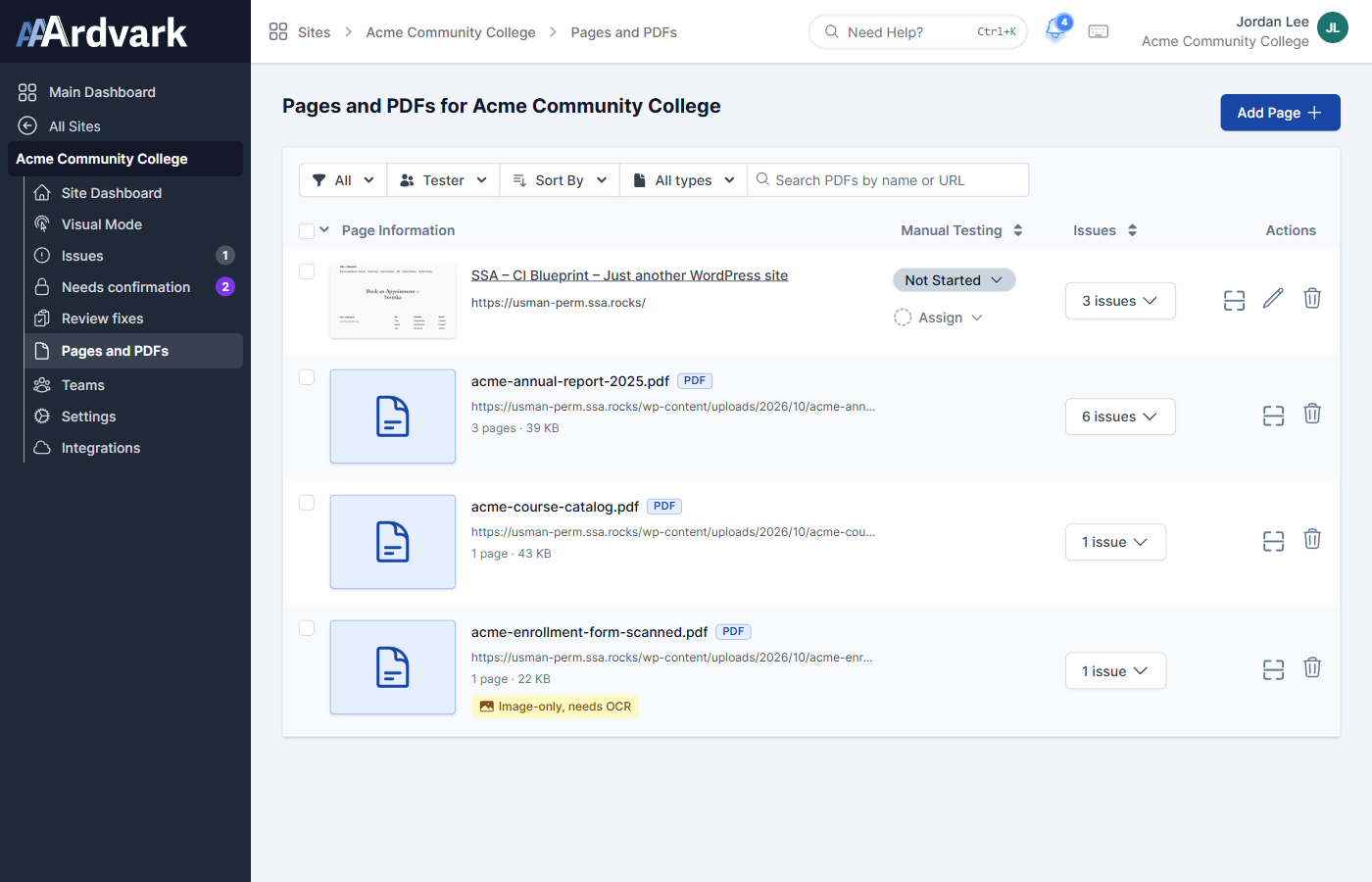
Right after you add it, the row may show Importing PDF… for a moment while AAArdvark downloads the file.
Each PDF row also has:
- An issues button showing how many findings the PDF has (for example “6 issues”)
- A scan button to scan that PDF on its own, and a delete button
PDF rows don’t have the Manual Testing status or Assign options that web pages have, since manual testing covers web pages.
To see only your PDFs, set the type filter (All types) to PDFs. The search box at the top finds PDFs by name or address.
Scanning a PDF
PDFs are scanned along with the rest of your site whenever you run a full site scan. To scan one PDF on its own, click the scan button on its row in the Pages list. While a full site scan is running, the scan buttons on individual rows are greyed out until it finishes.
While the scan runs, the row shows Scanning…. If you open the PDF’s report screen in the meantime, you’ll see Scanning your PDF… with a progress bar and the four steps the scan works through:
- Uploaded & parsed
- Validating PDF/UA-1 rules
- Mapping issues to pages
- Generating report
The screen switches to the results on its own when the scan finishes, so there’s no need to reload. Most PDFs finish within a few minutes. Long documents with hundreds of pages take longer.
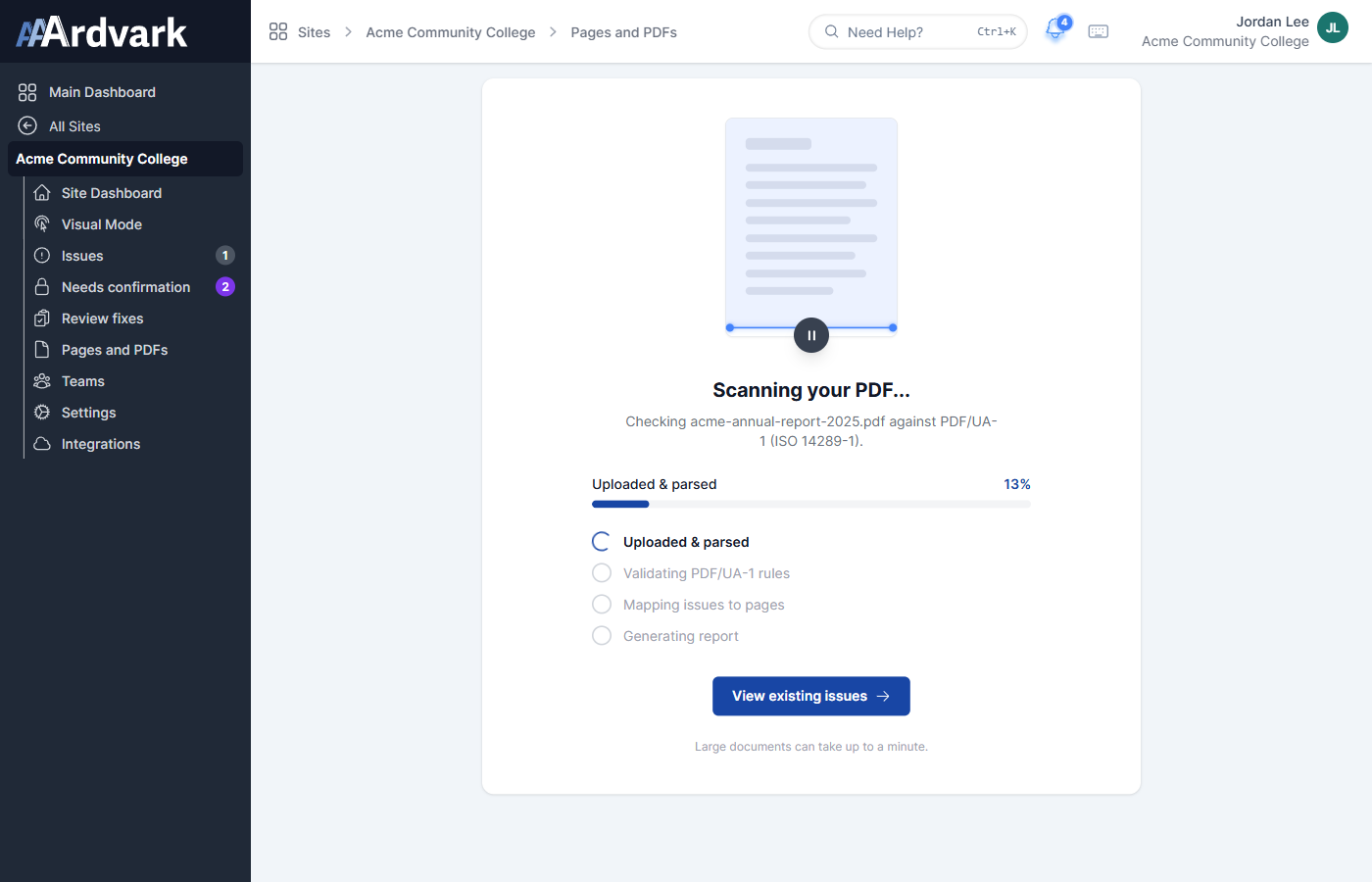
If a PDF has been scanned before, you can click View existing issues to look at the last results while the new scan runs.
Reading a PDF Report
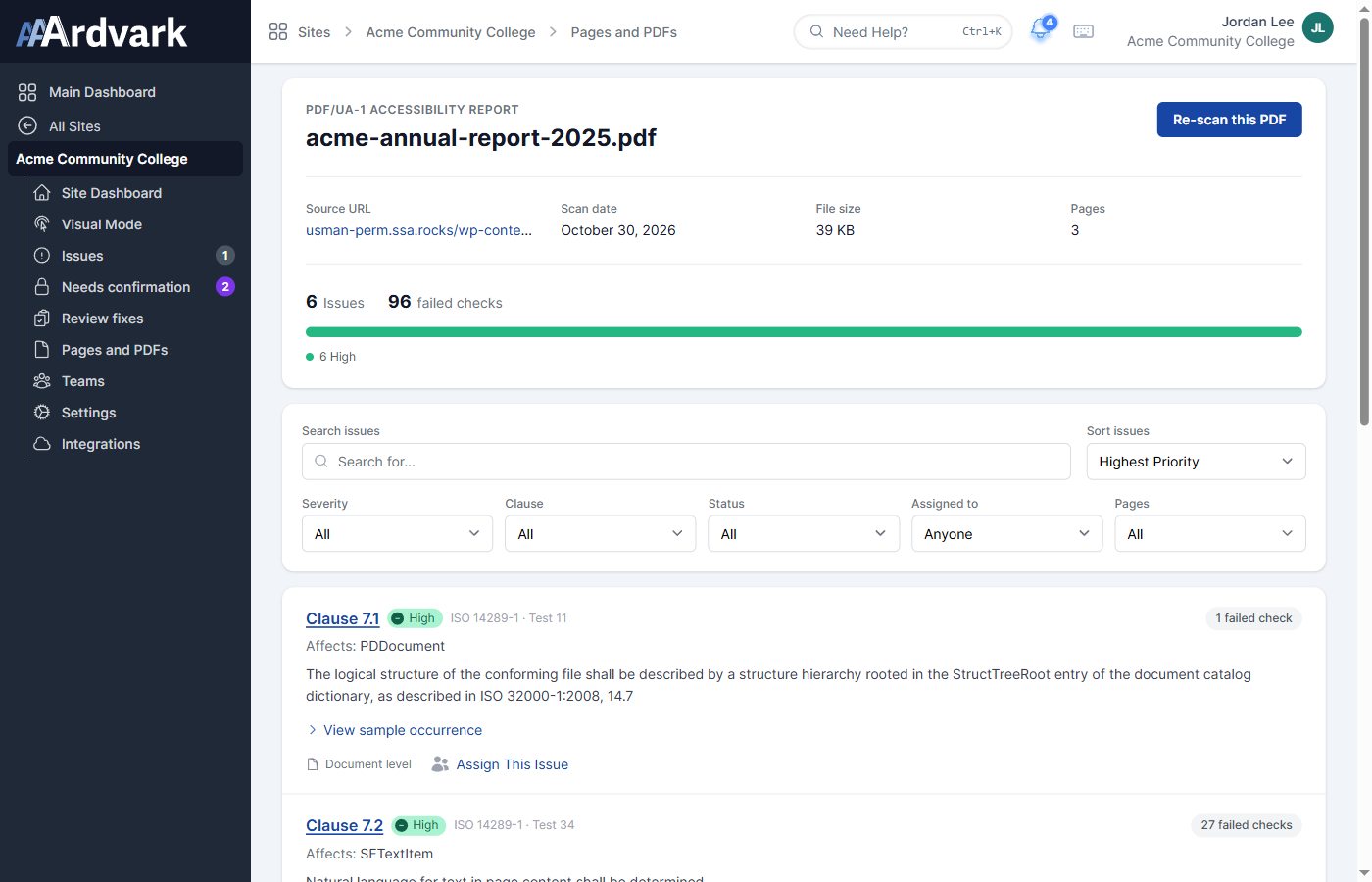
Click a PDF’s name in the Pages list to open its PDF/UA-1 Accessibility Report.
The top of the report shows:
- The document’s name and a Source URL link to the file
- The Scan date, File size and number of Pages
- How many issues and failed checks were found, broken down by severity
If the validator didn’t find anything, the report says “No PDF/UA-1 issues detected on this PDF.”
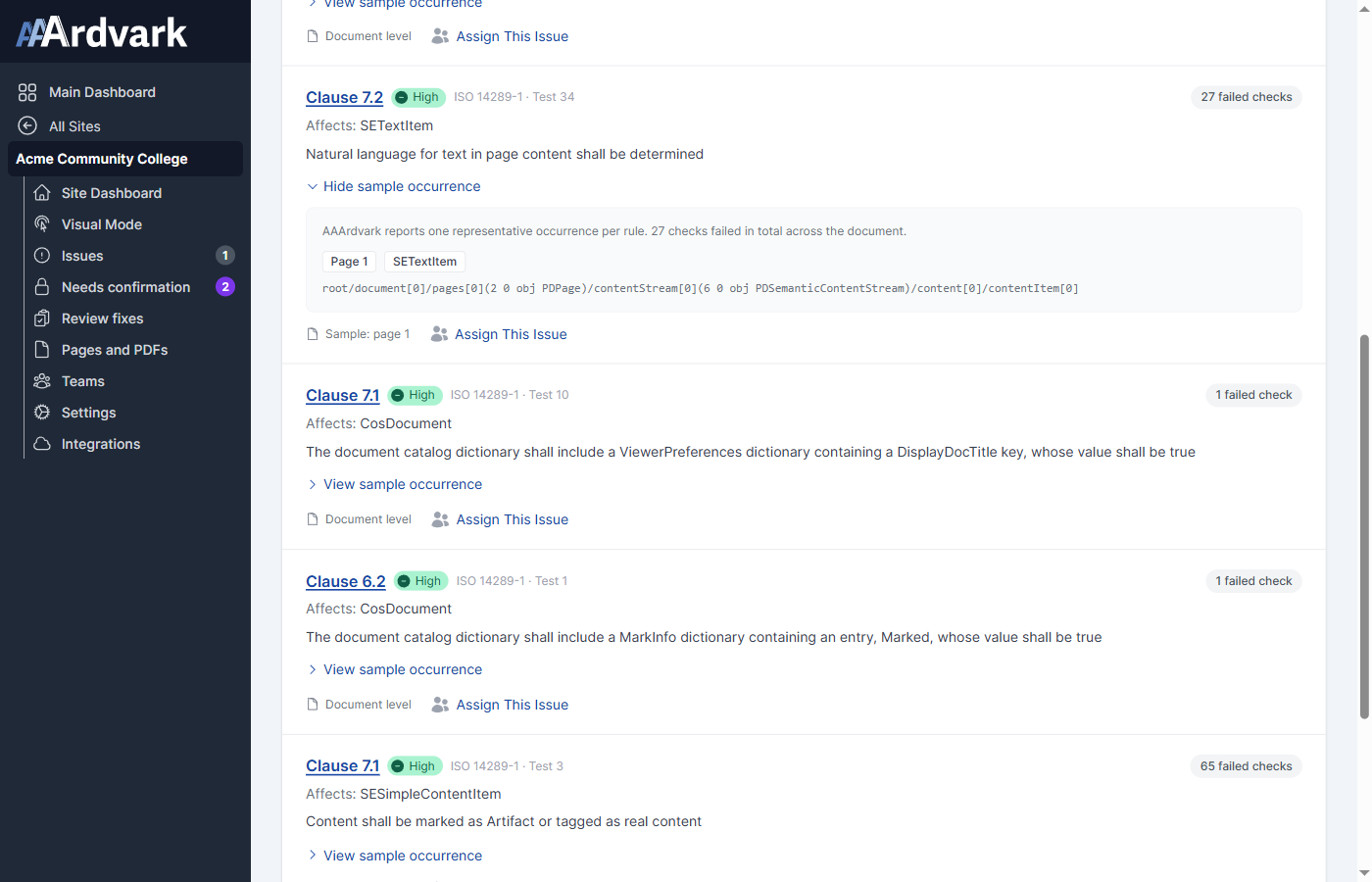
Otherwise, below the header is the list of findings. Each one shows:
- The clause of the standard it falls under, as a link (for example, Clause 7.2), with the rule’s test number next to it (for example “ISO 14289-1 · Test 34”)
- Its severity
- The rule that failed, and which part of the document it affects
- How many times the check failed across the document, for example “27 failed checks”
- Where it was found: Document level when the problem applies to the whole file, or Sample: page 1 when it’s on a specific page
- View sample occurrence, which opens one example of the problem, with its page number
- Assign This Issue, to hand the finding to someone on your team
Use Search issues and the filters (Severity, Clause, Status, Assigned to and Pages) to narrow the list, and Sort issues to order it by Highest Priority, Lowest Priority, Clause or Newest. Clear filters brings everything back.
Once you start working on findings, each one shows a status label for that PDF: Awaiting scan after you mark it as fixed, until the next scan confirms it, then Fixed, or Dismissed. Open findings don’t have a label. The Status filter only lists the statuses this PDF’s findings actually have.
The counts at the top of the report include every finding, even ones you’ve dismissed or fixed.
Working on PDF Issues
PDF findings work like your other issues: you can assign them, comment on them, and dismiss them.
- To assign a finding, click Assign This Issue on it in the report. The person you assign gets a notification that opens the finding.
- To comment on, dismiss or mark a finding as fixed, click its Clause link. This opens the finding’s own issue screen, the same as any other issue, with Comments, Dismiss and Mark as Fixed. Dismissing asks you to confirm first. To get back to the PDF’s report, click the Back to link at the top, or the document’s name in the breadcrumbs.
The same problem in several PDFs is one issue. Dismissing or fixing it from one PDF’s report only changes it for that PDF. Resolving or dismissing the whole issue on its issue screen applies to every PDF it covers.
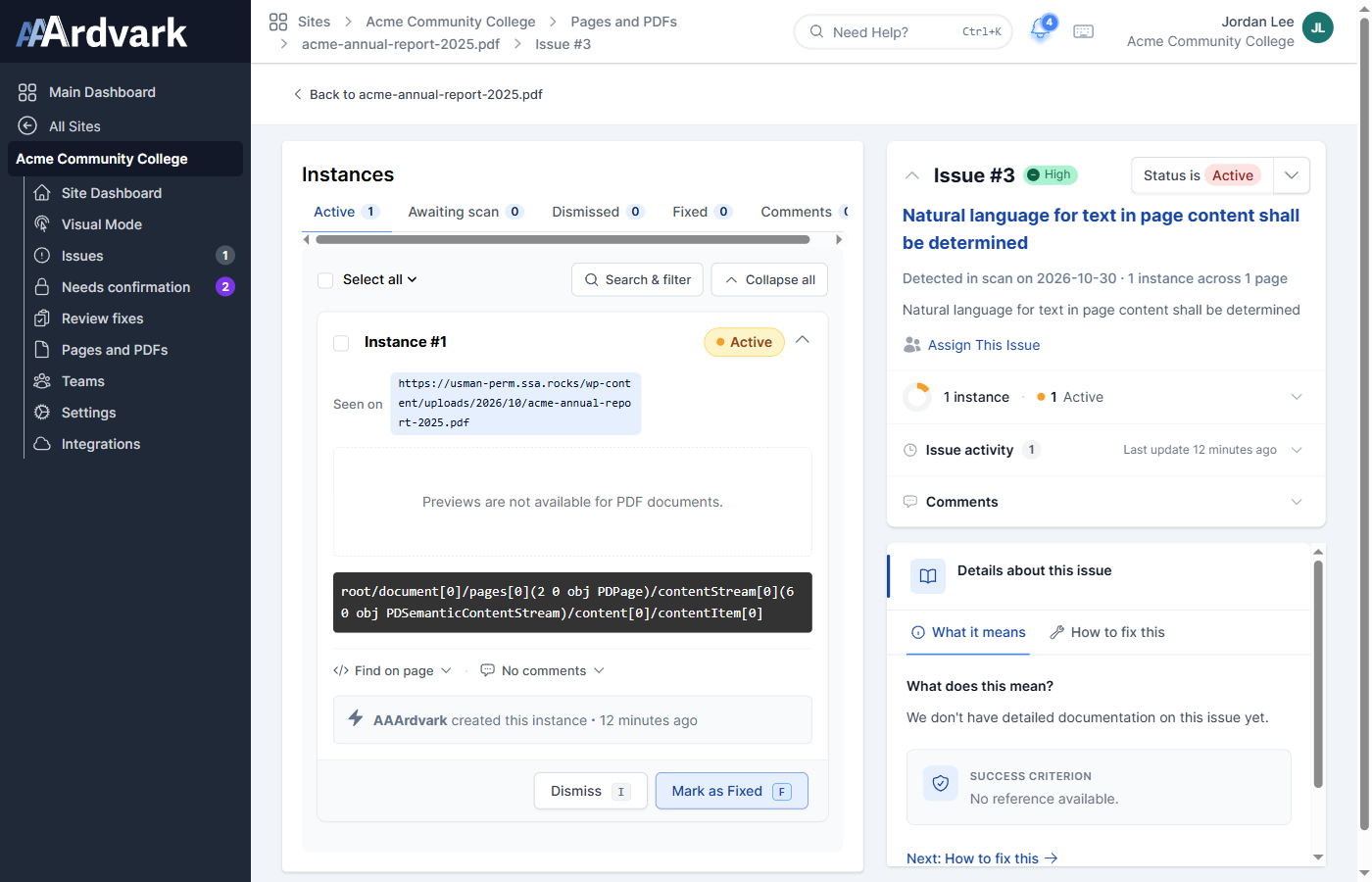
Some PDF findings now have plain-language guidance in their What it means and How to fix this tabs, and more is on the way. Most findings still use the wording of the PDF/UA standard itself.
PDF findings don’t have a Visual Mode preview, since there’s no page to show them on. The issue screen says “Previews are not available for PDF documents.” instead.
Once you’ve fixed the document and uploaded the new version to the same address, click Re-scan this PDF on its report to check it again. Assignments, comments, and dismissed findings are kept when you re-scan.
When a PDF Can’t Be Checked
Some PDFs can’t be run through the validator. When that happens, AAArdvark tells you what went wrong and how to fix it, instead of a list of findings:
- Image-only. The PDF is made of scanned pages with no real text, so screen readers can’t read any of it. Its report shows one Critical issue, “PDF is image-only and cannot be read by screen readers”, and its row in the Pages list shows an Image-only, needs OCR label. To fix it, run the PDF through OCR (text recognition) in a tool like Adobe Acrobat, upload the new version to the same address, and re-scan it. Once the PDF has real text, the image-only issue clears and the full check runs. A PDF that is mostly scanned pages can be treated as image-only even if a few pages have real text, so run OCR on the whole document.
- Password-protected. The file is encrypted, so it couldn’t be opened. Its report shows one Critical issue, “PDF is password-protected and cannot be scanned”. Upload a version without a password to check it.
- Damaged or incomplete. The file’s internal structure is broken. Its report shows one Critical issue, “PDF is damaged or incomplete”. Re-export or re-save the PDF and upload it again. (If AAArdvark can repair a lightly damaged file, it checks it normally instead.)
- Not a PDF. The address returned something else, like a web page or a broken link. The report screen says “Not a PDF” and explains how to fix it, and hovering over (or tabbing to) the label on its row shows the same message.
- Too large or behind a login. PDFs over 100 MB, or PDFs that require you to sign in before they open, can’t be downloaded for checking.
When a PDF couldn’t be imported or scanned, its row in the Pages list shows one of these labels: Image-only, needs OCR, Couldn’t import PDF or Scan failed. Hover over the label, or tab to it with your keyboard, to see why and how to fix it.
When some pages or PDFs couldn’t be scanned, a red banner appears at the top of the Pages list. Once you’ve fixed them, you can re-check them together: click Show pages with errors in that banner, then Scan Pages with Errors.
If you see one of these and aren’t sure what to do, email us at [email protected].
PDFs on Your Site Dashboard
Once a site has PDFs, its dashboard shows a PDF accessibility section with three numbers:
- PDF/UA pass rate: the share of checked PDFs with no findings, for example, “3 of 4 documents pass”
- Open PDF issues, with how many are new this month
- PDFs scanned, with how many were added this month
Click View all PDFs to see just your PDFs in the Pages list.
Under Recent Activity, each site scan also lists how many PDFs were scanned and how many PDF issues were found, for example “3 PDFs · 7 issues”.
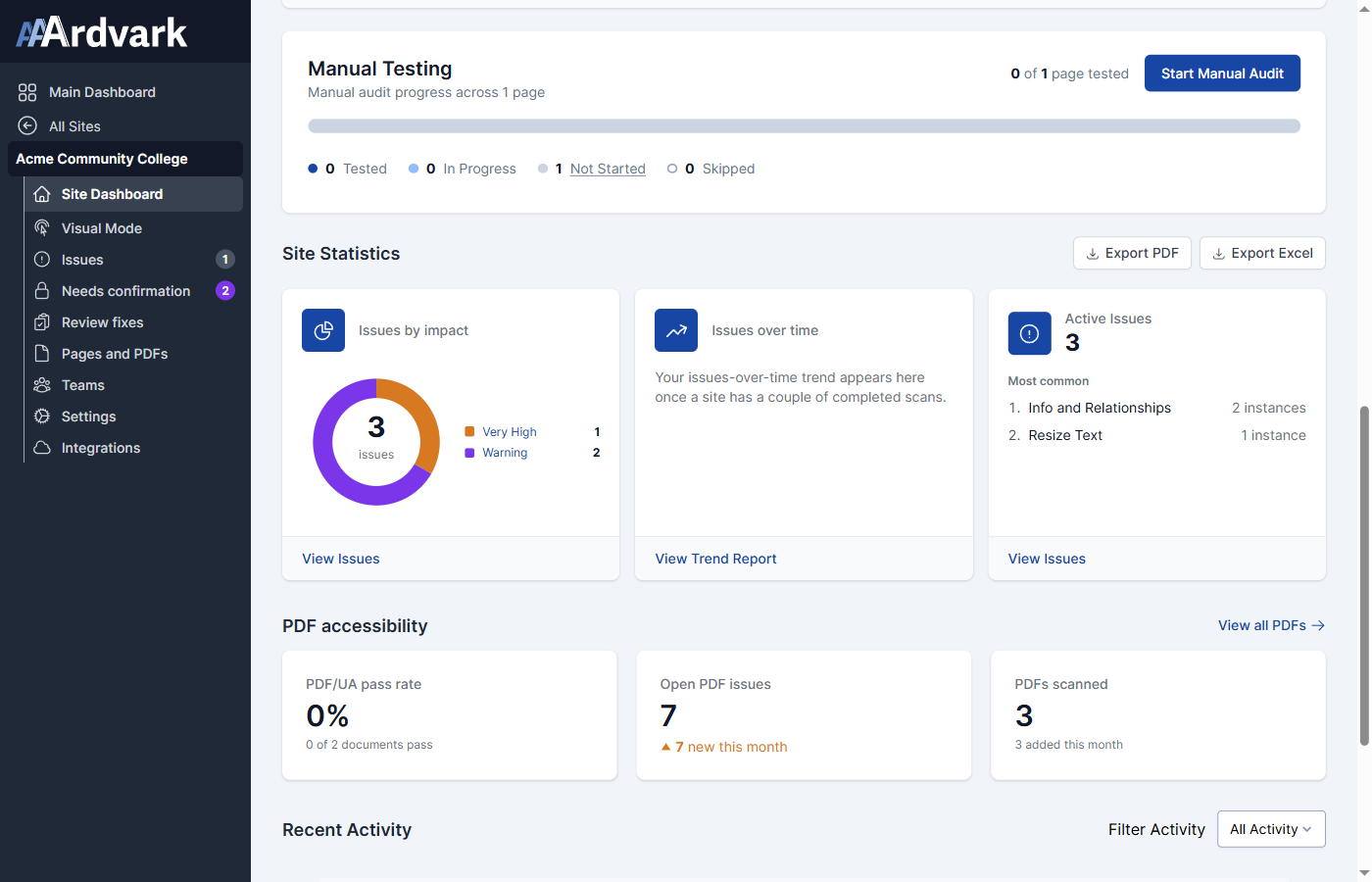
PDFs that couldn’t be checked (image-only, password-protected or not a PDF) don’t count toward the pass rate.
PDFs in Your Reports
When a site has PDFs, the report you get from Export PDF on its dashboard includes a PDF Accessibility section with the same three numbers you see on the dashboard:
- Pass rate, with how many documents pass (for example “3 of 4 documents pass”)
- Open PDF issues
- PDFs scanned
After the site has been scanned a couple of times, the section also shows a chart of your pass rate over time, so you can see whether your documents are improving.
Export Excel includes your PDF findings, each with its full title and a description of what it means. You’ll get an email and a notification in AAArdvark when the file is ready.
Exports aren’t offered on a site that only has PDFs.