

VPAT Testing Workflow
Introduction
A VPAT (Voluntary Product Accessibility Template) is a standardized document that records how a product conforms to accessibility standards like WCAG, Section 508, or EN 301 549. When filled out, it becomes an Accessibility Conformance Report (ACR).
Organizations often require VPATs during procurement to verify that products meet accessibility requirements. If you’re building websites or web applications for government agencies, higher education, or large enterprises, you’ll likely need to produce VPATs.
If you’re being asked for a VPAT because of ADA compliance concerns (wanting to be “ADA compliant”), note that the ADA doesn’t define its own technical standard. WCAG (usually 2.1 or 2.2 Level AA) is what VPATs, courts, and settlements typically use as the benchmark instead.
AAArdvark streamlines VPAT testing by mapping issues to specific WCAG Success Criteria. This lets you systematically work through each criterion and document your conformance level. This guide walks you through using your AAArdvark site data to complete a VPAT for your own product.
What Goes Into a VPAT
A VPAT documents conformance for each WCAG Success Criterion using these terms:
- Supports: The product fully meets the criterion
- Partially Supports: The product meets the criterion in some cases but not others
- Does Not Support: The product does not meet the criterion
- Not Applicable: The criterion does not apply to this product
- Not Evaluated: The criterion has not been evaluated. Per ITI guidance, this term may only be used for WCAG Level AAA criteria.
For each criterion, you’ll also provide remarks explaining how the product meets (or fails to meet) the requirement.
Choosing Your VPAT Edition and Standard
The template is published by the Information Technology Industry Council (ITI). Download the current templates from their site and pick the edition that matches who’s requesting the VPAT.
VPAT Editions
The template comes in four editions:
- VPAT 2.5 WCAG: for international use or when WCAG is the only standard required
- VPAT 2.5 508: for U.S. federal government procurement (includes Section 508 + WCAG)
- VPAT 2.5 EU: for European procurement (includes EN 301 549 + WCAG)
- VPAT 2.5 INT: combines all three above
Note: The 508, EU, and INT editions include additional reporting sections beyond WCAG (functional performance, software, documentation, and support). For web-only products, most of these chapters won’t apply, but you’ll need to address them in the report.
If you don’t know which edition the requester wants, ask. When in doubt, the INT edition is the most comprehensive.
WCAG Version and Level
VPATs are typically requested at WCAG 2.1 Level AA or WCAG 2.2 Level AA. Both are in active use across U.S. and EU procurement, so confirm which version the requester wants before testing, since the list of Success Criteria differs between versions.
Use the official list of Success Criteria for your target version and level as your checklist. The Success Criteria filter in AAArdvark only lists criteria that already have issues on your site, so it can’t serve as the full list.
Setting Up for VPAT Testing
Before you begin, make sure your site is fully set up in AAArdvark:
- Add all relevant pages: A VPAT should reflect your entire product, so include all page types and templates. See Adding Pages for details. For larger sites, focus on representative pages: one of each template type, your most-trafficked pages, and any pages central to core user journeys (signup, checkout, search, account management, etc.).
- Run an automated scan: Start with a full-site automated scan to catch code-level issues. This gives you a baseline before manual testing.
- Mark false positives: False positives will skew your conformance assessment, so review them and Dismiss them before you start. Work through the Needs confirmation screen too, confirming the real issues and dismissing the rest.
As you set up, note the information you’ll need for the VPAT itself: product name and version, the date range of testing, and the URL(s) in scope. The VPAT template asks for all of this on the first page.
Important: A VPAT documents your product’s current state of conformance. If you fix issues before or during VPAT testing, you’re producing a remediation report instead, which is a different deliverable with a different purpose. We recommend you decide upfront which one you’re creating.
Working Through Success Criteria
The key to efficient VPAT testing is using the Success Criteria filter in the Issues tab to work through WCAG requirements systematically.
Filtering by Success Criteria
- Navigate to the Issues tab for your site
- Click the Success Criteria dropdown
- Select a criterion, or type its number in the search box (for example, “1.1.1”). Each option shows the criterion number followed by its text.
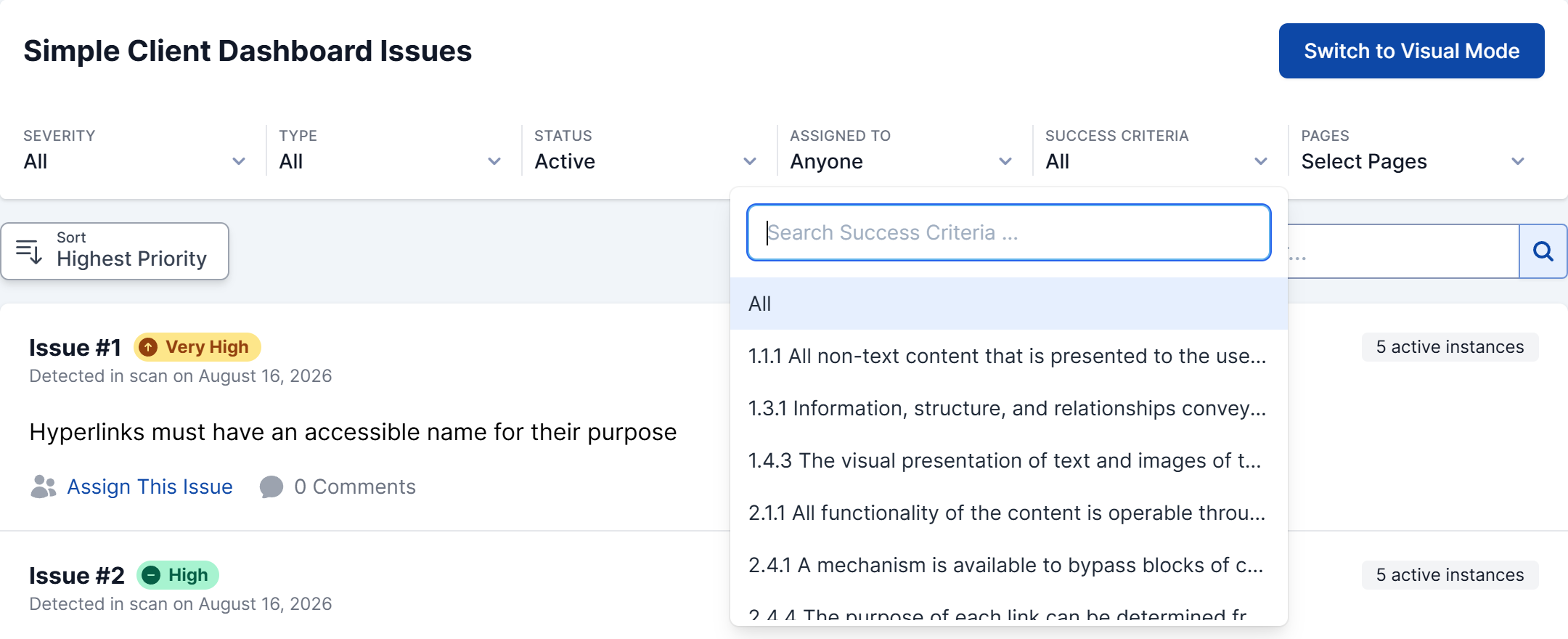
This shows the active issues for that criterion, making it easy to assess conformance. The Status filter defaults to Active, so change it if you also want to see issues in other statuses.
Documenting Conformance
For each Success Criterion, review the filtered issues and determine the conformance level.
Both automated scanning and manual testing must be completed before you determine a conformance level for any criterion.
| What You Find | Conformance Level |
|---|---|
| No issues found, after both automated scanning and manual testing | Supports |
| Some functionality meets the criterion, but not all | Partially Supports |
| The criterion’s requirements are not met | Does Not Support |
| The criterion does not apply to this product (e.g., no video content for 1.2.x criteria) | Not Applicable |
| Level AAA criterion you chose not to evaluate | Not Evaluated |
Record your findings in the VPAT template along with specific remarks. For example:
1.1.1 Non-text Content: Partially Supports All informational images have alt text. Two decorative images on the homepage are missing null alt attributes.
Manual Testing for VPAT Criteria
You cannot create a VPAT from automated testing alone. Most WCAG Success Criteria require manual review, and many can only be evaluated by a human tester. Plan to manually test every applicable Success Criterion at your target conformance level, using the automated scan results as a starting point rather than a complete picture.
Use the Record Issues button in Visual Mode to record manual issues as you test each criterion. AAArdvark includes a library of predefined issues with the Success Criterion already assigned, so most manual findings are mapped for you. When a predefined issue maps to more than one Success Criterion, you choose which one applies. For a Custom Failure, assign the Success Criterion yourself when filing. Either way, your manual issues will appear when you filter by Success Criterion later.
Testing Workflow
For criteria that need manual verification:
- Filter the Issues list by the Success Criterion
- Review any existing automated issues
- Perform manual testing on representative pages
- Record any new issues found using Visual Mode
- Document the conformance level based on your complete findings
Visual Mode requires the AAArdvark browser extension. Install it for Chrome, Edge, or Firefox before getting started.
Generating Reports for VPAT Completion
Once testing is complete, use AAArdvark’s reporting feature to gather the information you need for your VPAT.
From the Site Dashboard, click Export PDF or Export Excel in the Site Statistics section to start generating a report. AAArdvark builds the report in the background, which usually takes 10 to 15 seconds (longer for very large sites with many issues).
When it’s ready, the button changes to Download PDF or Download Excel. Click it to save the file.

Which Report Format to Use
- PDF report: A summary of the site’s accessibility score, open issues by severity, your top priorities with fix steps, and manual testing progress. Good for sharing with stakeholders. It reports progress rather than certifying WCAG conformance, so use it as supporting material, not as the VPAT itself.
- Excel (xlsx) report: Detailed, sortable data in two sheets. The first has one row per issue, with the issue ID, WCAG Success Criterion and conformance level, severity, affected page URLs, issue type (automatic or manual), and status. The second has one row per instance, with the page URL, element, and selector. This is the most useful format for filling in your VPAT since you can filter and sort by Success Criteria.
The xlsx report includes the specific issues and page URLs you need to reference in your VPAT remarks.
Related Guides
-

Understanding the Accessibility Testing Workflow
-
Developer Workflow
-
Project Manager Workflow
-
Accessibility Team Workflow