
Automated Testing Workflow
Introduction
Accessibility audits start with automated testing, which can catch about 20 to 30% of issues. Please note that manual testing is still required for full WCAG compliance.
Automated testing finds obvious code-level problems like:
- Missing alt text
- Low color contrast
- Links or buttons without text
- Videos without captions
- Broken heading hierarchies
Together, automated and manual testing provide a complete picture of the site’s accessibility status.
Running Automated Scans
Start a scan in AAArdvark by navigating to the Site in your Workspace dashboard. Make sure all the pages you want to test are added.
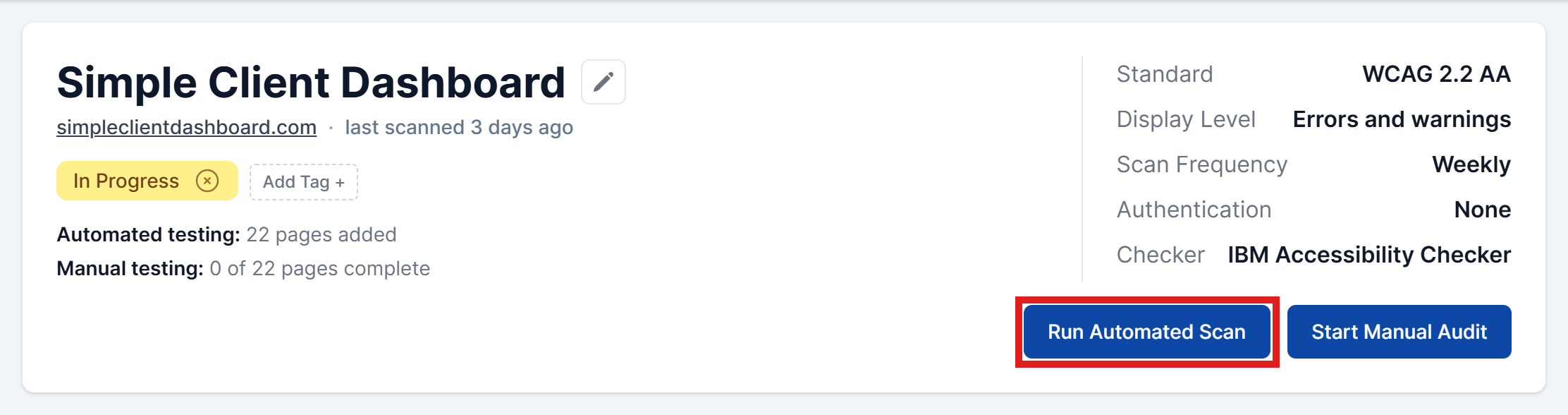
From the Site Dashboard, click Run Automated Scan to scan all pages. That’s it. The scan will start running.
Reviewing Automated Issues and Addressing Them
After the scan, issues appear in the list. They may fall into three cases:
- Fix required: Once resolved, select Mark as Fixed. The instance moves to Awaiting scan, and AAArdvark confirms the fix in the next scan.
- False positives: If no problem exists, select Dismiss, and AAArdvark will ignore it next time.
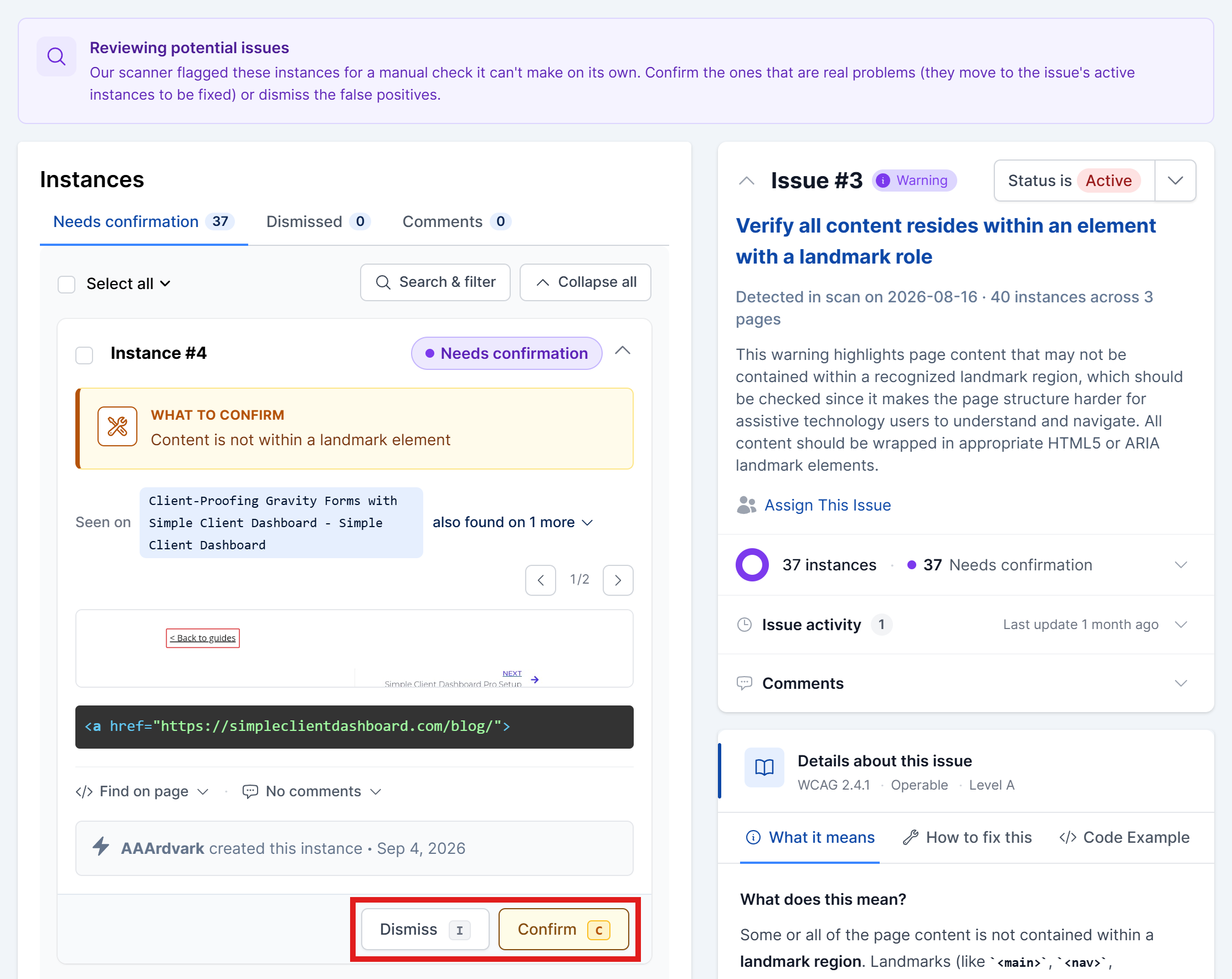
- Warnings: Instances the scanner can’t check on its own are listed on the Needs confirmation page in the site’s sidebar. Someone with the Accessibility Tester, Project Manager or Administrator role (or the workspace Owner) reviews each one: Confirm real problems (they move to the issue’s active instances to be fixed) or Dismiss false positives. These don’t count against your Accessibility Score, but the site’s grade stays capped until they’re reviewed.
AAArdvark Features for Automated Testing
AAArdvark readily provides features to streamline the automated testing process with some key capabilities:
Whole Site vs Single Page Scans
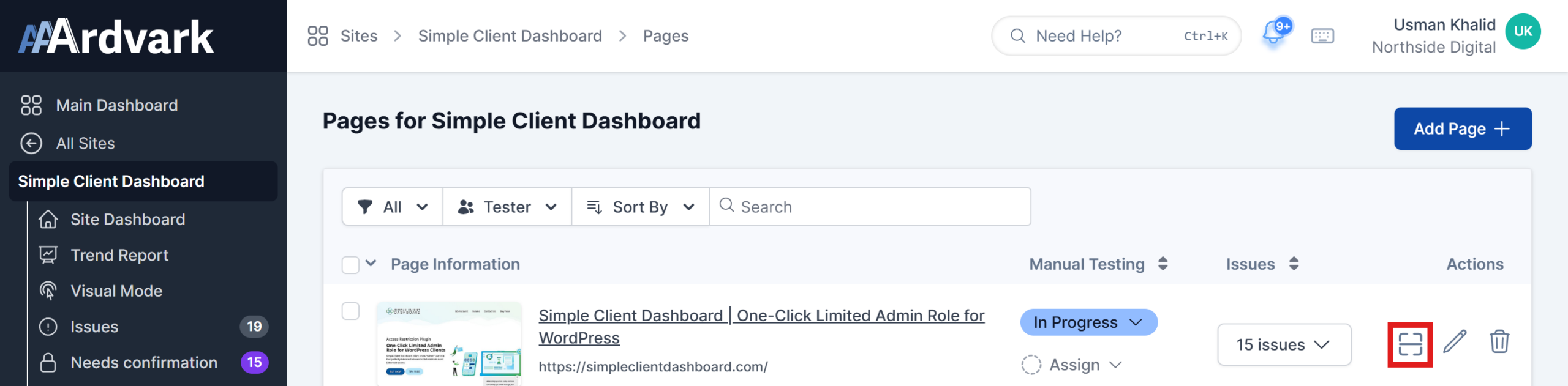
Full-site scans are useful for starting a project or regular check-ins, but may take longer. For quick checks, scan a single page from the Pages tab, which is ideal for verifying fixes.
Learn more about scanning the whole site vs single pages.
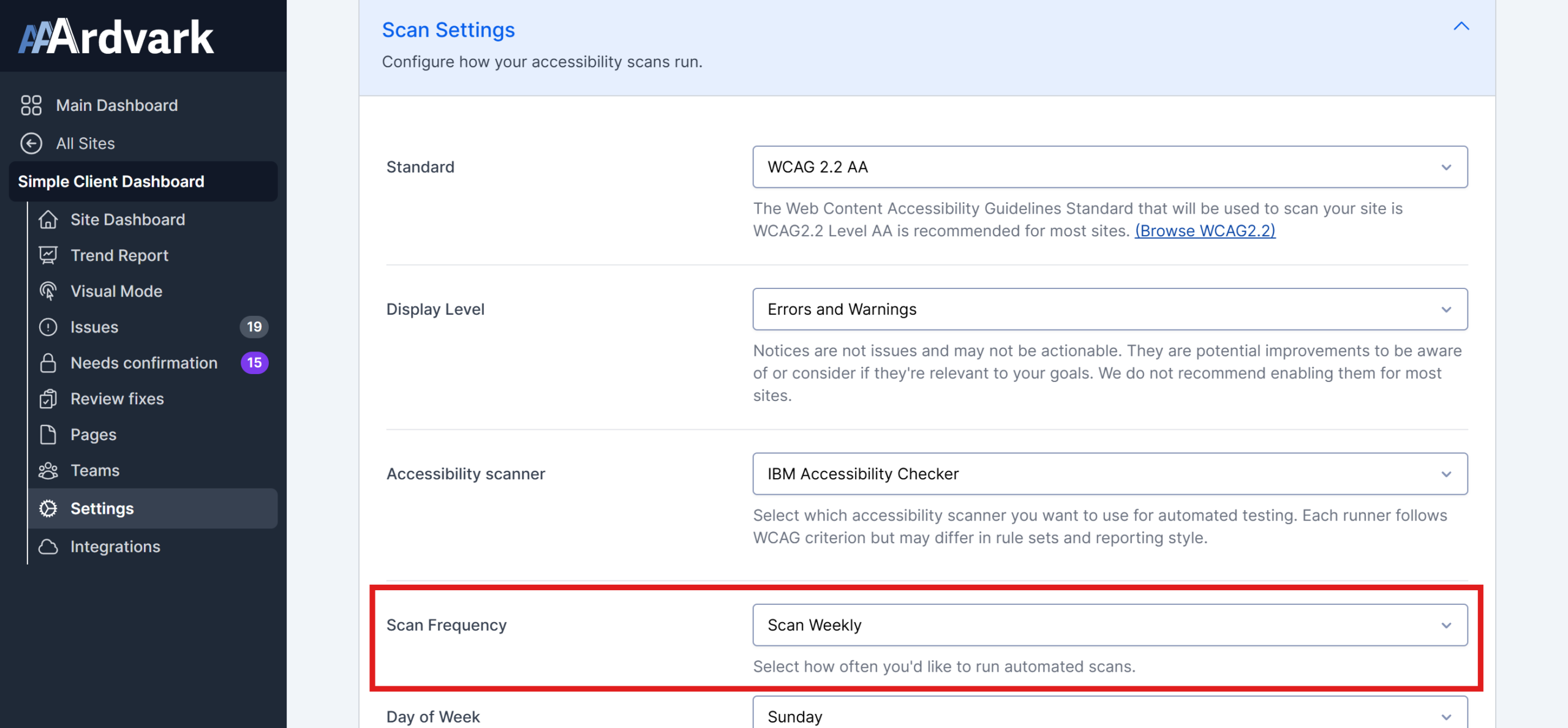
Scheduled Scans
You can schedule daily or weekly scans for ongoing monitoring after a project is complete. Weekly scans are especially useful to track overall accessibility over time. A sudden rise in issues signals it’s time for a manual audit.
Site Dashboard Information
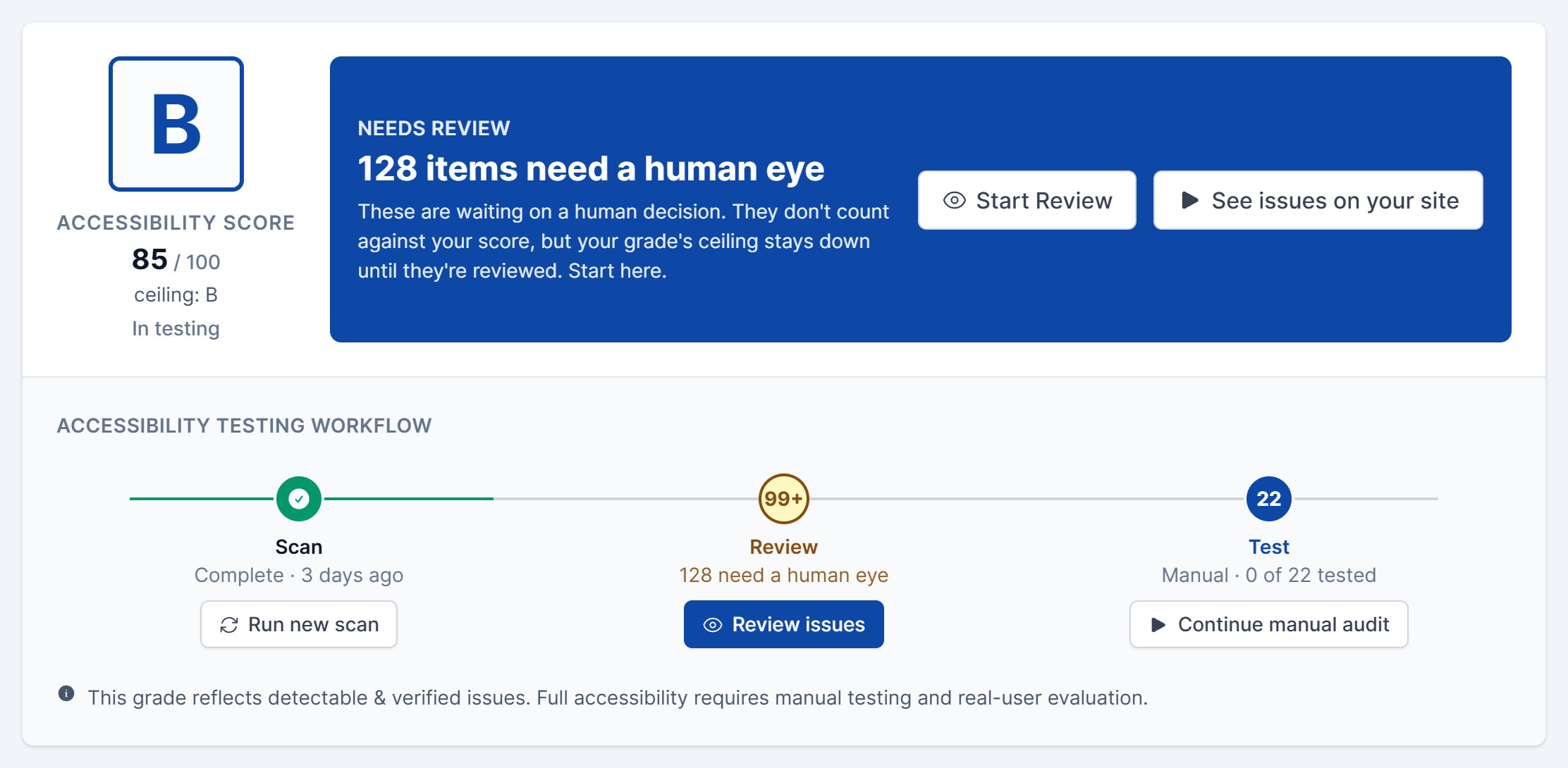
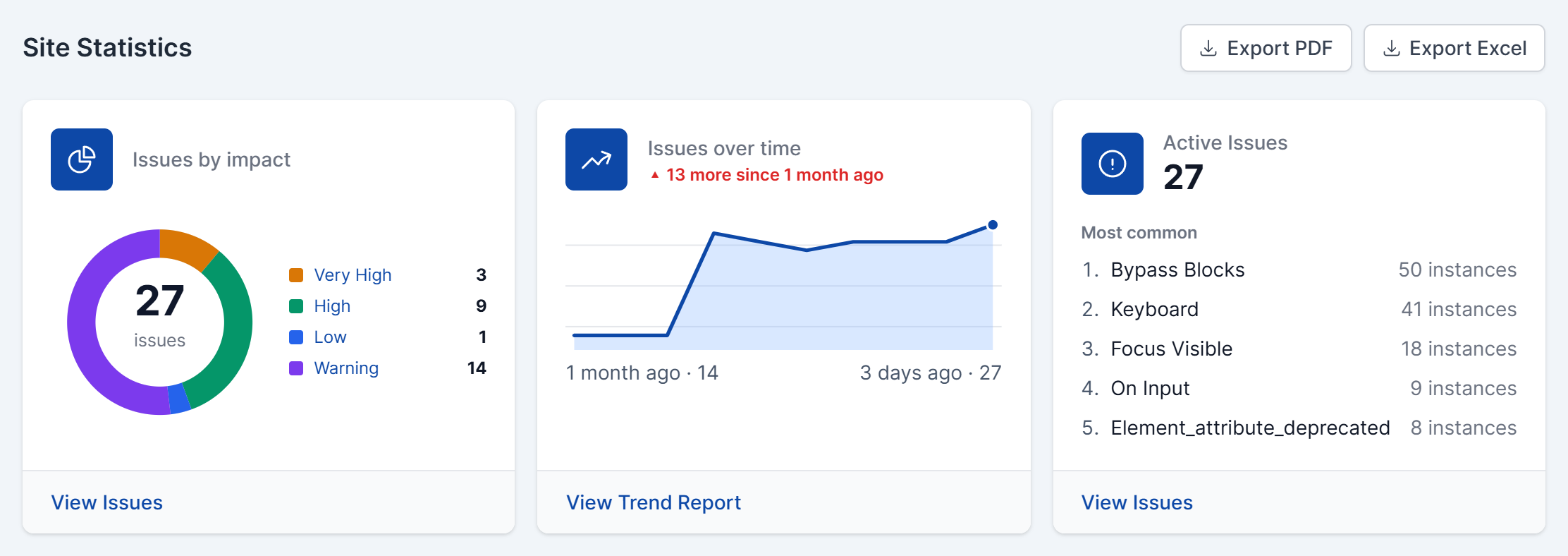
After a scan, the site dashboard shows:
- Accessibility Score and workflow status: the site’s score and grade, the suggested next step, and where the site is in the Scan, Review and Test workflow
- Site Statistics: issues by impact, issues over time, and the most common active issues
- Recent Activity: a log of recent scans and issue updates
Filters for Automated Issues
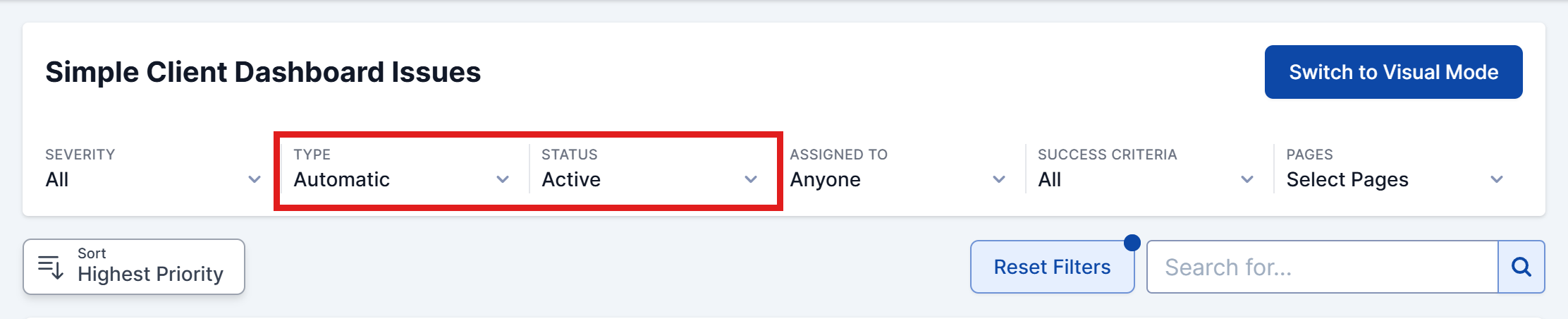
Use filters to narrow issues by severity, type, status, assignment, success criteria, or page, and sort them by priority.
The main focus is usually on Active automated issues. Filter by:
- Type: Automatic
- Status: Active
To work through instances that need a manual check, use the Needs confirmation page described above.
Related Guides
-

Understanding the Accessibility Testing Workflow
-
Developer Workflow
-
Project Manager Workflow
-
Accessibility Team Workflow