

Creating Fully Custom Manual Issues
Introduction
AAArdvark simplifies the process of logging manual issues in Visual Mode. This guide will walk you through how to document Custom Failures while manually auditing your site for accessibility.
Visual Mode requires the AAArdvark browser extension. Install it for Chrome, Edge, or Firefox before getting started.
Log an Issue with a Custom Failure
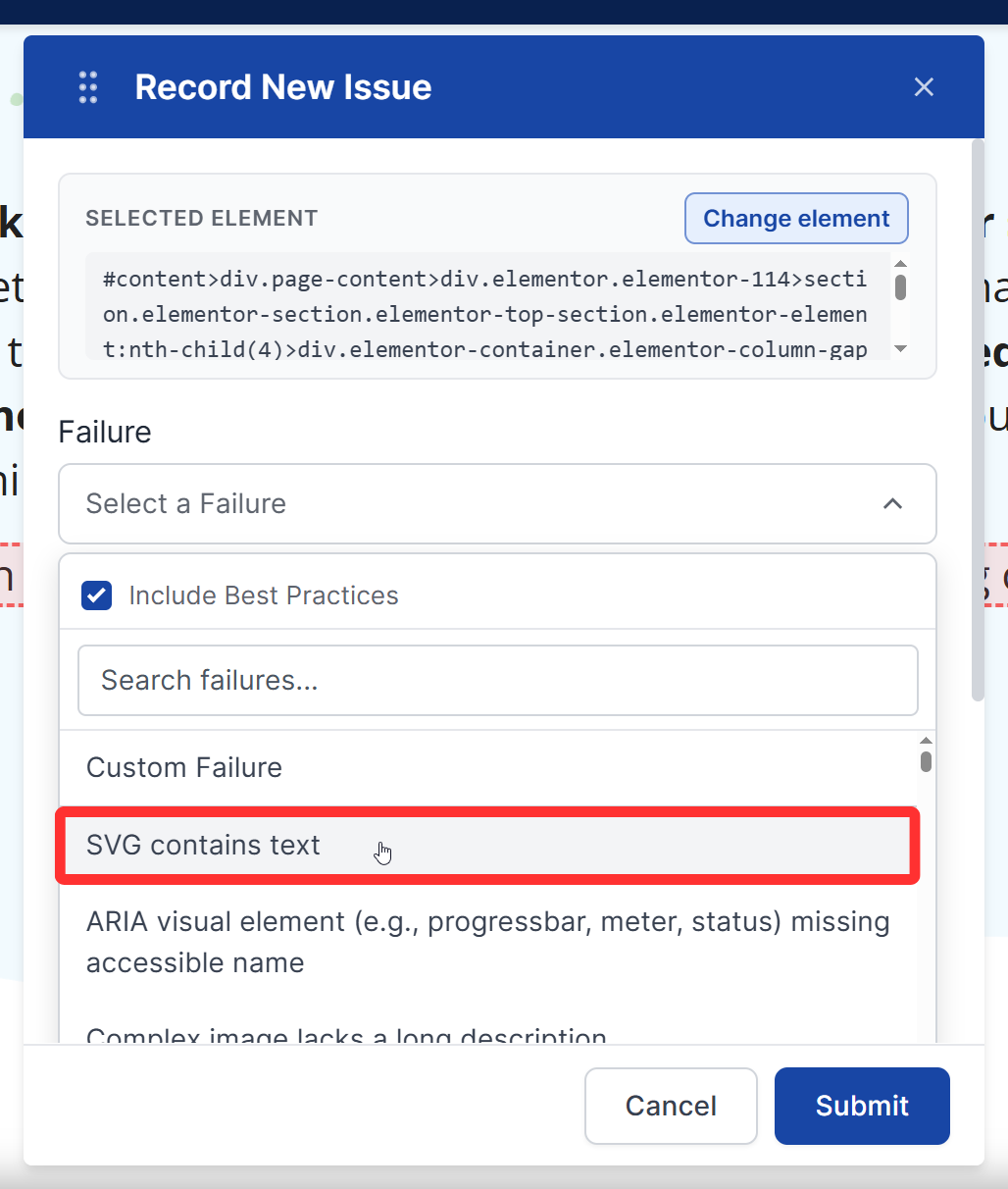
When logging an issue in Visual Mode, you can select Custom Failure as the failure type from the dropdown menu.
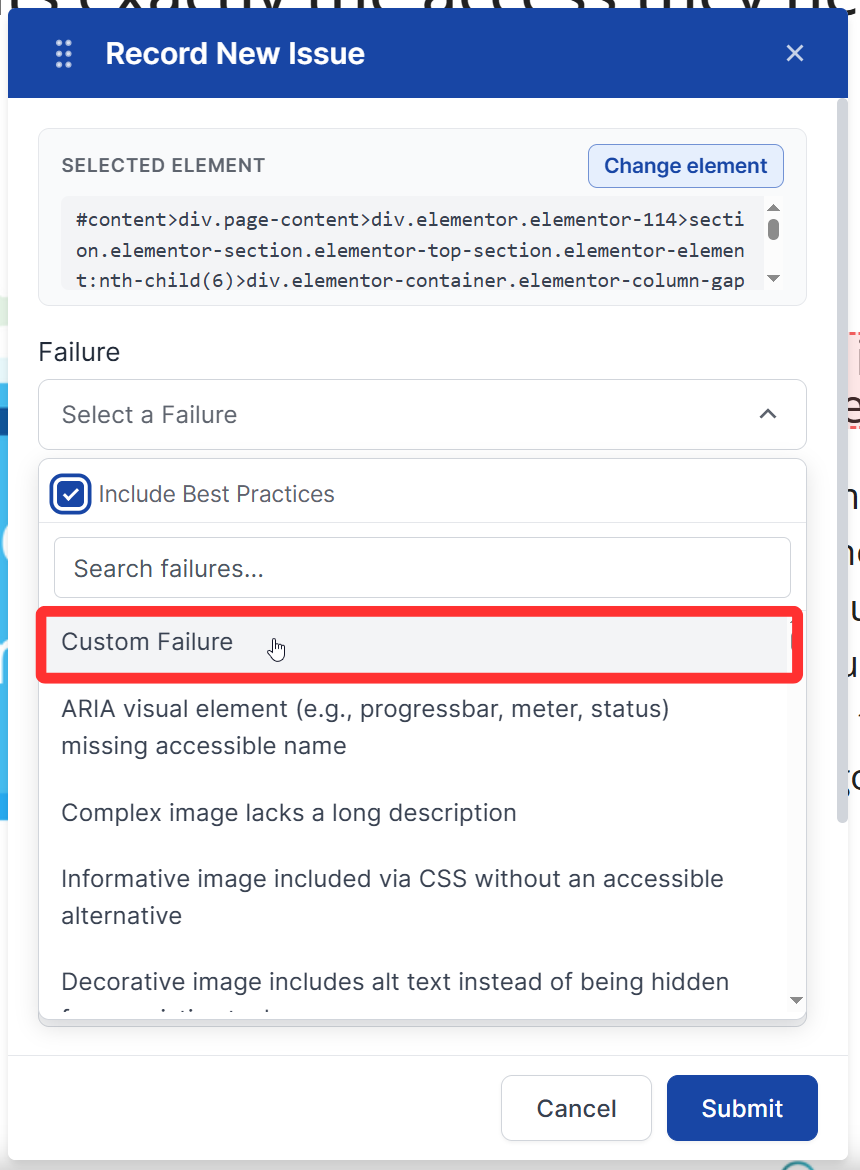
Afterward, you can fill out the remaining fields, including the Issue Title and Severity for the new Custom Failure.
You’ll also choose a Scope for the issue: Global if it applies sitewide (like something in the header, footer, or nav on every page), Pattern if it repeats across a group of similar pages or elements, or Page-specific if it only affects this one page. It defaults to Page-specific. This applies to any manually-logged issue, not just Custom Failures, and the scope also shows as a badge on the issue in the Issues list and instance detail panel. This field is part of the Visual Mode logging form specifically – it isn’t available when creating a Custom Issue from the dashboard.
You can also select a Success Criterion from the dropdown list if the accessibility violation of the Custom Failure maps under any of them, or you can leave it blank if it isn’t.
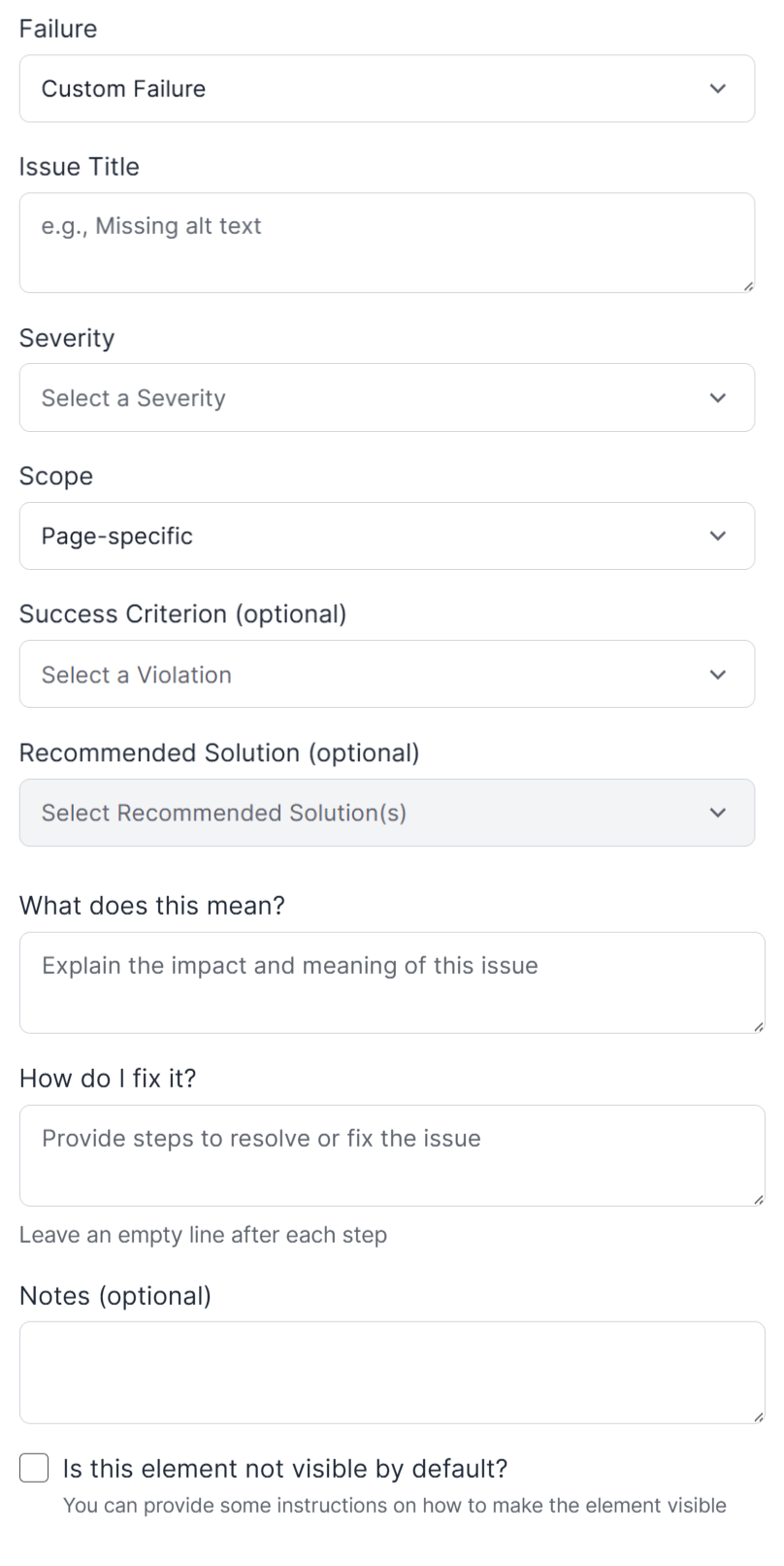
Selecting a Success Criterion
When a Success Criterion is selected for the Custom Failure, the fields underneath, What does this mean? and How do I fix it? will automatically populate with details from that criterion. You can edit these fields to match their details with your specific observations about the accessibility issue.
Recommended solutions related to the chosen success criterion can also be selected from the dropdown.
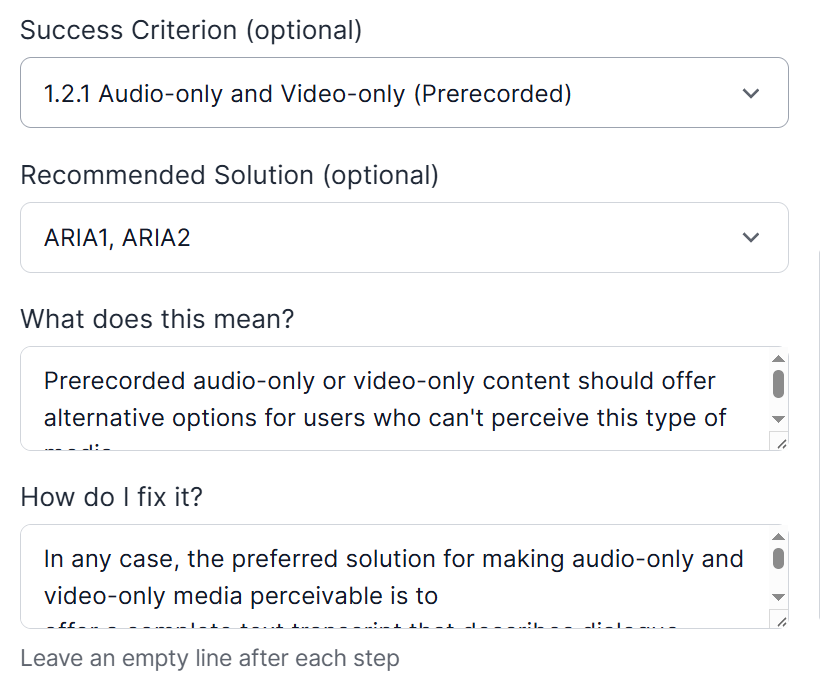
Not Selecting a Success Criterion
If you choose not to select a success criterion, you can manually input details for the fields, What does this mean? and How do I fix it? before submitting the manual issue.
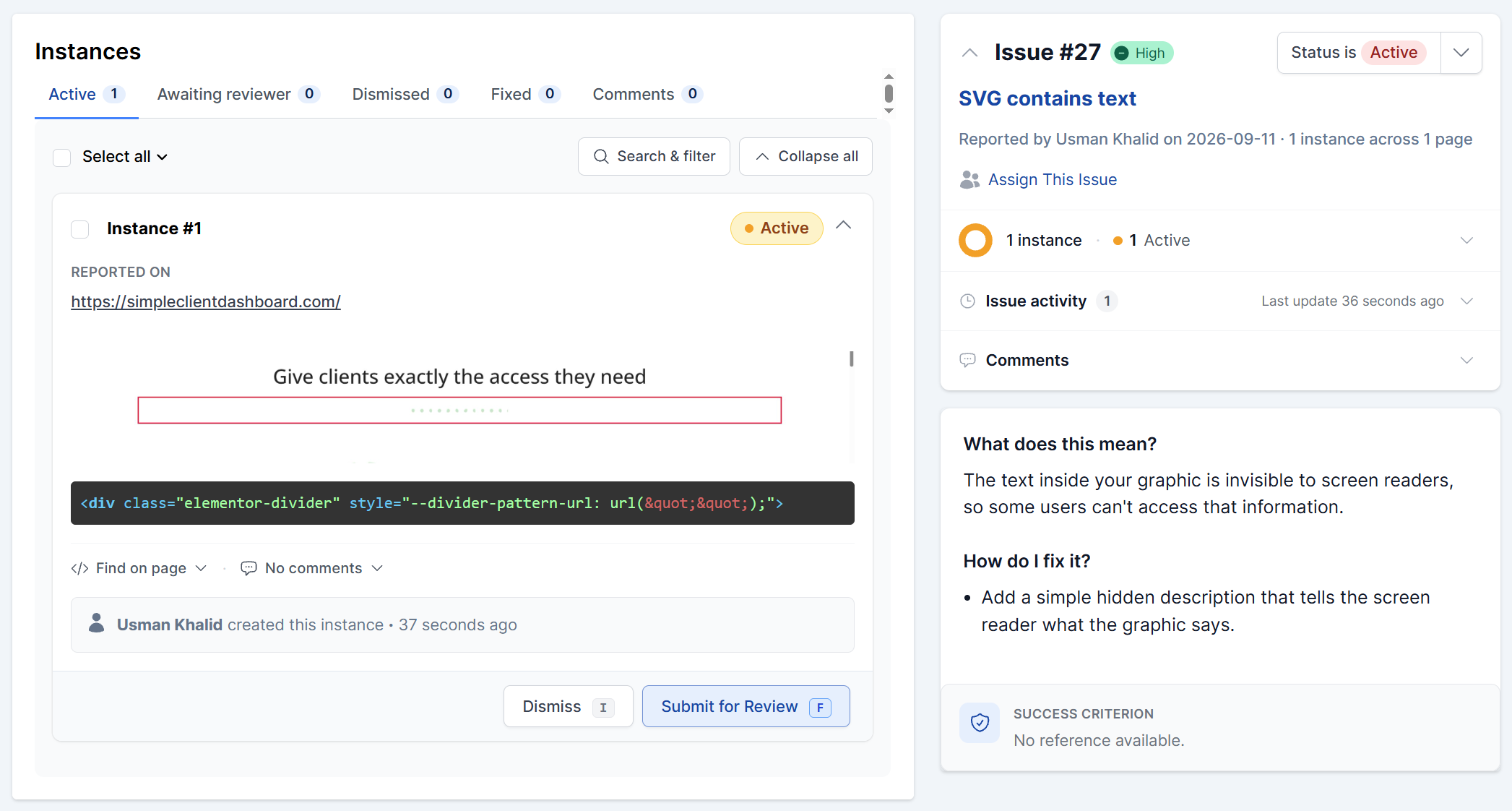
After filling in all the fields and submitting, the issue will get logged, and you can view it from the issues list to resolve it later.
Custom Failure issues submitted without a selected success criterion or recommended solutions will not display these details in the detailed issue view.
Template Permissions
Whether your changes to a Custom Failure update the reusable template, or just save to the individual issue you’re logging, depends on your User Role.
Owner, Administrator, Project Manager, and Accessibility Tester roles can create and update reusable Custom Issue templates directly from Visual Mode. If you edit any fields on a selected Custom Failure, you’ll see a prompt asking whether you’d like to update the existing issue template or create a new reusable issue with your changes.
Developer and Client roles can still select an existing Custom Failure as a starting point while logging an issue, but can’t create or update the shared template. If you edit the fields, you’ll see a note letting you know your changes will be saved on that issue only – your edits aren’t lost, they just won’t update the shared template.
Creating a Custom Failure Issue from the Dashboard
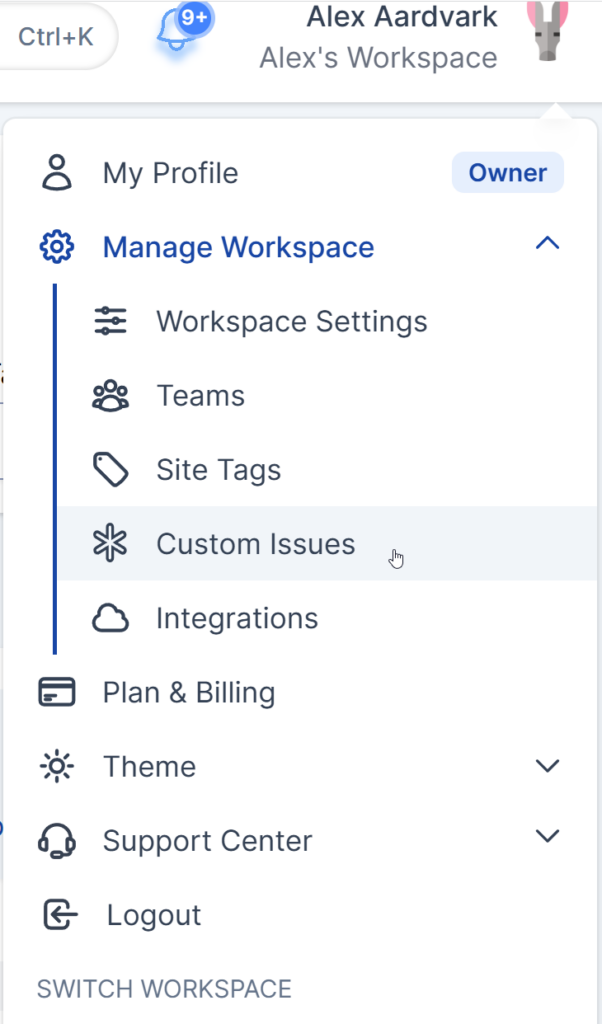
To create a Custom Issue from the dashboard options, click on the profile icon on the top-right to open the drop-down.
From the drop-down options, select Manage Workspace > Custom Issues.
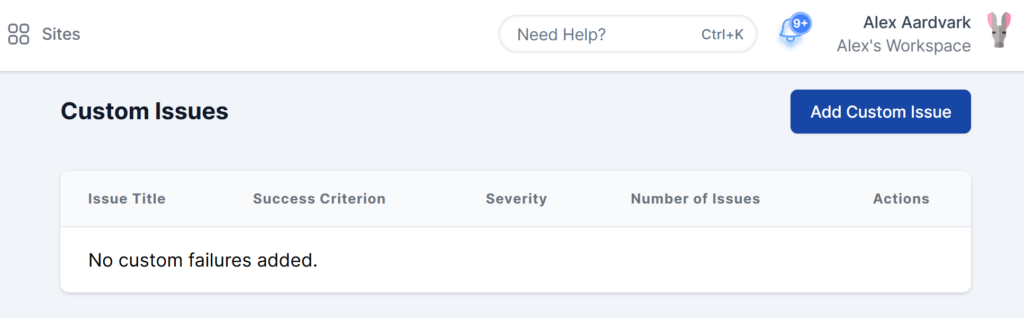
On the new screen, click on Add Custom Issue from the top right of the Custom Issues section.
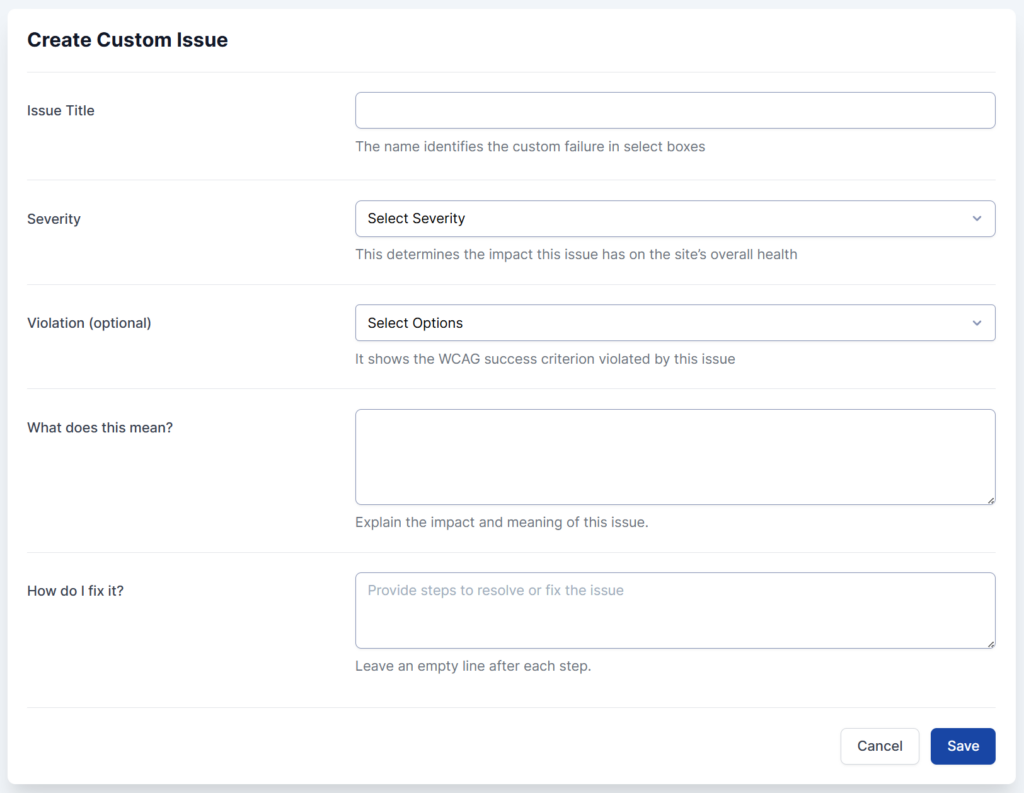
On the next screen, you need to add the details for the New Custom Issue, including Issue Title, Severity, Violation, What does that mean?, and How do I fix it?. You can fill out all these fields the same way as outlined above while logging an issue in Visual Mode.
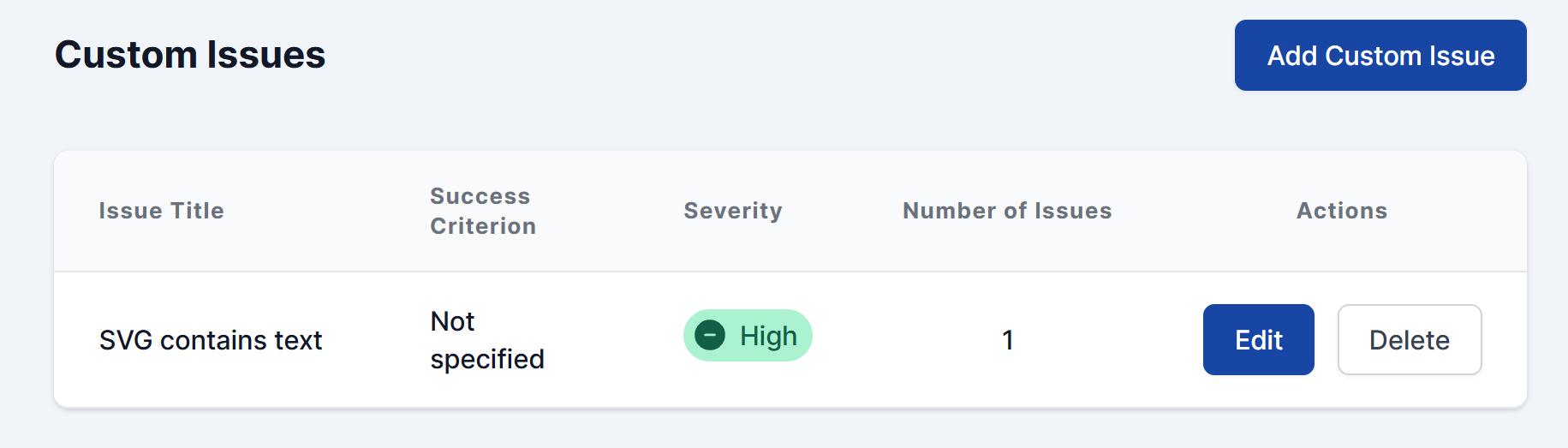
Once the new Custom Issue is created, it will be displayed within the list of Custom Issues section.
After that, you can also reuse the Custom Issues, like when logging an issue in Visual Mode. This works both ways – a Custom Failure you create while logging an issue in Visual Mode can be reused later too, whether you’re back in Visual Mode or creating a new Custom Issue from the dashboard.
FAQ
Can I reuse the Custom Failure Issues created in AAArdvark?
Yes – all roles can reuse existing Custom Failure Issues, whether they were created from the dashboard or Visual Mode, by selecting them from the Failure dropdown while logging a new issue.
When do I need to create a Custom Failure issue?
You should create a new Custom Failure issue when a previous automated or manual check hasn’t captured the specific issue you identified during the manual audit.
These can include best practice issues that may not be strictly required by WCAG but are still critical for usability and accessibility.