
Project Manager Workflow
Introduction
If you’re managing accessibility projects in AAArdvark, this guide walks you through how to set up your workspace, coordinate your team, and keep remediation moving from kickoff to resolution.
What a Project Manager Can Do
The Project Manager role is built for people who run projects rather than perform audits. As a Project Manager, you can:
- Assign, comment on, and update the status of Issues.
- Invite Accessibility Testers, Developers, Project Managers, and Clients to the Workspace.
- Manage teams.
- Add, update, and delete Sites, Pages, and Integrations.
- Update Roles and remove Users (Accessibility Testers, Developers, Project Managers, and Clients)
- Start automated Scans.
- Update Page statuses and assign Pages for manual testing.
- Access, manage, and create Site Tags.
Project Managers cannot manage billing or workspace plan settings. Those actions are reserved for the Workspace Owner.
For a full list of permissions across all roles, see the Team Settings guide.
Setting Up a Project
Before your team can start auditing, set up the workspace so everyone has access to the right things.
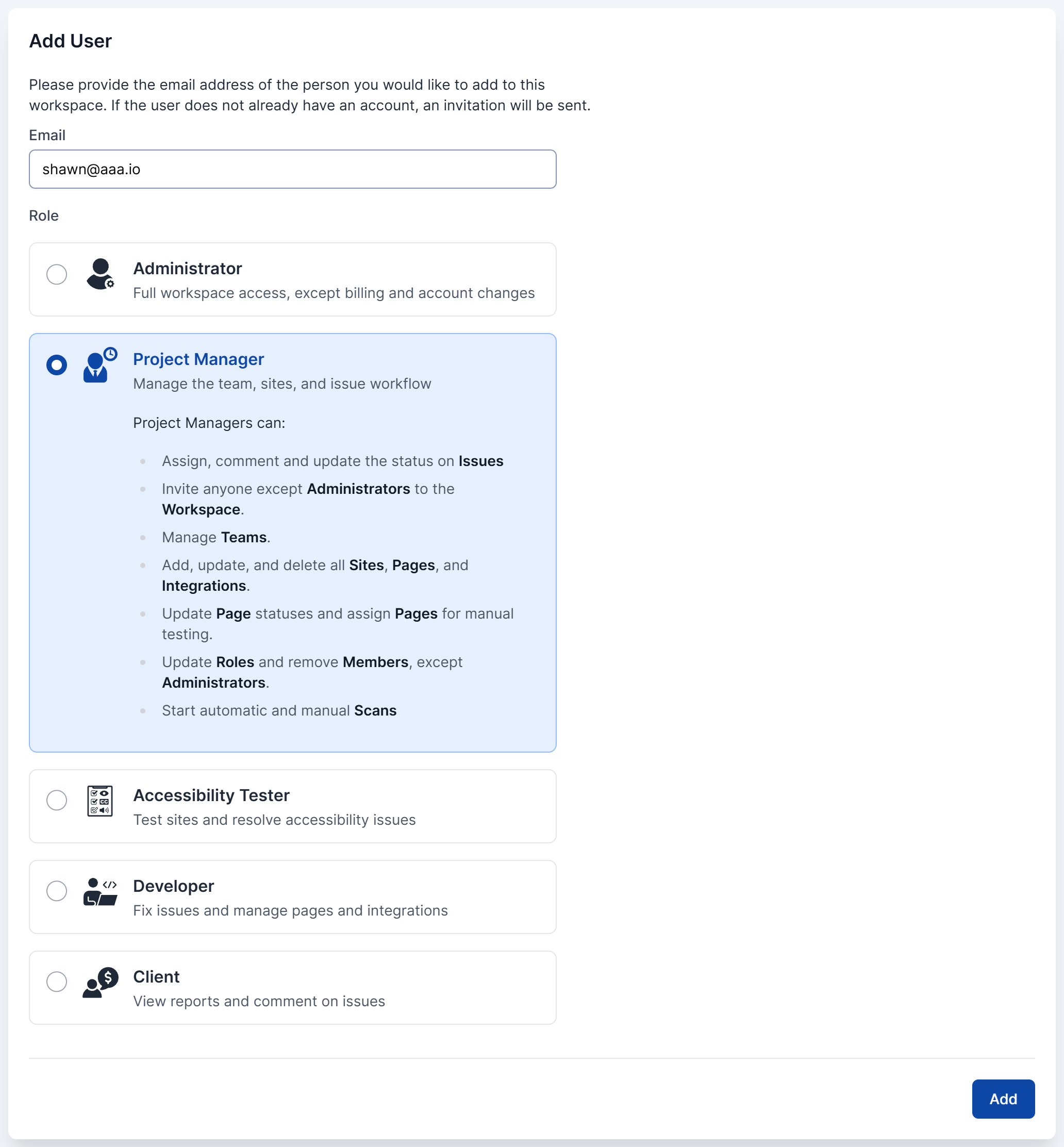
1. Invite Your Team
Go to Manage Workspace > Team, then invite users by entering their email addresses. You’ll assign each person a role as you add them:
- Accessibility Testers for users who will conduct manual audits
- Developers for users who will fix reported issues
- Clients for others who will coordinate alongside you
- Project Managers for people who need to monitor progress
New users receive an email invitation. Once they join, add them to a Team so they can access the right Sites.
2. Create a Team and Assign Sites
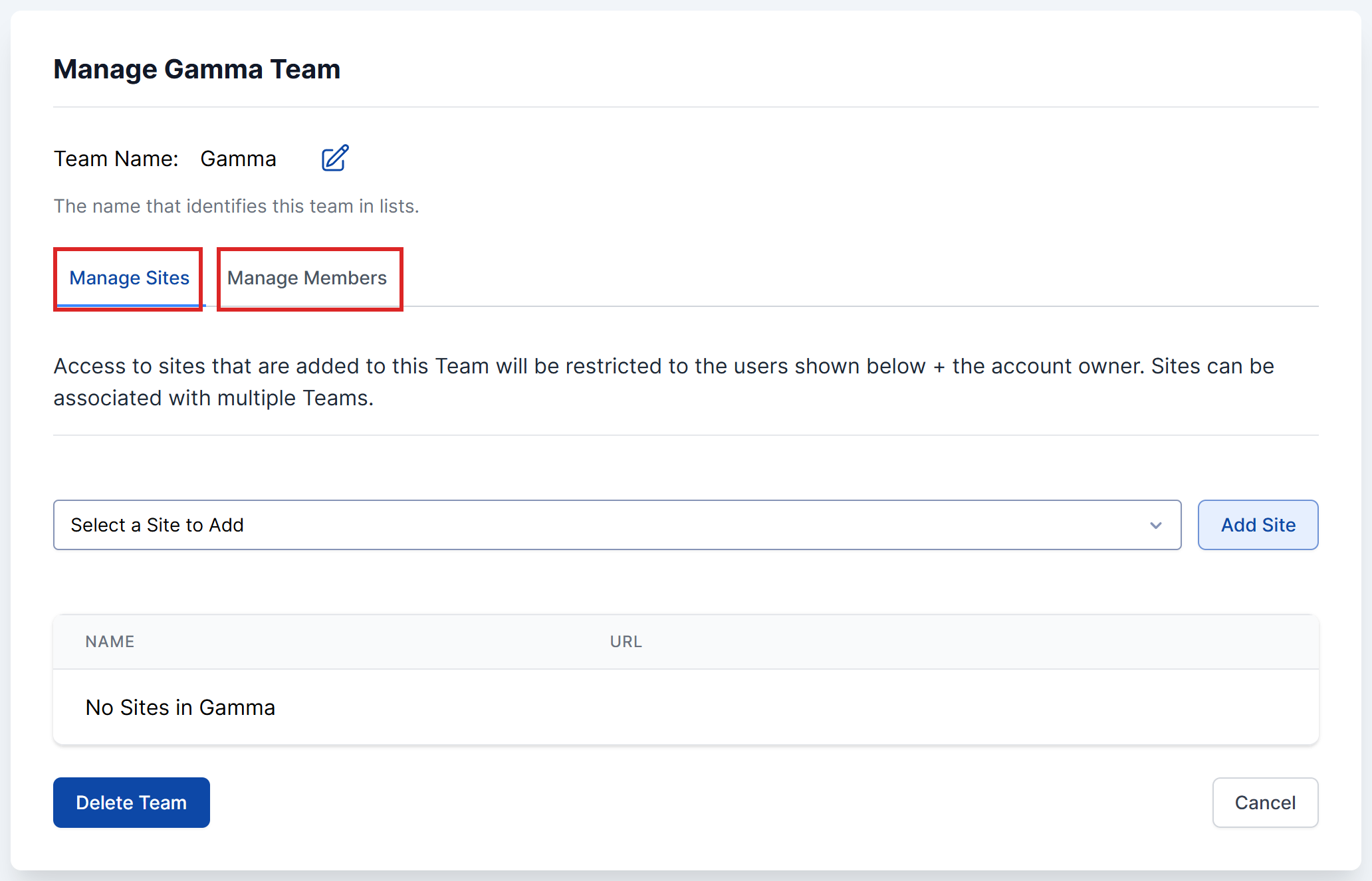
Teams control which users can see which Sites. You can set up multiple Teams, which is useful if you’re managing several clients or departments under one Workspace.
- From the Teams page, click Add a Team.
- Give the team a descriptive name (for example, “Design Team”).
- Click Save.
- Open the team and add the relevant Sites and Members.
3. Add Sites and Pages
To add a new site for your team to audit:
- From the dashboard, click Add a New Site and follow the steps to add your site.
- Open Pages in the site’s sidebar and add pages via sitemap or manually.
Once pages are added, AAArdvark will prompt you to run a scan.
4. Run an Initial Scan
An initial automated scan gives the team a starting list of issues to work from.
From the Site Dashboard, click Run Automated Scan to scan the full site. You can also scan individual pages from the Pages tab.

For ongoing monitoring, schedule automated scans to run regularly. See the Automated Scans guide.
Auditing Your Sites
Automated scans catch a lot, but they don’t catch everything. AAArdvark supports both automated scanning and manual accessibility testing. As a Project Manager, you run the scans and keep manual testing on track.
Automated Scans
Automated scans run from the Site Dashboard or the Pages tab. You can run them on demand or schedule them to run regularly. See the Automated Scans guide for setup and scheduling.
Manual Testing
Manual testing covers the issues that automated scans can’t find, such as keyboard navigation, screen reader behavior, and content clarity. Accessibility Testers record these manual issues. Project Managers don’t record manual issues, but they assign pages for testing and keep track of progress.
To track progress, use the Manual Testing card on the Site Dashboard. It shows how many pages are Not Started, In Progress, Tested, or Skipped, and its button lets you start or continue the manual audit. See the Manual Testing Workflow guide for details.
Assigning and Tracking Issues
Once issues are in AAArdvark, whether from automated scans or manual testing, your job is to keep remediation moving.
Assigning Issues
Open any issue from the Issues list and use the Assign This Issue button to assign it to a team member. You can also assign issues directly from the Issues list view.
Tracking Status
Each issue moves through these statuses:
- Active: the issue has been found and isn’t fixed yet
- Needs confirmation: the scan flagged something it isn’t certain about, and someone needs to confirm it’s a real issue before it’s worked on
- Awaiting scan: an automated issue was marked fixed; the next scan checks the page and either marks it Fixed or returns it to Active
- Awaiting reviewer: a manual issue was marked fixed; since no scan can verify it, a reviewer (an Administrator, the Owner, or an Accessibility Tester) confirms the fix
- Reopened: the issue was marked fixed, but the latest scan still found it
- Fixed: the fix has been confirmed
- Dismissed: the issue is a false positive or otherwise not actionable
You can update the status of any issue and leave comments to coordinate with the team.
Use the filters in the Issues list to see what’s outstanding:
- Filter by Status to see what’s still active or waiting on a fix
- Filter by Assigned to to check workload by team member
- Filter by Severity to prioritize the most serious issues
Two screens in the site’s sidebar help you keep things moving: Needs confirmation lists issues waiting to be confirmed, and Review fixes lists fixes waiting for a reviewer.
See the Fix and Manage Issues guide for the full issue workflow.
Using Visual Mode
Open a site in Visual Mode from the Site Dashboard to see its issues on the live pages.
Visual Mode requires the AAArdvark browser extension. Install it for Chrome, Edge, or Firefox before getting started.
As a Project Manager, the Visual Mode toolbar lets you:
- Switch between View Issues and Browse Site
- Open the Issues list for the page you’re on
- Scan Page to run a new scan on that page
- Set the page’s Manual Testing status
Recording manual issues isn’t available to Project Managers. Accessibility Testers, Administrators, and the Workspace Owner record them.

See the Manual Testing Workflow guide for how your team records and tracks manual issues.
Site Tags help you organize Sites across the Workspace. Use them to filter and group Sites by client, region, project phase, or any category that fits your workflow.
To create, rename, or delete tags, go to Manage Workspace > Site Tags. To tag a single site, open its Site Dashboard and click Add Tag + below the site URL.
Managing Integrations
Integrations connect AAArdvark to your existing workflow through webhooks and our API. You can use webhooks to push issue updates to other tools, or build custom workflows against the API.
To configure them, open the site and click Integrations in its sidebar.
See the Webhooks guide for setup details.
Next Steps
Once the project is underway, the Accessibility Team Workflow guide gives you a full picture of how automated testing, manual testing, remediation, and ongoing monitoring fit together as a team.
Related Guides
-

Understanding the Accessibility Testing Workflow
-
Developer Workflow
-
Accessibility Team Workflow
-
Automated Testing Workflow