

Developer Workflow
Introduction
This guide walks you through the Developer workflow in AAArdvark, including how to find your assigned issues, understand what needs fixing, and track your progress through to resolution.
What a Developer Can Do
The Developer role focuses on the technical work of fixing accessibility issues. Developers in AAArdvark can:
- Assign, comment on, and update the status of Issues
- Add, update, and delete Pages and Integrations
- Update Sites
- Start automatic and manual Scans
Note: Developers cannot manage workspace users, teams, or billing. Those actions are reserved for the Project Manager, Administrator, or Workspace Owner. If you need access to a new site or need to invite someone to the workspace, reach out to one of those roles.
Getting Started
Before you can work on a site as a developer, a Workspace Owner, Project Manager, or Administrator needs to:
- Invite you to the Workspace.
- Add you to the Team that has access to the sites you’re working on.
Once added, you’ll receive an email invitation. After accepting, you’ll have access to the sites assigned to your Team.
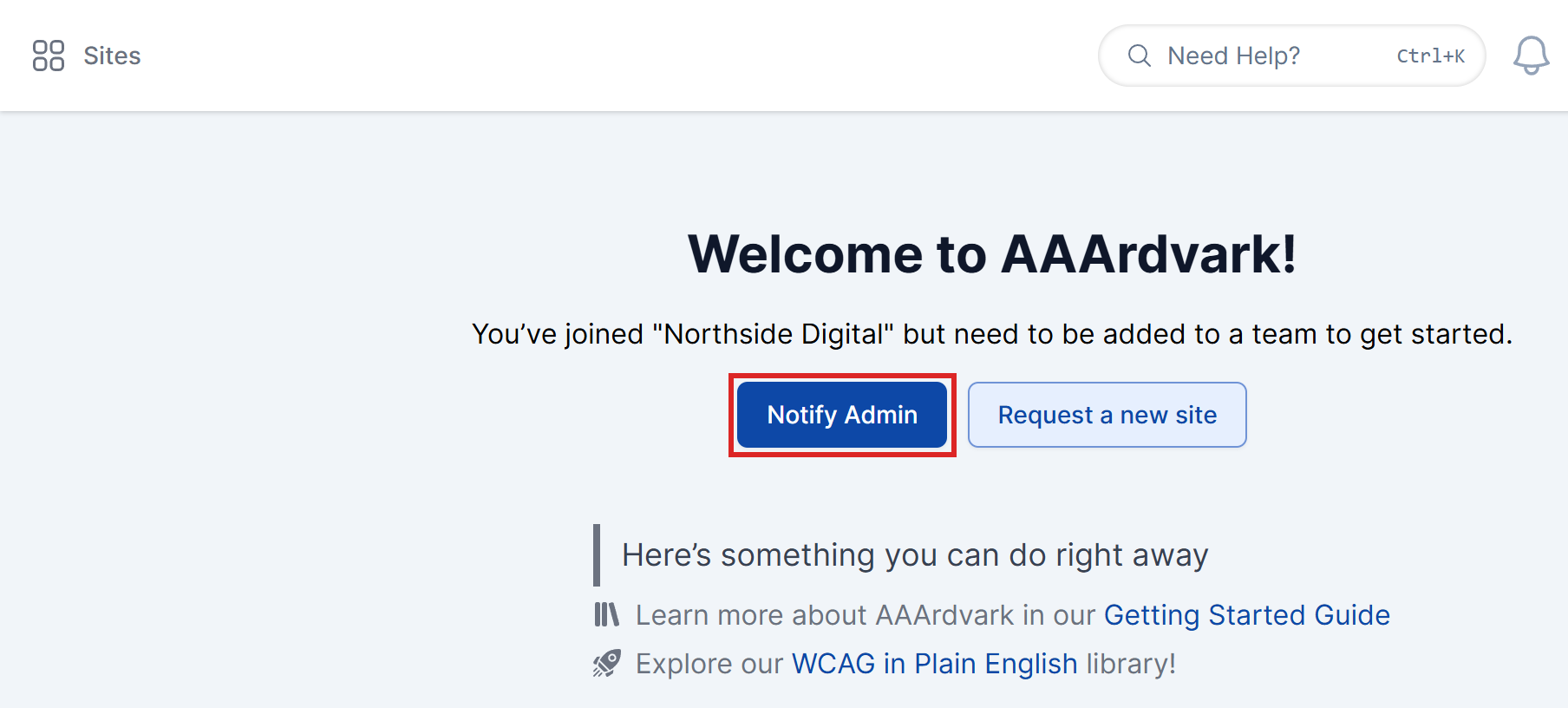
If you’ve joined the Workspace but don’t see any sites, you may not have been added to a Team yet. Click Notify Admin from your dashboard to prompt the admin to add you.
Learn more about how Teams and roles work in the Team Settings guide.
Viewing Your Assigned Issues
Once you’re in a workspace and have access to at least one site, the Issues tab on any Site Dashboard is where your work lives.
Filtering to Find Your Issues
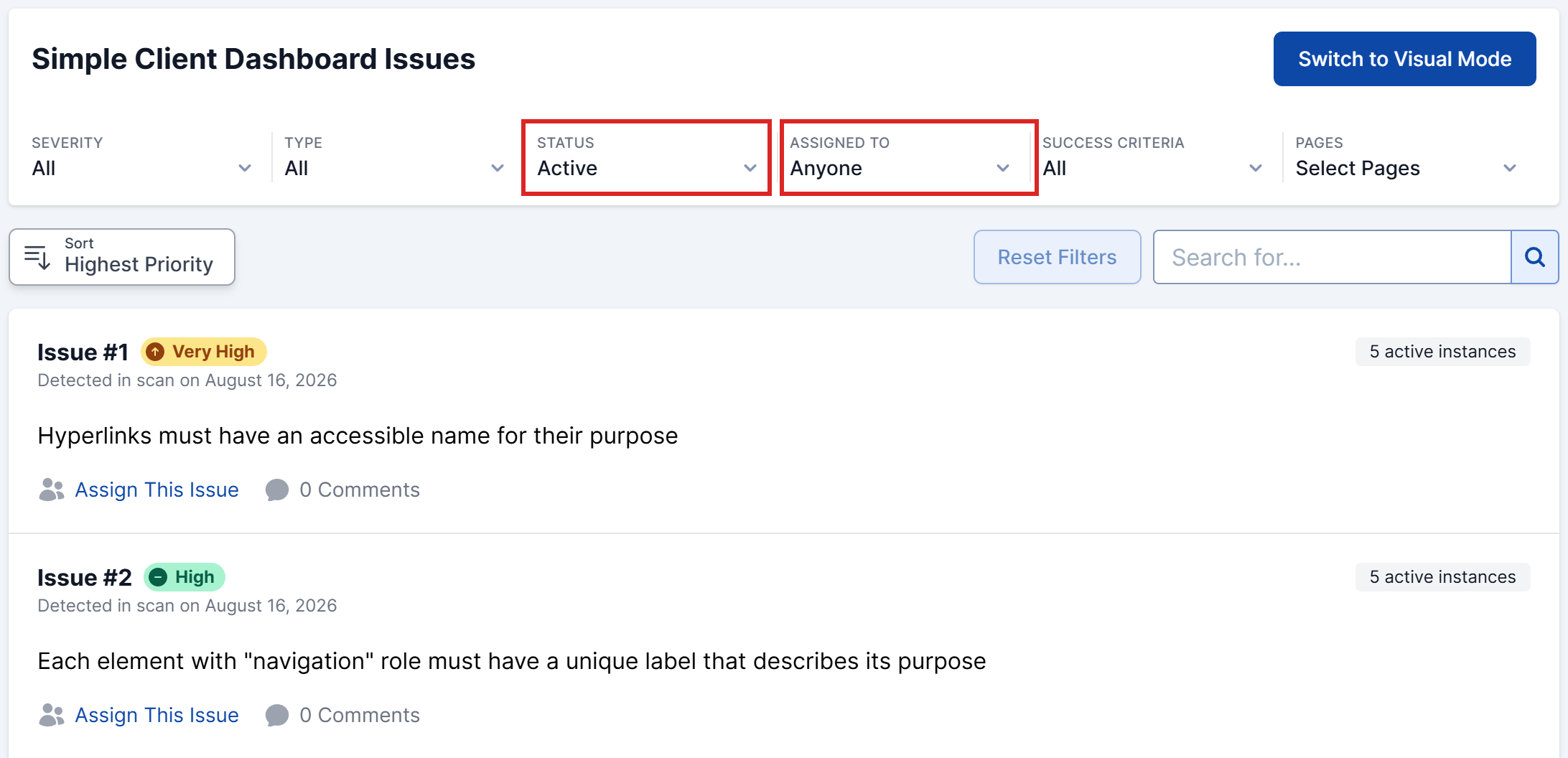
Use the filters at the top of the Issues list to narrow down to what’s assigned to you:
- Assigned To: Select your name to see only your issues.
- Status: Filter by Active to see unresolved issues, or Pending to see fixes waiting to be checked.
- Type: Switch between Automatic (found by scans) and Manual (recorded by an Accessibility Tester).
Learn more about filtering and sorting in the Understand and View Issues guide.
Reading an Issue
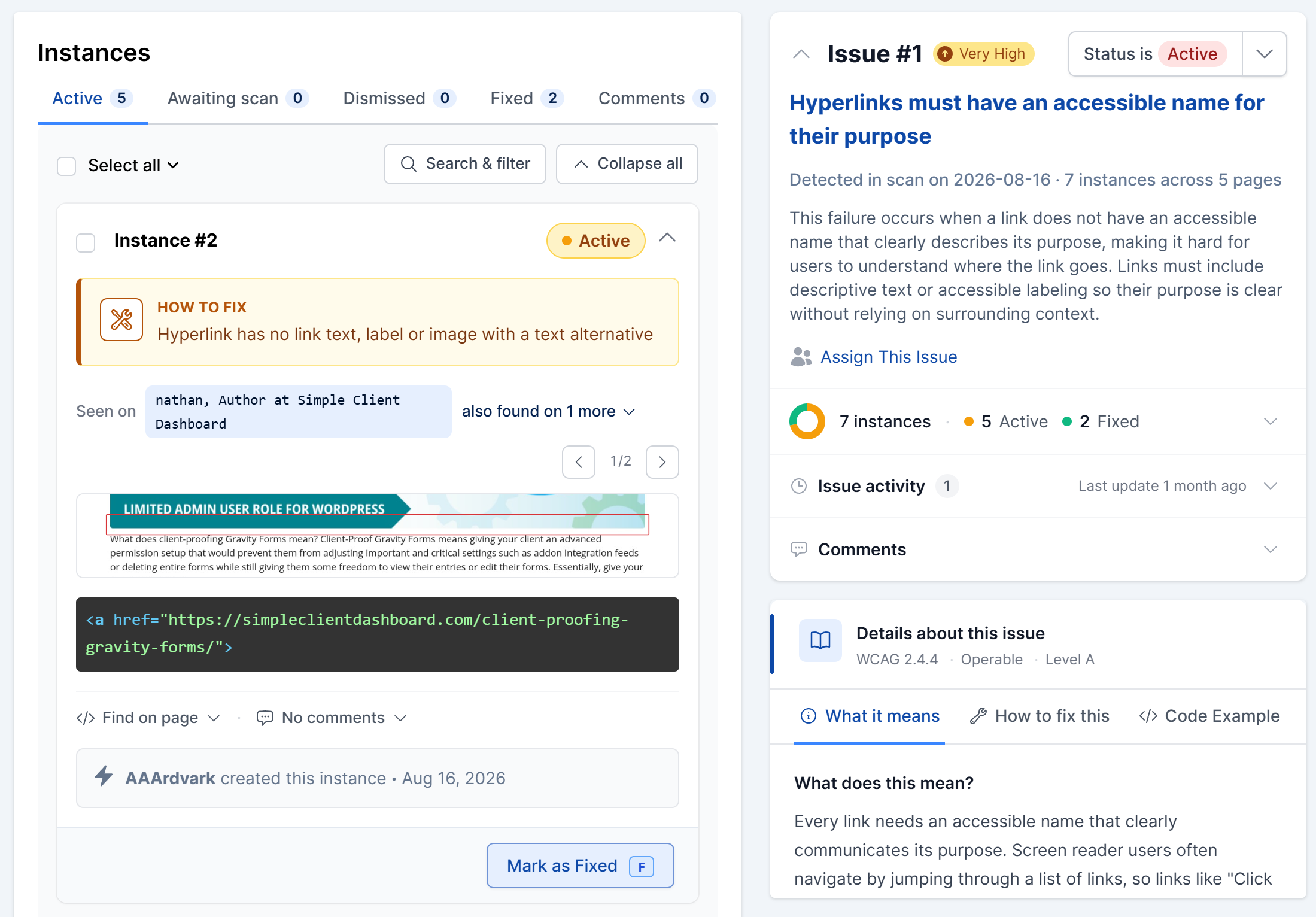
Click any issue to open the detail view. Each issue includes:
- Issue details: The WCAG failure title and description, severity, and a status dropdown, along with the Assign This Issue button.
- Guidance: Three tabs explain the problem and the fix: What it means, How to fix this, and Code Example.
- Instances: Every place this issue appears on the site, with the code snippet and a screenshot of where it was found. Click the page next to Seen on and choose Open in visual mode to see the issue highlighted in context on the live page with Visual Mode.
- Instance tabs: Instances are grouped by status: Active, Awaiting scan, Awaiting reviewer (manual issues only), Dismissed, and Fixed.
- Comments: Notes from your team, including anything an Accessibility Tester may have flagged.
Fixing Issues
Marking Instances as Fixed
Once you’ve addressed an instance in your code, let AAArdvark know from the instance card. What happens next depends on where the issue came from.
Automated issues:
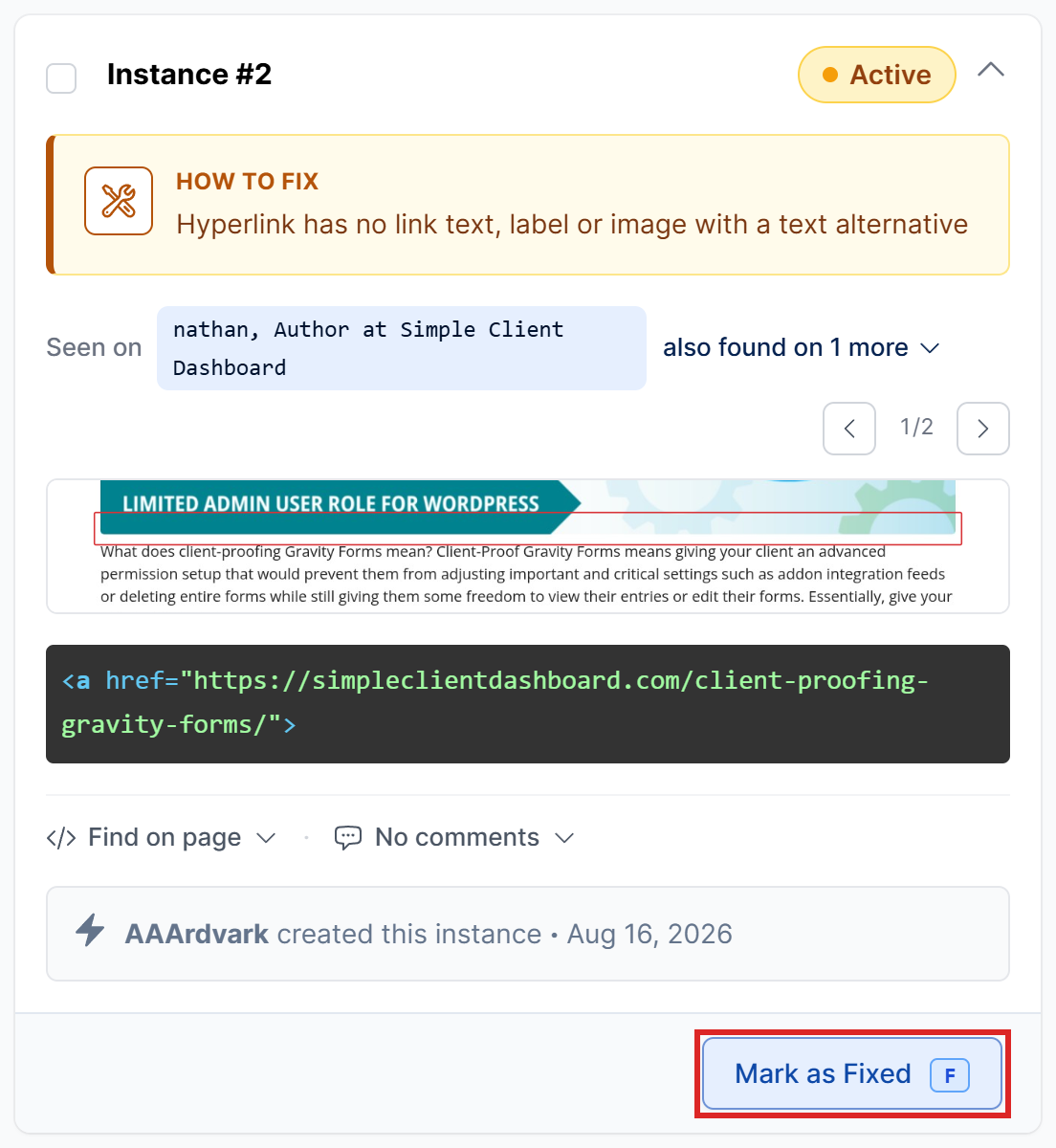
- Open the issue and find the instance in the Active tab.
- Click Mark as Fixed.
The instance moves to Awaiting scan. The next scan checks the page: if the issue is gone, the instance becomes Fixed. If it’s still there, it goes back to your active list marked Reopened.
Manual issues:
- Open the issue and find the instance in the Active tab.
- Click Submit for Review.
The instance moves to Awaiting reviewer. Since no scan can check a manual issue, an Accessibility Tester, Administrator, or the Workspace Owner reviews your fix. They’ll click Resolve Instance to mark it Fixed, or send it back to Active if something still needs attention.
The same happens if an instance that was already Fixed shows up again in a later scan: it’s marked Reopened so you can take another look. When every instance of an issue is Fixed or Dismissed, the issue is automatically set to Resolved.
Developers can’t dismiss instances. If you think an instance isn’t a real issue, leave a comment on it so a Project Manager, Accessibility Tester, Administrator, or the Workspace Owner can review it and dismiss it.
Marking an Entire Issue as Resolved
If you’ve addressed all instances of an issue at the source (for example, fixing a template that affected multiple pages), you can mark the whole issue as Resolved using the status dropdown on the issue page.
The next scan will confirm the fix. If any instances reappear, the issue will be automatically reopened.
Communicating with Your Team
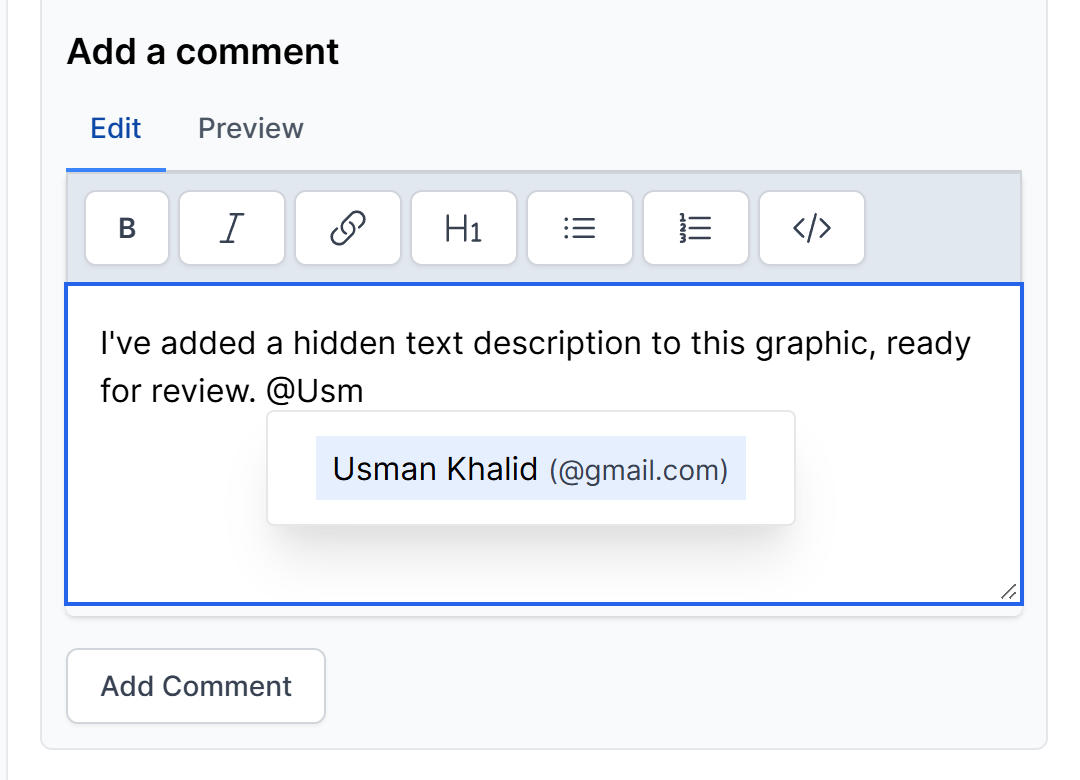
Leave comments on any instance to keep your team in the loop. Open the instance’s comments, type your note, and @mention Accessibility Testers or Project Managers to flag a question or update. Only members of the site’s Team can be tagged, and they’ll receive a notification if they have email alerts enabled.
The Comments tab on the issue collects every comment left on its instances in one place, so you can catch up on the whole discussion.
Learn more in the Fix and Manage Issues guide.
Managing Pages and Integrations
Adding and Updating Pages
Developers can add pages to a site, edit page settings, and delete pages no longer in scope. From the Pages tab on the Site Dashboard:
- Add a page: Click Add Page to add pages manually or from your sitemap.
- Edit a page: Update the page path, configure authentication settings for login-protected pages, or set a scan delay for slow-loading content.
- Delete a page: Remove pages that are no longer part of the site’s scope.
Learn more in the Adding Pages guide.
Managing Integrations
Developers can add and configure integrations by clicking Integrations in the site’s sidebar. This includes webhooks and API connections that connect AAArdvark to your existing workflow tools.
Learn more in the API Integrations guide.
Running Scans
Developers can trigger scans manually from the Pages tab or from within Visual Mode.
Visual Mode requires the AAArdvark browser extension. Install it for Chrome, Edge, or Firefox before getting started.
To scan a single page, click Scan on that page in the Pages list. To scan several pages at once, select them using the checkboxes, then click the scan button that appears (for example, Scan 3 Selected Pages). You can also run a full site scan from the Site Dashboard.
After a scan completes, the Issues list will update to reflect any new findings or confirmed fixes.
Learn more in the Automated Scans guide.
Next Steps
Once you’ve marked your fixes, automated scans verify the code-level fixes, and your Accessibility Tester confirms the manual ones. Keep an eye on the Pending status filter to track what’s waiting to be checked.
For a full picture of how the remediation process works end to end, see the Automated Testing Workflow and Manual Testing Workflow guides.
Related Guides
-

Understanding the Accessibility Testing Workflow
-
Project Manager Workflow
-
Accessibility Team Workflow
-
Automated Testing Workflow